Microsoft Entra PIM: Step-by-Step Configuration Guide
Configure Microsoft Entra PIM in 5 steps: assign eligible roles, enforce MFA on activation, and enable just-in-time access - requires Entra ID P2.
by Emanuel De Almeida
in_this_guide+
- 01TL;DR
- 02Prerequisites
- 03Step 1: Open Microsoft Entra PIM
- 04How Does PIM Role Assignment Work?
- 05Step 3: Tighten PIM Role Settings
- 06Step 4: Activate an Eligible Role (User Perspective)
- 07Step 5: Review Active Assignments and Audit History
- 08Troubleshooting Common PIM Activation Errors
- 09How to Verify PIM Role Activation Worked
- --FAQ
TL;DR
- Goal: Configure Microsoft Entra PIM so users activate privileged roles on demand, with MFA and a written justification required every time.
- License required: Microsoft Entra ID P2 for every user managed by or benefiting from PIM.
- Time to complete: Roughly 20-30 minutes in a test tenant before rolling out to production.
- End result: Users gain Exchange Administrator rights (or any eligible role) in under 60 seconds - and the access expires automatically when the window closes.
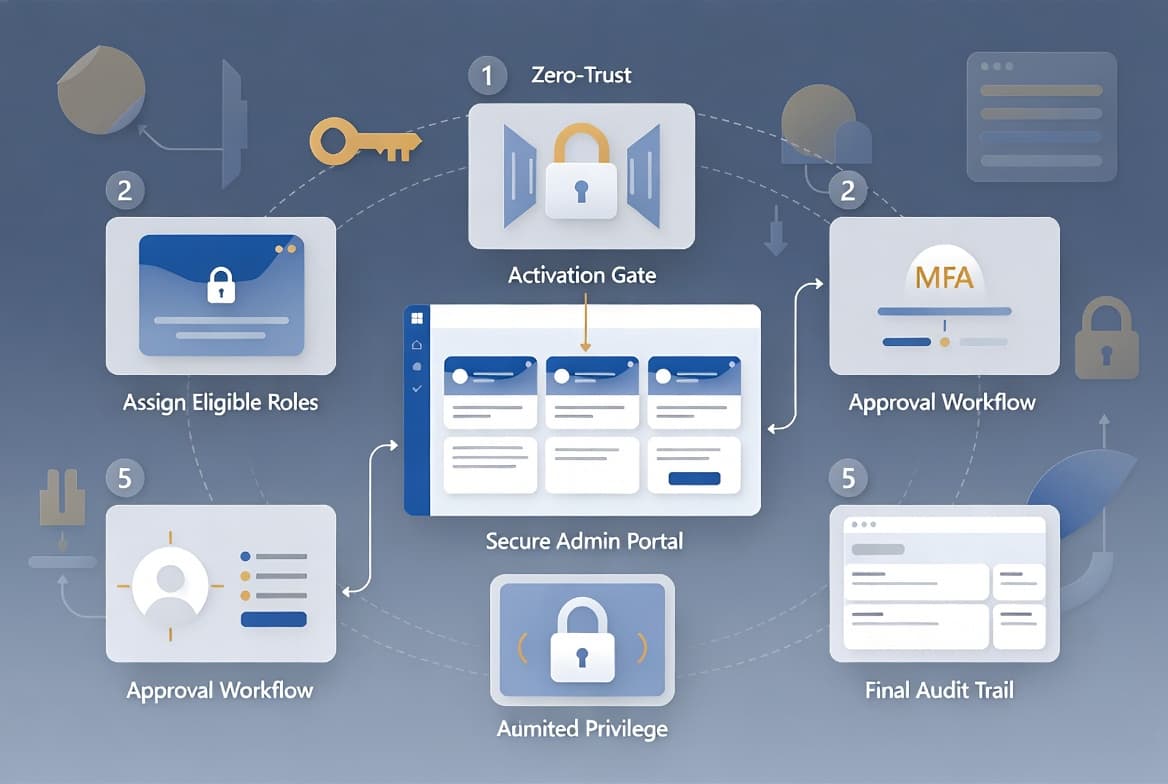
Microsoft Entra PIM gives sysadmins a way to hand out privileged access only when it is needed, and take it back the moment it is not. After this tutorial, your users will activate Exchange Administrator rights in under 60 seconds with MFA and justification enforced - no standing access, no forgotten permissions. Complete every step in a test tenant first.
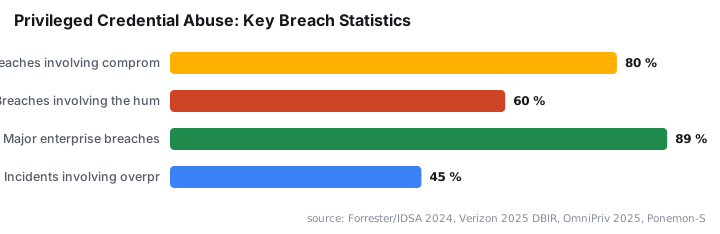
Privilege misuse is not a minor risk. Forrester Research and the IDSA estimate that 80% of breaches involve compromised or abused privileged credentials, and 90% of organizations experienced at least one identity-related incident in the past year. Meanwhile, ReliaQuest's cloud threat analysis found that 99% of cloud identities were over-privileged, making privilege escalation trivial once an attacker gets an initial foothold. Just-in-time access through PIM is a direct answer to that problem.
For teams already managing Windows deployments, see our guide on Intune assignment groups and targeting strategy - many of the same scoping principles apply when deciding who receives eligible PIM roles.
Prerequisites
- Microsoft Entra ID P2 license assigned to every account involved - the admin configuring PIM and each end user activating roles.
- A role of at least Privileged Role Administrator or Global Administrator in the tenant.
- The target user account already exists in Microsoft Entra ID.
- Multi-factor authentication (MFA) registered, or ready to register, for the activating user.
- Basic familiarity with the Microsoft Entra admin center.
Step 1: Open Microsoft Entra PIM
Sign in to the Microsoft Entra admin center with a Privileged Role Administrator account. In the left navigation, expand Identity governance, then select Privileged Identity Management. This is your central hub for every eligible and active role assignment across Entra ID and Azure resources.
Bookmark the direct PIM URL and share it with users who should not have broad admin center access - they only need the PIM blade to manage their own eligible roles.
How Does PIM Role Assignment Work?
PIM splits role assignments into two types: eligible and active. An eligible assignment stays dormant until the user deliberately activates it. An active assignment grants the role immediately without any activation step. For privileged roles, eligible assignments are the right default - they enforce just-in-time access and keep standing permissions to a minimum.
Inside PIM, select Microsoft Entra roles, then choose Roles from the left menu. The full list of Entra built-in roles appears. To assign an eligible role:
- Click Add assignments.
- Choose the target role from the dropdown - for example, Exchange Administrator.
- Under Select members, search for and select the user or group.
- Click Next.
- Leave Assignment type as Eligible (default) unless standing access is genuinely required.
- Optionally set a start date and end date to create time-bound access.
- Click Assign.
Assigning a group instead of individual users is practical for teams with identical access needs - one assignment covers everyone in the group.
Step 3: Tighten PIM Role Settings
Default settings are a starting point, not a finished configuration. Per the detailed PIM configuration walkthrough on alitajran.com, review three setting tabs before any user activates a role.
To reach the settings:
- In the Roles list, find and click the role you just assigned.
- Select Role settings from the role detail pane.
- Click Edit.
Work through each tab:
Activation tab - key controls:
- Maximum activation duration (hours): keep it as short as the job task allows.
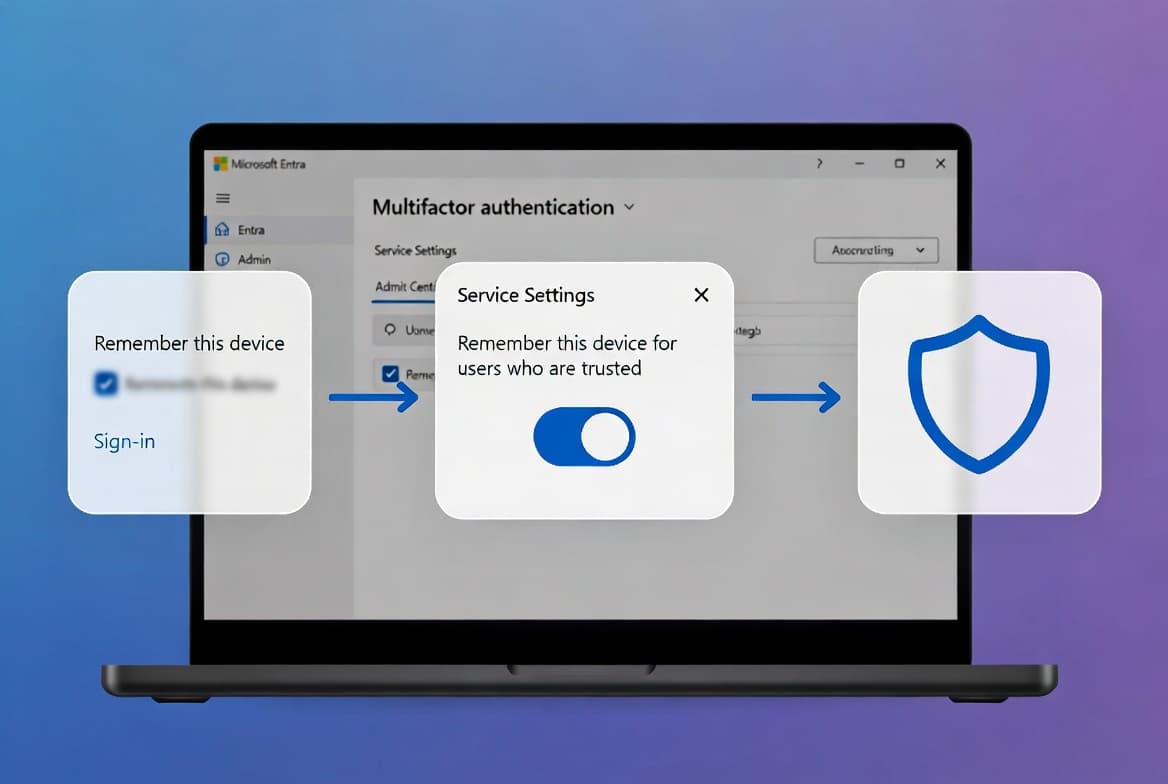
- Require MFA on activation: enable this for every privileged role.
- Require justification: enable so every activation is self-documented.
- Require approval: optional, but recommended for high-privilege roles such as Global Administrator.
Assignment tab - key controls:
- Allow permanent eligible assignment: disable if your policy demands time-bound eligibility.
- Allow permanent active assignment: disable to prevent standing privileged access.
Notification tab - key controls:
- Send email to assignee when an eligible assignment is added.
- Send email to approver when a role activation needs review.
- Send email when the role is activated.
Click Update to save. Changes apply to the next activation request. Existing active assignments stay in place - PIM does not revoke them automatically when you update role settings.
The NSA and CISA jointly recommend implementing just-in-time access where privilege elevation is limited to predetermined periods, logged, and requires a justification statement. These three Activation tab settings put that recommendation into practice directly.
Step 4: Activate an Eligible Role (User Perspective)
Have the eligible user complete these steps, or run through them together the first time. The user needs only their own eligible assignment - no Privileged Role Administrator rights required.
- Sign in to
https://entra.microsoft.comor go directly to the PIM blade. - Under PIM, select My roles.
- Locate the eligible role and click Activate.
- If MFA is not already satisfied for this session, complete the on-screen MFA prompt before continuing.
- Enter a justification in the Reason field - for example,
Configuring mail flow rules - ticket #4521. - Adjust the activation duration if a shorter window is enough.
- Click Activate.
PIM processes the request and the browser refreshes automatically when the role becomes active. The user holds the role for the duration specified. When that window closes, PIM removes the role without any action needed from the user or an admin.
Step 5: Review Active Assignments and Audit History
Confirm the activation completed correctly by checking both the assignment view and the audit log.
- In PIM, go to Microsoft Entra roles > Assignments.
- Switch to the Active assignments tab.
- Confirm the user appears, the role is correct, and the End time matches your policy.
- For audit purposes, go to PIM > Activity > Resource audit history.
- Export the log if an internal or external audit requires it.
PIM retains audit history for role activations, approvals, and assignment changes. Schedule regular access reviews under Identity governance > Access reviews to confirm eligible users still need their assignments - this is also where access review configuration lives if you want a walkthrough of that process.
For co-managed device environments where privilege scope overlaps with endpoint management, the ConfigMgr device configuration workload switch guide covers a related boundary decision.
Troubleshooting Common PIM Activation Errors
Most activation failures fall into a small set of patterns. Check these before escalating.
MFA not satisfied: PIM blocks activation if the user has not completed MFA in the current session. The fix is to sign out, sign back in, complete MFA, and then activate. If MFA prompts never appear, check that the user has a registered MFA method in the Entra ID MFA setup.
Activation button is greyed out: This usually means the assignment has expired or the user's Entra ID P2 license has lapsed. Verify the assignment end date in the Eligible assignments tab and confirm the license is active in the Microsoft 365 admin center.
Activation email did not arrive: Revisit the Notification tab in Role settings and confirm alert recipients are correct. Also check whether a mail flow rule is filtering PIM notification messages before they reach the inbox.
Approval request stuck: If approval is required and the approver has not received a notification, confirm the approver's email address is listed in the Approval tab of Role settings and that notification emails are not landing in spam.
Activation succeeds but permissions are not visible: Allow up to two minutes for directory replication. If the role still shows no effect after that, sign out and sign back in to force a token refresh.
For broader identity hardening context, the Intune proactive remediation guide for Lenovo SmartSense screen locking shows how endpoint-level controls pair with identity-layer policies like PIM.
How to Verify PIM Role Activation Worked
After the user activates the role, run a quick sanity check.
- Ask the user to perform a low-risk action that requires the activated role - for example, opening the Exchange admin center if the Exchange Administrator role was used. Success confirms the activation is live.
- Return to Active assignments in PIM and verify the State column reads
Activatedand the End time matches the approved duration. - Check the notification inbox of any configured approvers - an activation email should have arrived within a few minutes.
- When the activation window expires, verify the user no longer appears in the Active assignments list and can no longer perform the privileged action.
The 2025 Ponemon-Sullivan Privacy Report found that 45% of incidents involve overprivileged internal users, with many of those access paths invisible to security teams. Completing this verification step closes that visibility gap for every activation your team performs.
Frequently asked questions
What license do I need to run Microsoft Entra PIM?+
You need a Microsoft Entra ID P2 license for every user managed by or benefiting from PIM - including users with eligible roles, users who approve activation requests, and users who run access reviews. Microsoft 365 E5 includes P2 as part of the bundle.
What is the difference between an eligible assignment and an active assignment in PIM?+
An eligible assignment stays dormant until the user activates it. An active assignment grants the role immediately with no activation step. Eligible assignments are the correct default for privileged roles because they enforce just-in-time access and reduce standing permissions.
Can a Global Administrator be removed through PIM?+
No. PIM includes a safeguard that blocks removal of the last active Global Administrator and Privileged Role Administrator assignments. This prevents an organization from accidentally locking itself out of the tenant entirely.
Do users need access to the full Microsoft Entra admin center to activate their roles?+
No. Users reach the PIM blade directly without browsing the broader admin center. Restricting general admin center access is recommended practice - users still activate, extend, and review eligible roles through the PIM interface alone.
How long does PIM keep activation audit logs?+
PIM stores audit history in the Resource audit history view. For long-term retention, export logs to a Log Analytics workspace or a SIEM. Microsoft's PIM audit log reference documents available fields and export formats for compliance purposes.
Does PIM work with Azure resource roles as well as Entra ID roles?+
Yes. The same PIM blade covers both Entra ID directory roles and Azure resource roles across subscriptions and resource groups. Select Azure resources instead of Microsoft Entra roles in the PIM navigation - the assignment and activation workflow is nearly identical.