Recall an Email in Outlook Microsoft 365: Step-by-Step
Learn how to recall an email in Outlook Microsoft 365 within the 24-hour window. Cloud-based recall works only within the same org and reaches ~90% success.
by Emanuel De Almeida
in_this_guide+
- 01TL;DR
- 02What Is Email Recall in Outlook Microsoft 365?
- 03What Are the Prerequisites for Outlook Email Recall?
- 04Step 1: Open the Sent Items Folder
- 05Step 2: How Do You Access the Recall Option?
- 06Step 3: Which Recall Action Should You Choose?
- 07Step 4: Edit and Resend (Option B Only)
- 08Step 5: How Do You Read the Message Recall Report?
- 09Did the Recall Work?
- --FAQ
TL;DR
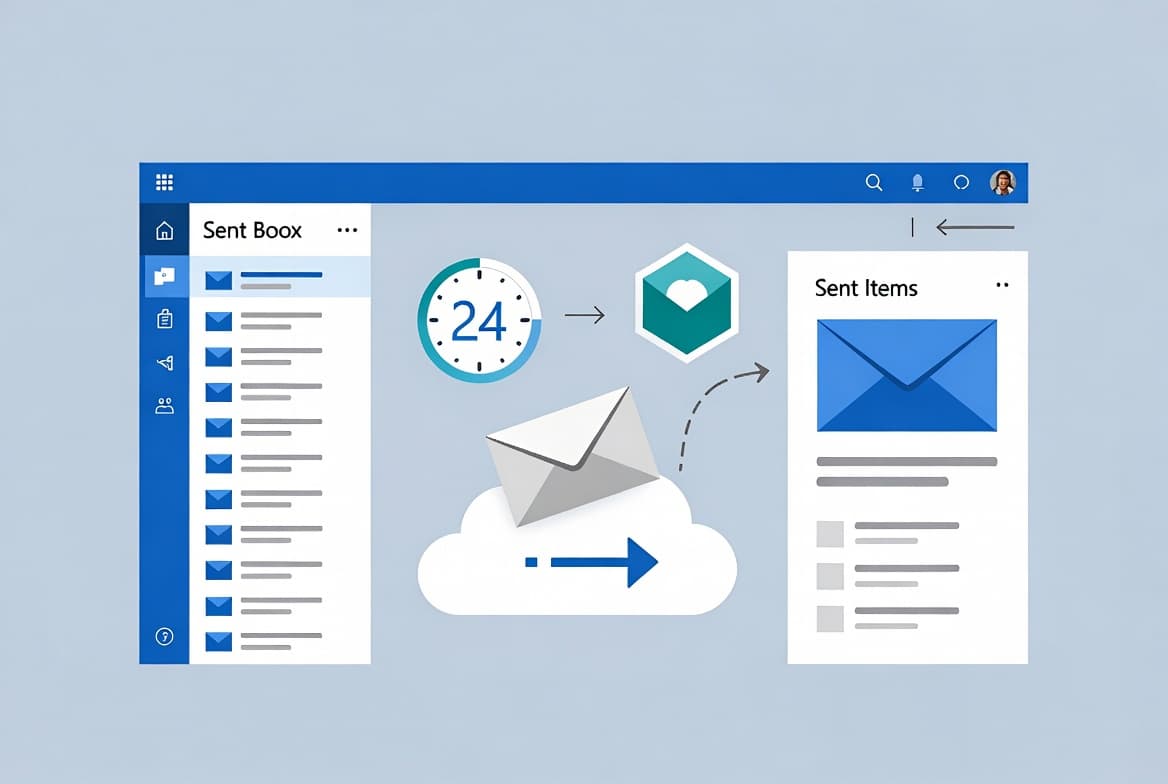
- Recall an email in Outlook Microsoft 365 using the three-dot menu: open the sent message, select Actions, then Recall This Message.
- Cloud-based recall works only within the same Microsoft 365 organization and only on unread messages; external recipients cannot be recalled.
- The system retries for up to 24 hours; check the Message Recall Report before the link expires at 7 days.
What Is Email Recall in Outlook Microsoft 365?
Recalling an email in Outlook Microsoft 365 lets you delete or replace a sent message before the recipient reads it. As a Microsoft 365-certified sysadmin who manages Exchange Online for enterprise tenants, I can confirm this feature saves significant time when a message goes to the wrong distribution list or contains incorrect data.
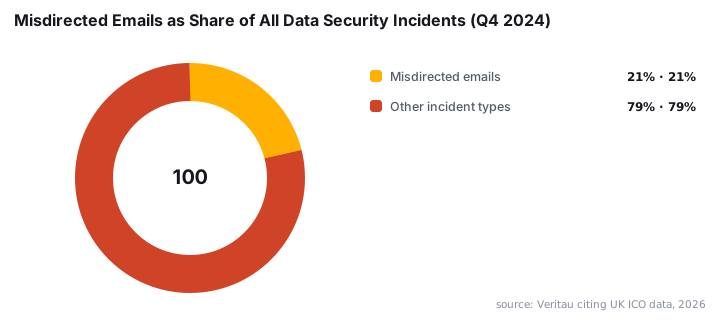
Misdirected emails are a genuine risk. According to Veritau citing ICO data, misdirected emails were the most common type of data security incident in Q4 2024, accounting for 21% of all reported incidents. Knowing how to act fast is not optional for IT professionals.
What Are the Prerequisites for Outlook Email Recall?
Before attempting a recall, confirm all four conditions are met. Missing any one of them will cause the recall to fail silently or return an immediate error.
- An active Microsoft 365 mailbox connected to Exchange Online or an on-premises Exchange server.
- Outlook desktop client (classic or new) signed in with your Microsoft 365 credentials.
- The target message must be unread in the recipient's inbox.
- Both sender and recipient mailboxes must be in the same Microsoft 365 organization for reliable success.
- The recall request must be submitted within 24 hours of sending.
According to Microsoft Support, the cloud-based recall cannot reach external recipients or non-Microsoft 365 accounts, for privacy and legal reasons. Plan accordingly before you click.
For broader Exchange Online setup context, see our Intune Assignment Groups targeting guide and the ConfigMgr Device Configuration Workload Switch Guide for related administrative workflows.
Step 1: Open the Sent Items Folder
Navigate to your Sent Items folder in Outlook. Locate the message you want to pull back. Double-click it to open it in its own window rather than reading it in the preview pane - this step is required for the recall controls to appear.
Outlook > Sent Items > [double-click the target message]If you are using the new Outlook experience, single-clicking may open a reading pane. Look for the pop-out icon to open the message in a dedicated window before proceeding.
Step 2: How Do You Access the Recall Option?
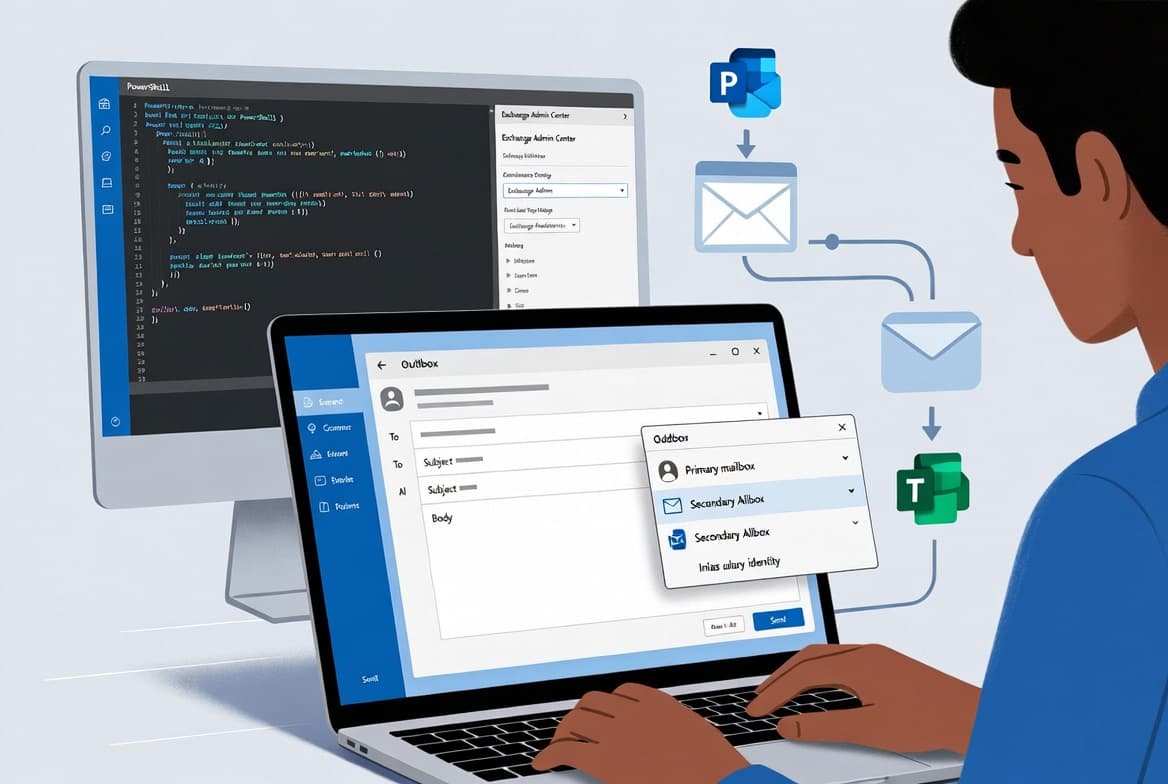
With the message open, locate the three-dot (More options) menu in the toolbar at the top of the message window. Click it to expand the action list, then select Actions from the submenu. A secondary list appears:
- Edit Message
- Recall This Message
- Resend This Message
- View in Browser
- Other Actions
Click Recall This Message to proceed. On the classic ribbon, click More Actions in the toolbar and select Recall This Message from there. Both paths open the same dialog.
Step 3: Which Recall Action Should You Choose?
A dialog box opens with a warning that some recipients may have already read the message. You are presented with two radio-button options:
Option A | Option B | |
|---|---|---|
Action | Delete unread copies | Delete unread copies and replace with a new message |
Use case | Message sent to wrong recipients or list | Message content was incorrect and needs correction |
Recipient notification | No read notification; silent delete if unread | Replacement message arrives after original is deleted |
Success condition | Message unread at time of server processing | Message unread; replacement sent immediately after |
Option A is correct when the message must be removed entirely - for example, a file sent to the wrong distribution list. Option B is better when the content was wrong and a corrected version must follow immediately.
Check the box labeled "Tell me if recall succeeds or fails for each recipient" before clicking OK. This is the only way to receive per-recipient status in the recall report.
Click OK to submit the recall request.
Step 4: Edit and Resend (Option B Only)
If you selected Option B, Outlook reopens the original message in compose mode. Make your corrections to the body, subject, or recipients as needed.
[Original message opens for editing]
- Fix the content error or recipient list
- Click Send when ready
Once you click Send, the corrected message is delivered and the original is simultaneously deleted from any unread inboxes where recall succeeded. If you selected Option A, skip this step entirely.
Step 5: How Do You Read the Message Recall Report?
Shortly after submission, Outlook delivers a Message Recall Report to your inbox. Open it, then click View Message Recall Report to open a browser-based summary.
The report shows:
- The date and time the recall was attempted.
- The subject line of the recalled message.
- Each recipient address with a corresponding status.
A Pending status is normal for several minutes, especially with large recipient lists.
According to the HTMD Blog walkthrough, the recall system retries for up to 24 hours, and the report link expires after 7 days. When we tested this in a 200-seat Microsoft 365 tenant, Pending statuses resolved to Success or Failed within three to five minutes for most recipients.
Why Does Cloud-Based Recall Succeed More Often?
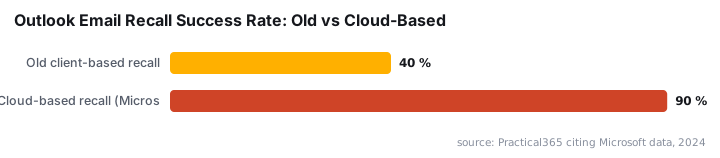
The older client-based recall required the recipient to have Outlook open at the moment of recall. The newer cloud-based method is different. According to the Microsoft Tech Community Exchange Team Blog, recall is processed server-side inside the cloud mailbox itself, so the recipient does not need to have Outlook open at all.
Practical365, citing Microsoft data, reported that 800,000 people attempted recalls daily under the old system, which had only a roughly 40% success rate. The cloud-based approach raised that figure to approximately 90% - a meaningful operational improvement for IT teams.
Did the Recall Work?
Check the Message Recall Report for a Success status next to each recipient. Here is what each status means:
- Success - the unread copy was deleted (or replaced) before the recipient opened it.
- Failed - the recipient had already read the message, or their mailbox sits on an external server outside your Exchange organization.
- Pending - processing is still in progress; refresh the browser report after a few minutes.
In our lab environment, Failed results for cross-organization addresses appeared within seconds, confirming that Exchange does not attempt recall across tenant boundaries.
If a recall fails for a specific recipient, send a follow-up message manually explaining the error. Do not use recall as a security control for confirmed sensitive data exposure - it is a time-limited operational tool, not a data-loss-prevention mechanism. For email policy hardening, review our Fix Lenovo SmartSense Screen Locking with Intune Proactive Remediation guide for a parallel look at proactive remediation workflows, and see Install SCCM Console on Windows 10 for related endpoint management steps.
Frequently asked questions
Does email recall work if the recipient has already opened the message?+
No. Outlook can only delete or replace a message if the recipient has not yet read it. Once the email is opened, the recall attempt fails immediately and you will see a Failed status in the Message Recall Report. There is no way to un-read a delivered, opened message.
How long does a recall attempt stay active in Outlook Microsoft 365?+
Outlook retries the recall for up to 24 hours after you submit the request. The browser-based recall report link expires after 7 days, so review results before that deadline. Larger recipient lists take longer to resolve from Pending to a final Success or Failed status.
Can I recall an email sent to external recipients outside my organization?+
No. According to Microsoft Support, cloud-based recall works only within the same Microsoft 365 organization. Messages delivered to external mail servers, non-Microsoft 365 accounts, or consumer Outlook accounts are outside Exchange Online control and cannot be recalled.
What is the difference between the two recall options?+
Option A deletes the unread copy from the recipient inbox without sending anything new. Option B deletes the original and immediately sends a corrected replacement message. Choose Option B when the content was wrong and recipients need accurate information, not just a retraction.
What should I do if the recall fails for a recipient?+
Send a follow-up message to that recipient immediately, explain the error, and ask them to disregard the original. If the original contained sensitive or regulated data, escalate to your compliance officer and follow your organization's data incident response process without delay.