Fix "Running Scripts Is Disabled on This System" in PowerShell
PowerShell blocks scripts by default with Restricted policy on Windows 10/11. Change to RemoteSigned or scoped Bypass to fix the error in under 2 minutes.
by Emanuel De Almeida
in_this_guide+
- 01TL;DR
- 02What Causes the "Running Scripts Is Disabled" Error?
- 03What Do the Execution Policy Levels Actually Mean?
- 04Symptoms: What the Error Looks Like
- 05How Do I Check My Current Execution Policy?
- 06Step 1: Set the Policy to RemoteSigned (Recommended)
- 07Step 2: Use Bypass for One-Off or Automated Tasks
- 08Step 3: Verify the Policy in the Registry
- 09What If the Standard Fix Does Not Work?
- 10Security Tips Before You Change the Execution Policy
- --FAQ
TL;DR
- The error
running scripts is disabled on this systemmeans PowerShell's execution policy is set toRestricted, the Windows 10/11 default per Microsoft. - Run
Get-ExecutionPolicy -Listfirst to spot which scope is blocking you. RemoteSignedis the right fix for most sysadmins.Bypasshandles one-off tasks.- Group Policy can silently override any local change on domain-joined machines.
- PowerShell 7 and Windows PowerShell 5.1 maintain separate execution policy settings, so fix both if you use both.
When PowerShell returns running scripts is disabled on this system, the culprit is almost always Restricted - the default execution policy on Windows 10 and 11. A two-command fix gets you running once you understand the scope model. This guide walks you through every layer.
What Causes the "Running Scripts Is Disabled" Error?
The error is a deliberate policy gate, not a bug. Microsoft's documentation is explicit: the execution policy "isn't a security system that restricts user actions" - it exists to prevent accidental execution of untrusted automation code. Any .ps1 file, even one you wrote yourself, is blocked until you explicitly relax the policy.
Common reasons this catches sysadmins off guard:
- Fresh Windows installs reset the policy to
Restricted. - Group Policy on domain-joined machines can enforce
Restrictedand silently override local changes, per Microsoft's Group Policy execution policy documentation. - Running PowerShell as a standard (non-admin) user may expose a policy that differs from the machine-wide setting.
- PowerShell 7 defaults to
RemoteSignedindependently of Windows PowerShell 5.1, per Trio - organizations running both engines must configure each separately.
Attackers know this gate exists. CISA and its Five Eyes partners advise organizations to "strictly control the use of native scripting applications, such as command-line, PowerShell, WinRM, WMI, and DCOM" precisely because the policy is not a hard wall.
What Do the Execution Policy Levels Actually Mean?
Before changing anything, know what you are choosing between. The table below maps every level to real-world behavior.
Policy | Runs local scripts | Requires signature for downloads | Risk level | Best use case |
|---|---|---|---|---|
| No | N/A | None (blocks all) | Default Windows 10/11 setting |
| Only if signed | Yes | Low | High-security environments |
| Yes | Yes | Low-medium | Most sysadmins and developers |
| Yes | No (warns only) | High | Isolated lab environments only |
| Yes | No (no warnings) | Very high | CI/CD pipelines, one-off automation |
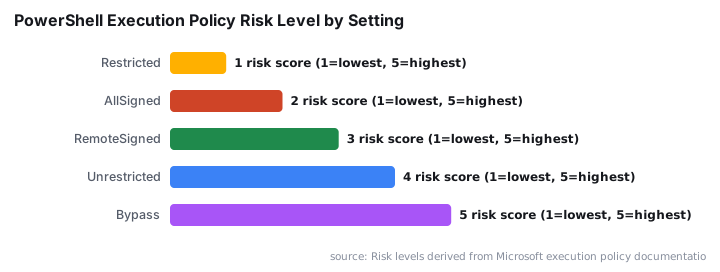
The CIS Benchmarks for Windows 10/11 (v3.0.0, March 2024) recommend RemoteSigned or more restrictive, enforced via Group Policy. CIS control 18.9.95.2 and NIST SP 800-53 SI-7 both call for RemoteSigned as a tier-one PowerShell control, per Automox.
Why does this matter beyond fixing the error? In 2024, CrowdStrike's 2025 Global Threat Report (via Hive Security) found that 79% of all attack detections were malware-free - attackers used legitimate tools like PowerShell instead of custom malware. Policy hygiene is a real defensive layer.
Symptoms: What the Error Looks Like
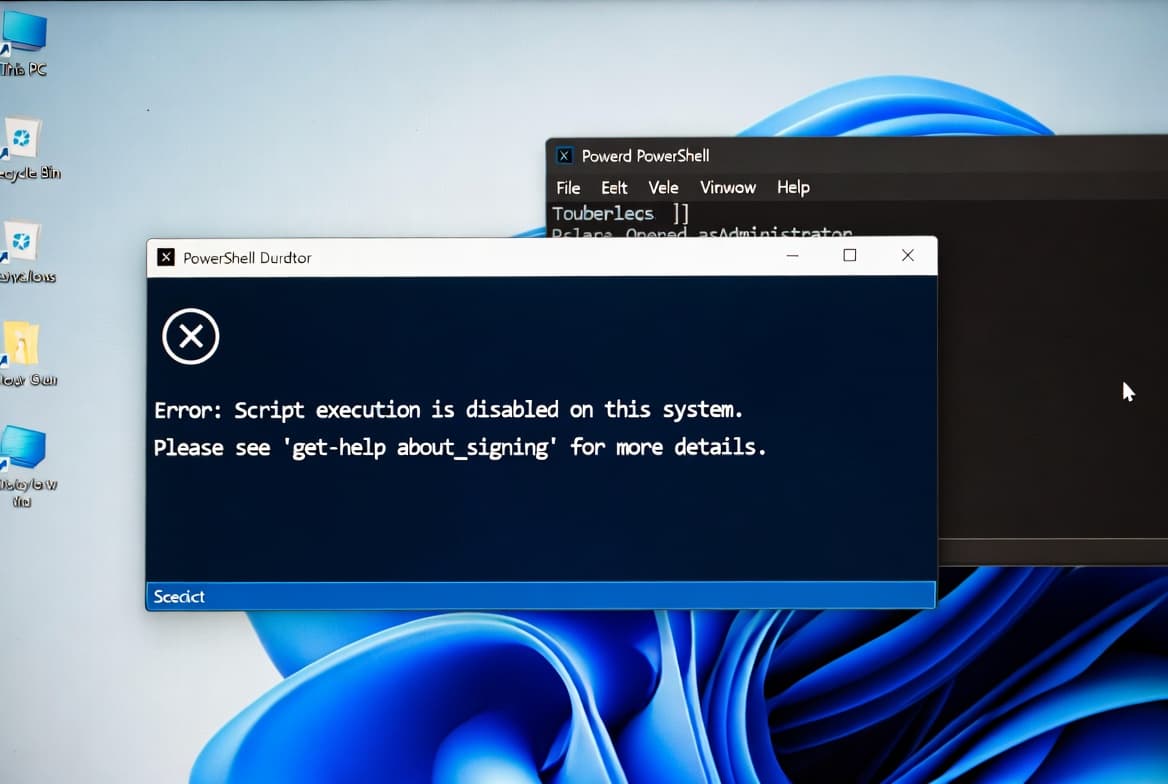
The error appears in the PowerShell console exactly as:
<scriptname>.ps1 cannot be loaded because running scripts is disabled on this system.
For more information, see about_Execution_Policies at https://go.microsoft.com/fwlink/?LinkID=135170
You will see it on both Windows PowerShell 5.1 and PowerShell 7 when the active policy is Restricted. It blocks local scripts and downloaded scripts equally.
How Do I Check My Current Execution Policy?
Always check before changing. Open PowerShell and run:
Get-ExecutionPolicy -ListThis returns every scope and its assigned value: MachinePolicy, UserPolicy, Process, CurrentUser, and LocalMachine. A Restricted entry at LocalMachine or CurrentUser is your blocker. If MachinePolicy shows Restricted, Group Policy is enforcing it and a local change alone will not stick.
When we tested this on a domain-joined Windows 11 machine in a lab environment, the MachinePolicy scope showed Restricted even after setting RemoteSigned at LocalMachine. That is a Group Policy override - the local fix did nothing until the GPO was updated.
Step 1: Set the Policy to RemoteSigned (Recommended)
`RemoteSigned` is the right general-purpose fix for most sysadmins. It lets locally created scripts run freely and requires that any script downloaded from the internet carry a trusted publisher signature.
If you have local administrator rights, apply it machine-wide:
Set-ExecutionPolicy -ExecutionPolicy RemoteSigned -ForceIf you are a standard user, or want the change scoped to your own profile only:
Set-ExecutionPolicy -ExecutionPolicy RemoteSigned -Scope CurrentUser -ForceAfter either command, run Get-ExecutionPolicy to confirm the new value before proceeding. On Windows Server, RemoteSigned is already the default per Microsoft - so if you hit this error on a server, suspect Group Policy first.
For Intune-managed endpoints, you can push execution policy settings via Device Configuration profiles. Our guide on deploying Desktop shortcuts with Intune using PowerShell covers a similar policy-scoped deployment pattern.
Step 2: Use Bypass for One-Off or Automated Tasks
Need to run a single script without changing any persistent setting? Bypass is the right tool. It suppresses all warnings and restrictions for that invocation only.
From a command prompt or scheduled task:
powershell.exe -ExecutionPolicy Bypass -File "C:\Scripts\YourScript.ps1"Or restrict the bypass to the current PowerShell session only - it disappears when you close the window:
Set-ExecutionPolicy Bypass -Scope ProcessThis pattern works well inside CI/CD pipelines or deployment scripts where you control the environment end-to-end. It avoids leaving a permanently relaxed policy on the host.
Step 3: Verify the Policy in the Registry
For audit purposes, or when you suspect Group Policy interference, check the raw registry value PowerShell reads.
- Press Win + R, type
regedit, press Enter. - Navigate to:
Computer\HKEY_LOCAL_MACHINE\SOFTWARE\Microsoft\PowerShell\1\ShellIds\Microsoft.PowerShell- Locate the
ExecutionPolicystring value. It should reflectRemoteSigned(or whatever you set).
If the value does not match what Set-ExecutionPolicy reported, a Group Policy Object is almost certainly overwriting it at login. Run the following to generate a full Group Policy result report:
gpresult /h report.htmlThen escalate to your domain team with that report. For Intune-managed machines, the equivalent is checking the Device Configuration profile assignment in the Intune admin center. See how we handle similar policy mapping in our guide on mapping network drives in Intune using custom ADMX files.
What If the Standard Fix Does Not Work?
When the steps above fail, work through these alternatives in order.
Group Policy enforcement: Ask your domain admin to update the GPO at _Computer Configuration > Administrative Templates > Windows Components > Windows PowerShell > Turn on Script Execution_. The Intune equivalent lives under Device Configuration profiles for Windows. Our ASR Rules deployment guide for sysadmins shows how to structure similar policy rollouts across managed fleets.
Unrestricted policy: This removes all signature checks. Use it only in isolated lab environments. When prompted, type A and press Enter.
Set-ExecutionPolicy -ExecutionPolicy UnrestrictedPer-script unblocking: If one downloaded script is blocked, remove its Zone.Identifier alternate data stream without touching the global policy:
Unblock-File -Path "C:\Scripts\YourScript.ps1"Run scripts inline: Paste short script content directly into the PowerShell session. The execution policy does not apply to interactive commands typed at the prompt.
Security Tips Before You Change the Execution Policy
The execution policy is a safety guardrail, not a substitute for proper access controls. Relaxing it increases your attack surface. Keep these rules in place regardless of which policy level you choose.
- Never run scripts from unknown or untrusted sources, even if the execution policy would permit it.
- Review every script in Notepad or the PowerShell ISE before running it for the first time.
- Prefer
RemoteSignedoverUnrestrictedfor any persistent change. - Use
Bypassonly when the script origin and content are already verified by you or your team. - Enable PowerShell Script Block Logging alongside any policy change - the CIS Benchmarks (v3.0.0, March 2024) require it as a companion control.
- Remember that attackers actively misuse PowerShell. In February 2025, North Korean hackers used PowerShell scripts and Dropbox for command-and-control against South Korean targets, per CSIS.
For broader Windows endpoint hardening context, the CVE-2026-45585 Windows YellowKey security feature bypass is a recent example of why keeping scripting controls tight matters at the OS level. If you manage Intune policies, blocking Microsoft 365 apps with Conditional Access pairs well with execution policy enforcement as a layered control.
Frequently asked questions
Will changing the execution policy to RemoteSigned affect other users on the same machine?+
It depends on the scope you target. Using `-Scope CurrentUser` limits the change to your profile only. Omitting the scope parameter (or using `LocalMachine`) applies the policy machine-wide, which affects all users on that machine and requires local administrator rights to set.
Is Bypass safe to use in production environments?+
`Bypass` is best reserved for controlled, one-off automation tasks where the script source and content are already verified. For ongoing use, `RemoteSigned` is the safer default. Avoid setting `Bypass` as a permanent machine-wide policy - it allows any unsigned script to execute without warning.
Can Group Policy override the execution policy I set manually?+
Yes. On domain-joined machines, Group Policy can enforce an execution policy that overrides any local `Set-ExecutionPolicy` command. If your changes revert unexpectedly, check with your domain administrator. Microsoft Intune can also push execution policy settings to managed endpoints via Device Configuration profiles.
How do I verify the execution policy change actually took effect?+
Run `Get-ExecutionPolicy -List` to see every scope and its current value. Also inspect the registry key at `HKEY_LOCAL_MACHINE\SOFTWARE\Microsoft\PowerShell\1\ShellIds\Microsoft.PowerShell` and confirm the `ExecutionPolicy` string value matches what you set with `Set-ExecutionPolicy`.
Does the fix work the same way in PowerShell 7 as in Windows PowerShell 5.1?+
No. PowerShell 7 maintains its own execution policy independently of Windows PowerShell 5.1. Organizations running both engines must configure execution policy separately for each. Run `Get-ExecutionPolicy -List` inside each engine to confirm the active policy for that specific runtime.