KB5055629: Windows 11 OS Builds 22621.5262 and 22631.5262 Preview (April 22, 2025)
Optional preview update for Windows 11 versions 22H2 and 23H2, releasing April 22, 2025, with File Explorer, Narrator, Phone Link, Widgets, and bug fixes.
Summary
This is an optional, non-security preview update for Windows 11 versions 22H2 and 23H2, producing OS Builds 22621.5262 and 22631.5262. Released on April 22, 2025, it delivers quality improvements alongside new features in File Explorer, Narrator, Phone Link, Widgets, and desktop icons, plus targeted bug fixes across multiple components. Source: Microsoft Support
Highlights
- [File Explorer] New pivot-based curated views on File Explorer Home make Microsoft 365 content easier to access on Windows. Performance when extracting zipped files - especially large numbers of small files - has also been improved.
- [Narrator] A new speech recap feature lets users access what Narrator has spoken, follow along with live transcription, and copy the last spoken content using simple keyboard shortcuts.
- [Phone Link] Direct access to cross-device features from the Start menu is now available, including phone calls, SMS messages, photo access, and content sharing between a mobile device and PC.
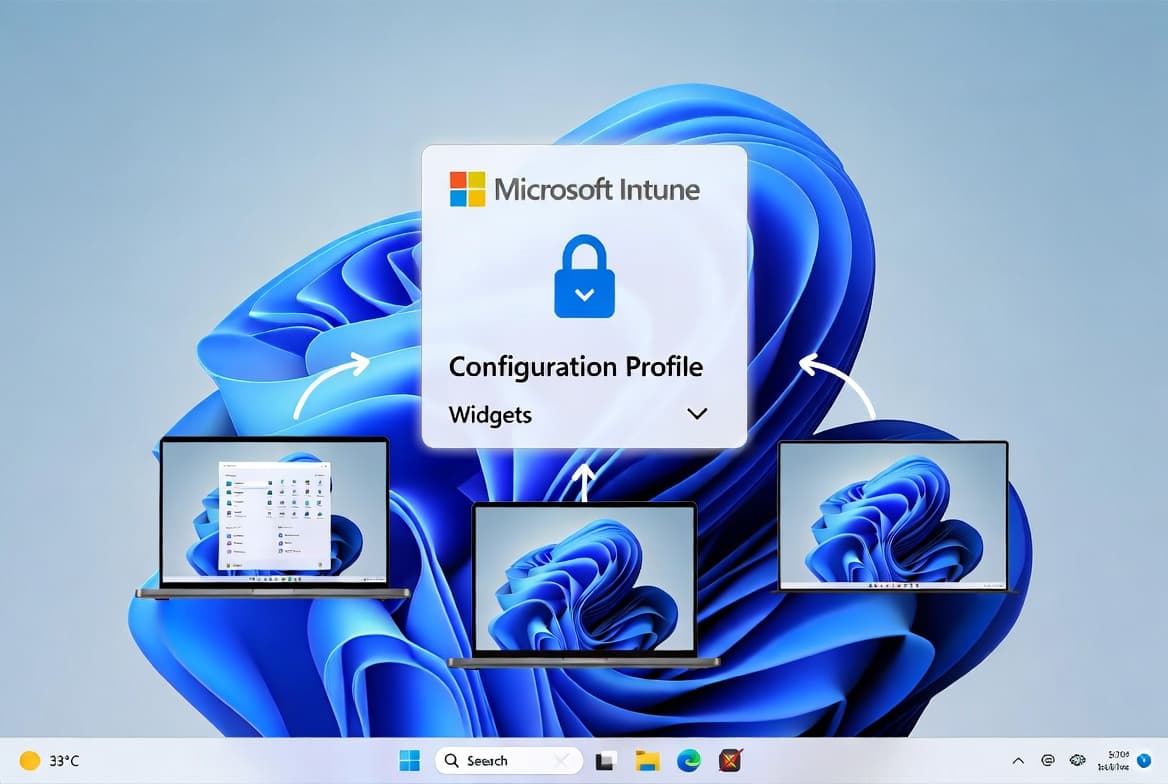
- [Widgets] Web developers can now use existing content to create interactive widgets deployable across multiple widget surfaces. Lock screen widget support (previously called "Weather and more") also arrives for devices in the European Economic Area (EEA), allowing users to add, remove, and rearrange widgets such as Weather, Watchlist, Sports, and Traffic via Settings > Personalization > Lock screen.
- [Desktop icons] Packaged apps pinned to the desktop no longer display an accent-colored backplate, making icons appear larger and easier to see.
- [Start] Fixed an issue preventing touch gestures from scrolling the pinned apps list. Fixed a problem where the Sign out and More options buttons in the Start menu account manager were not visible at increased text sizes.
- [Taskbar] Fixed incorrect arrow-key direction when navigating taskbar items after pressing Windows key + T in Arabic and Hebrew display languages.
Improvements and fixes
- [SMB] Resolved a problem where an Excel file hosted on an SMB file share with Access Based Enumeration enabled - and containing links to other files on network shares - could take longer than expected to open.
- [Sign-in / USB] Fixed a bug affecting the USBxHCI controller on Intel Core Ultra 200V Series Processors, where the built-in USB camera would not work with Windows Hello sign-in unless Enhanced Sign-in Security (ESS) was manually disabled. Users can disable ESS at Settings > Accounts > Sign-in options > Additional settings > Sign in with an external camera or fingerprint reader. A related note warns that creating a Windows Hello container under version 23H2 may prevent ESS from working after upgrading to version 24H2.
- [Xbox] Addressed a firmware-related issue with Xbox Elite Wireless Controllers where the keyboard would stop functioning and an error appeared in Device Manager. Also fixed a driver verifier hang during gamepad controller driver certification that affected Windows Hardware Quality Labs testing.
- [Kernel driver blocklist] Updated the Windows Kernel Vulnerable Driver Blocklist file (DriverSiPolicy.p7b) with additional drivers at risk from Bring Your Own Vulnerable Driver (BYOVD) attacks.
- [Servicing stack] A companion servicing stack update, KB5056849 (builds 22621.5251 and 22631.5251), is included to improve the reliability of the update installation component.
Known issues
Citrix Session Recording Agent blocks update installation
Symptom: Devices with Citrix Session Recording Agent (SRA) version 2411 (released December 2024) installed may fail to complete installation of the January 2025 Windows security update. The update may download and begin applying correctly, but on restart an error similar to "Something didn't go as planned. No need to worry - undoing changes" appears and the device reverts to its previous update state. This issue is expected to affect a limited number of organizations; home users are not expected to be affected.
Workaround: The issue has been resolved in Citrix Session Recording Agent version 2503, released April 28, 2025, and later versions. Refer to Citrix documentation titled "Microsoft's January Security Update Fails/Reverts on a machine with 2411 Session Recording Agent" for further details.
Windows 11 version 24H2 may not download via WSUS
Symptom: Devices that have installed the April 8, 2025 monthly security update (KB5055528) or later may be unable to update to Windows 11 version 24H2 through Windows Server Update Services (WSUS). The download may fail to start or complete, with error code 0x80240069 logged and additional log entries showing "Service has unexpectedly stopped." Home users are unlikely to encounter this issue as WSUS is an enterprise feature.
Workaround: This is addressed in KB5058405. Devices that have installed the May 13, 2025 update (KB5058405) or later do not require a Known Issue Rollback (KIR) or special Group Policy. For earlier updates, IT administrators can deploy the special Group Policy - available as "Windows 11 22H2 KB5055528 250426_03001 Known Issue Rollback.msi" (also applicable to version 23H2) - found at Computer Configuration > Administrative Templates > [Group Policy name]. See Microsoft's guidance on deploying a Known Issue Rollback for full instructions.
Blurry CJK text in Chromium-based browsers (Noto fonts)
Symptom: Users may see blurry or unclear Chinese, Japanese, or Korean (CJK) text at 96 DPI (100% scaling) in Chromium-based browsers such as Microsoft Edge and Google Chrome. The March 2025 Preview Update introduced Noto fonts as CJK fallback fonts. The reduced clarity is caused by limited pixel density at 96 DPI. Increasing display scaling improves text rendering clarity.
Workaround: Microsoft has shared findings and potential solutions with Google for further discussion. Users can report Noto CJK font issues through the official Google Noto Fonts GitHub repository.
How to get this update
Microsoft combines the latest servicing stack update (SSU) with the latest cumulative update (LCU) in a single package, so no separate SSU installation is required beforehand.
- Windows Update: Go to Settings > Update & Security > Windows Update. The update appears under Optional updates available. Select it to download and install.
- Windows Update for Business: The changes in this preview will be included in the next security update released to Windows Update for Business.
- Microsoft Update Catalog: Download the standalone package directly from the Microsoft Update Catalog.
- Windows Server Update Services (WSUS): Import the update manually using the Microsoft Update Catalog.
To remove only the LCU after installing the combined package, use the DISM /online /remove-package command with the LCU package name as the argument. Running wusa.exe /uninstall against the combined package will not work because the SSU is embedded and cannot be removed after installation.
Frequently asked questions
Is KB5055629 a security update?
No. This is a non-security optional preview update. It delivers quality improvements and new features ahead of the next monthly security release. The fixes and features included here will roll into the next scheduled security cumulative update for Windows 11 versions 22H2 and 23H2.
Do I need to install anything before applying this update?
No separate prerequisite is required. Microsoft packages the servicing stack update (KB5056849, builds 22621.5251 and 22631.5251) together with the cumulative update, so both are applied in a single installation pass.
Which editions of Windows 11 does this update apply to?
This update applies to Windows 11 Enterprise and Education on version 22H2, and all editions of Windows 11 version 23H2. Devices running version 23H2 also receive all improvements made for version 22H2 Enterprise and Education as part of this package.
Can I uninstall this update if I run into problems?
You can remove the LCU portion using the DISM command-line tool with the /remove-package option and the LCU package name as the argument. However, the servicing stack component cannot be removed after installation, and running wusa.exe /uninstall against the combined package will not work.