KB5082052: Windows 11 23H2 Cumulative Update (OS Build 22631.6936) - April 2026
April 14, 2026 security cumulative update for Windows 11 version 23H2, bringing OS build 22631.6936 with security fixes, Secure Boot improvements, and Remote Desktop phishing protections.
Summary
KB5082052 is the April 14, 2026 monthly security cumulative update for Windows 11, version 23H2. It brings the OS to build 22631.6936 and includes the latest security fixes along with non-security improvements carried forward from last month's optional preview release. A servicing stack update (KB5086307, build 22621.6937) is bundled with this package. Full details are available at Microsoft Support.
Highlights
- Secure Boot certificate status can now be shown in the Windows Security app on eligible devices.
- SMB compression over QUIC receives a reliability improvement, reducing timeouts.
- Remote Desktop (.rdp) file handling gains new phishing protections, showing all requested connection settings before connecting.
- A sign-in issue affecting Microsoft accounts that showed a false "no Internet" error is now fixed.
- Known vulnerable kernel drivers are added to the Microsoft vulnerable driver blocklist.
Improvements and fixes
- Secure Boot - status visibility: The Windows Security app (Settings > Privacy and Security > Windows Security) may now display the status of Secure Boot certificate updates on the device, including badge and notification alerts. This feature is disabled by default on commercial devices.
- Secure Boot - broader certificate rollout: Quality updates now include additional high-confidence device targeting data, expanding the pool of devices eligible to receive new Secure Boot certificates automatically. Certificates are delivered only after successful update signals are confirmed, keeping the rollout controlled and phased.
- Secure Boot - BitLocker recovery prevention: An issue where a device could enter BitLocker Recovery following Secure Boot certificate updates has been resolved.
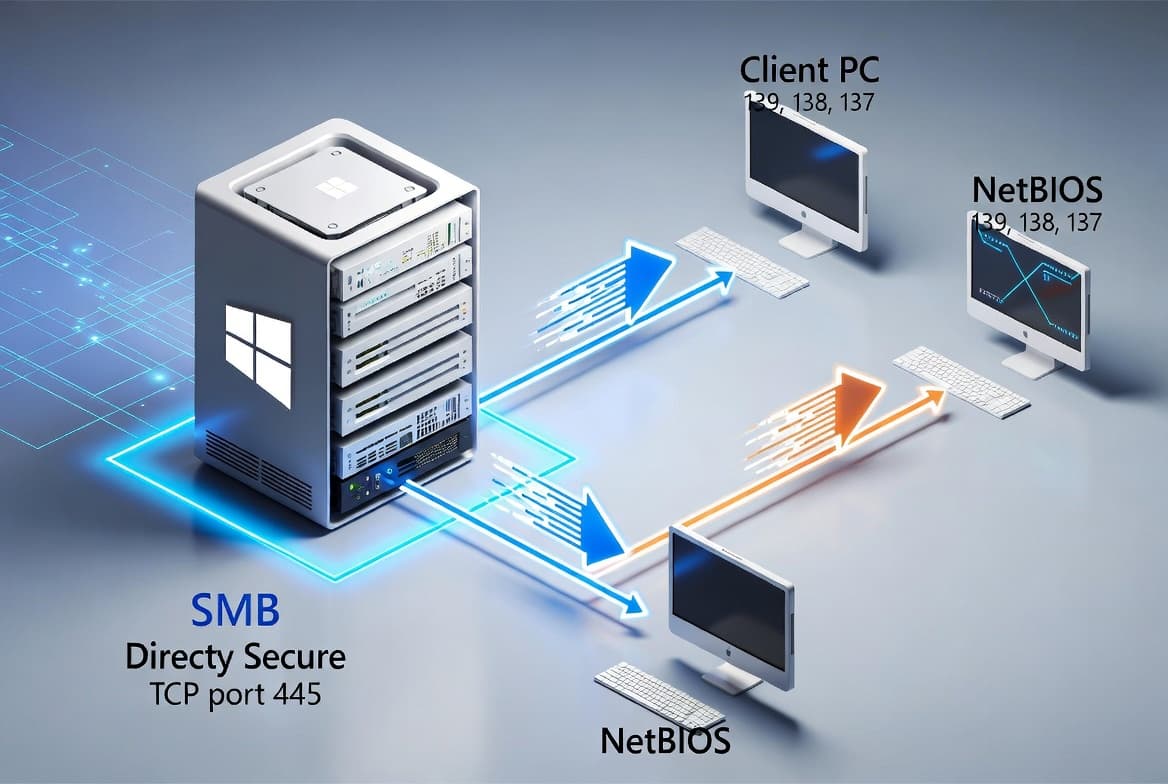
- Networking - SMB over QUIC reliability: SMB compression requests sent over QUIC now complete more consistently, lowering the chance of timeouts and improving overall transfer dependability.
- Remote Desktop - phishing protection: When an .rdp file is opened, Remote Desktop now displays all requested connection settings before establishing the connection, with each setting disabled by default. A one-time security warning appears the first time an .rdp file is opened on a given device.
- Sign-in - Microsoft account error fix: A bug introduced by updates released on or after March 10, 2026 that caused a spurious "no Internet" error when signing in to apps with a Microsoft account - even on connected devices - has been corrected. Affected apps included Microsoft Teams.
- Vulnerable driver blocklist - security hardening: Known vulnerable kernel drivers are now added to the Microsoft vulnerable driver blocklist. Backup applications that depend on blocked drivers may fail when mounting or managing disk images, and may display errors such as "The backup has failed because Microsoft VSS has timed out during the snapshot creation" or VSS_E_BAD_STATE. Affected users should update to a newer application version that uses drivers with the required protections. This improvement was added on May 1, 2026 via a change log update.
Known issues
Devices with an unrecommended BitLocker Group Policy configuration might be required to enter their BitLocker recovery key
Symptom: Some devices with a non-recommended BitLocker Group Policy configuration may be prompted to enter their BitLocker recovery key on the first restart after installing this update. The issue affects only devices where all of the following conditions are true - a combination unlikely on personally managed devices:
- BitLocker is enabled on the OS drive.
- The Group Policy "Configure TPM platform validation profile for native UEFI firmware configurations" is set and PCR7 is included in the validation profile, or the equivalent registry key is set manually.
- System Information (msinfo32.exe) reports Secure Boot State PCR7 Binding as "Not Possible".
- The Windows UEFI CA 2023 certificate is present in the device's Secure Boot Signature Database (DB).
- The device is not already running the 2023-signed Windows Boot Manager.
The recovery key only needs to be entered once; subsequent restarts will not trigger the recovery screen as long as the Group Policy configuration is unchanged.
Workaround: This issue is addressed in KB5093998. After installing KB5093998, devices with the incompatible Group Policy configuration are prevented from installing the 2023-signed Windows Boot Manager. If the device was affected, Event ID 1032 will appear in the System event log: "The Secure Boot update Boot Manager (2023) was not applied due to a known incompatibility with the current BitLocker configuration."
Microsoft strongly recommends removing the Group Policy configuration before installing updates. To do so: open Group Policy Editor (gpedit.msc) or your Group Policy Management Console, navigate to Computer Configuration > Administrative Templates > Windows Components > BitLocker Drive Encryption > Operating System Drives, set "Configure TPM platform validation profile for native UEFI firmware configurations" to "Not Configured", run gpupdate /force, then run manage-bde -protectors -disable C: followed by manage-bde -protectors -enable C: to update the BitLocker bindings to the Windows-selected default PCR profile.
If removing the Group Policy is not desired, temporarily suspend BitLocker, run Start-ScheduledTask -TaskName "\Microsoft\Windows\PI\Secure-Boot-Update", restart the device, and then re-enable BitLocker with manage-bde -protectors -enable C:.
Warnings related to Remote Desktop might not display correctly
Symptom: After installing this update, the security warning shown when opening Remote Desktop (.rdp) files may not render correctly in some configurations. Specifically, when a device uses more than one monitor with different display scaling settings (for example, one display at 100% and another at 125%), the warning window may show overlapping text or partially hidden buttons, making it difficult to read or interact with.
Workaround: This issue is addressed in KB5087420.
How to get this update
Microsoft bundles the latest servicing stack update (SSU) for Windows 11, version 23H2 together with this cumulative update (LCU) in a single package. No separate SSU installation is required before deploying KB5082052.
The update is available through the following channels:
- Windows Update and Microsoft Update - downloads and installs automatically.
- Windows Update for Business - automatically available in accordance with configured policies.
- Microsoft Update Catalog - standalone package available for manual download.
- Windows Server Update Services (WSUS) - syncs automatically when Products is set to "Windows 11" and Classification is set to "Security Updates".
To remove the LCU after installing the combined SSU+LCU package, use the DISM /Remove-Package option with the LCU package name as the argument. Running wusa.exe with the /uninstall switch against the combined package will not work because the SSU is included. The SSU cannot be removed from the system after installation.
Frequently asked questions
Is a prerequisite servicing stack update required before installing KB5082052?
No separate prerequisite step is needed. Microsoft bundles the servicing stack update (KB5086307, build 22621.6937) directly with this cumulative update package. Devices installing KB5082052 receive both components together, so there is no risk of missing a required servicing stack before the LCU is applied.
Will Secure Boot certificate changes affect all managed enterprise devices immediately?
No. The rollout is deliberately phased. Devices receive the updated Secure Boot certificates only after Windows confirms sufficient successful update signals. Commercial devices will not see the new status badges and notifications in the Windows Security app because those enhancements are disabled by default on managed devices. IT administrators should consult the Secure Boot Playbook for Windows clients and Windows Server for enterprise guidance.
What should admins do about the vulnerable driver blocklist change that can break backup applications?
Admins should identify backup or disk-imaging applications in their environments that rely on kernel drivers now added to the blocklist. Affected applications may log VSS timeout errors or VSS_E_BAD_STATE. Microsoft recommends updating those applications to newer versions that ship drivers meeting current protection requirements. More details are available in the April 2026 Windows security updates article covering known vulnerable kernel driver protections.
How can admins verify whether their devices are at risk from the BitLocker recovery key issue?
Before deploying this update, run msinfo32.exe on each managed device and check the Secure Boot State PCR7 Binding value. If it reads "Not Possible", and the device has BitLocker enabled with an explicit PCR7 Group Policy applied, that device matches the affected profile. Enterprises should audit their BitLocker Group Policies for explicit PCR7 inclusion and apply the recommended Group Policy remediation or deploy KB5093998 to block the incompatible boot manager from installing.