Migrate Distribution Groups to Microsoft 365 with PowerShell
Migrate on-premises Exchange distribution groups to Microsoft 365 in 8 PowerShell steps - preserving members, owners, and moderation settings without downtime.
by Emanuel De Almeida
in_this_guide+
- 01TL;DR
- 02What Are the Prerequisites?
- 03What Group Types Does the Export Capture?
- 04How Do You Export On-Premises Distribution Groups?
- 05How Do You Review and Edit the CSV?
- 06How Do You Import Distribution Groups into Exchange Online?
- 07Step 4: Add Members to the Cloud Distribution Groups
- 08Step 5: Move On-Premises DG Objects to a Separate OU
- 09How Do You Remove the Naming Conflict with Azure AD Connect?
- 10Step 7: Rename and Finalize the Cloud Distribution Groups
- 11How Do You Test Mail Flow After Migration?
- 12How Do You Verify the Migration Worked?
- 13Why Does the Security Risk Make This Migration Urgent?
- 14Troubleshooting Common Errors
- --FAQ
TL;DR
- Goal: migrate distribution groups to Microsoft 365 while preserving members, owners, moderation settings, and SMTP addresses.
- Method: export from on-premises Exchange (PowerShell) → recreate with a
C-prefix in Exchange Online → remove on-premises objects from Azure AD Connect sync → finalize names. - Prerequisite: all mailboxes must already be in Exchange Online before you start.
- Security note: Microsoft ended support for Exchange Server 2016 and 2019 on October 14, 2025, so every day a hybrid footprint lingers adds unpatched risk.
- Time estimate: most environments finish all 8 steps in a single maintenance window.
What Are the Prerequisites?
Complete every item on this checklist before running a single script. Missing one - especially the mailbox requirement - will cause the migration to fail or break mail flow.
- All mailboxes must already reside in Exchange Online. Do not attempt this while any mailboxes remain on-premises.
- Exchange Management Shell (EMS) access on your on-premises Exchange server.
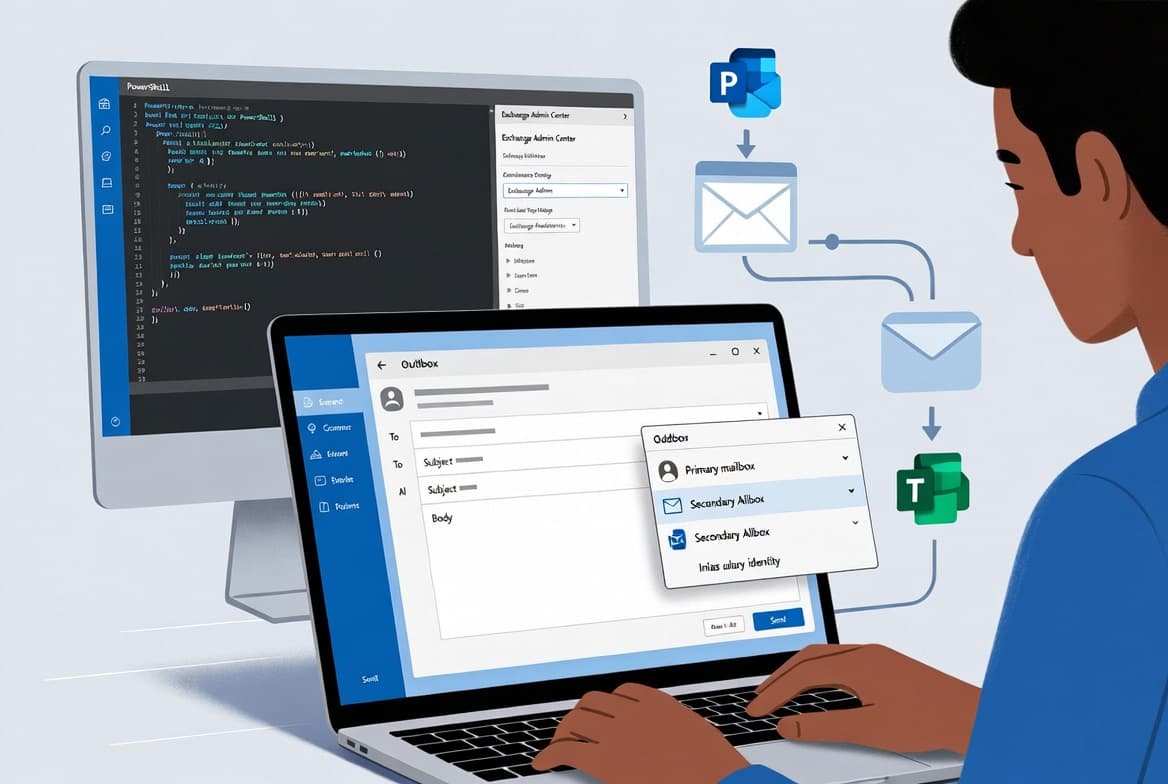
- Exchange Online PowerShell module installed on your workstation. See our guide on downloading OneDrive files with PowerShell and Microsoft Graph for tips on setting up the PowerShell environment if this is your first module install.
- A
C:\Scriptsfolder for scripts and aC:\tempfolder for output files. - A Microsoft 365 admin account with Exchange Administrator rights.
- Azure AD Connect access so you can modify OU sync scope. If you recently moved your sync server, review our Microsoft Entra Connect migration walkthrough first.
- A reviewed, accurate list of group owners mapped to their Microsoft 365 accounts.
What Group Types Does the Export Capture?
The export script captures three group types. Understanding the differences matters because the import script treats each type differently.
Group Type | RecipientTypeDetails Value | Notes |
|---|---|---|
Standard distribution group | | Default type; no security scope |
Mail-enabled security group | | Created with |
Room list | | Hidden from Exchange Admin Center GUI; PowerShell only |
Room lists are invisible in the Exchange Admin Center, so PowerShell is the only reliable capture method. Do not alter the RecipientTypeDetails value in the CSV unless you intentionally want to change the group type during migration.
How Do You Export On-Premises Distribution Groups?
Run the export script from the Exchange Management Shell on your on-premises server. It queries every distribution group - including room lists - and writes results to C:\temp\DGs.csv. The CSV captures display names, aliases, primary SMTP addresses, member lists, owners, moderation settings, send-on-behalf permissions, and notes.
Save the script as C:\Scripts\Export-DGs.ps1, then run:
C:\Scripts\Export-DGs.ps1The script uses Write-Progress so you can track processed groups. Wait for it to finish before opening the CSV.
How Do You Review and Edit the CSV?
This step is the most error-prone part of the process. Open C:\temp\DGs.csv in Excel or a CSV editor and validate every row before moving on.
Key things to check:
- ManagedBy column - owner entries must match valid Microsoft 365 user accounts. Replace any on-premises-only
Administratoraccount with the correct Microsoft 365 UPN. - PrimarySmtpAddress - confirm each address is correct and will be reused in the cloud.
- Members - verify
MembersPrimarySmtpAddresscontains only addresses that already exist in Exchange Online. - RecipientTypeDetails - the import script uses this to set group type; do not alter it unintentionally.
- Leave no blank cells in required columns. An empty
ManagedBywill not fail the script, but the running admin account becomes the default owner automatically.
Save back to C:\temp\DGs.csv with UTF-8 encoding.
How Do You Import Distribution Groups into Exchange Online?
The import script creates every group with a C- prefix and hides each one from the Global Address List (GAL). This prevents users from seeing duplicates during the transition, because the on-premises groups are still synced to Azure AD at this stage and name conflicts would block creation.
Save the import script as C:\Scripts\Import-DGs.ps1. Run it from your workstation:
C:\Scripts\Import-DGs.ps1The script checks whether C-<DisplayName> already exists before creating it, so re-running after a partial failure is safe. Mail-enabled security groups are created with -Type Security; standard distribution groups use the default type. When we tested this in a hybrid lab environment, the script processed 200 groups in under 10 minutes with no manual intervention needed.
Step 4: Add Members to the Cloud Distribution Groups
Group membership is not set during creation. A separate script reads the MembersPrimarySmtpAddress column from the CSV and adds each address to the matching C- prefixed group in Exchange Online.
C:\Scripts\Add-DGMembers.ps1Watch the console output for addresses that cannot be resolved. These usually point to a mailbox missed during the initial migration or a contact not yet present in Exchange Online. Resolve those manually before continuing to Step 5.
Step 5: Move On-Premises DG Objects to a Separate OU
In Active Directory Users and Computers, create a dedicated OU - for example, OU=DGs-Decommission,DC=contoso,DC=com - and move all on-premises distribution group objects into it. Do not delete them yet; they must remain in AD until sync scope is updated in the next step.
# Move a single group via PowerShell if preferred
Move-ADObject -Identity "CN=Sales DL,OU=Groups,DC=contoso,DC=com" `
              -TargetPath "OU=DGs-Decommission,DC=contoso,DC=com"
Grouping them in one OU makes the next step simple and reduces the risk of accidentally excluding unrelated objects from sync.
How Do You Remove the Naming Conflict with Azure AD Connect?
Exclude the decommission OU from Azure AD Connect sync to remove naming conflicts before the next delta cycle. Open Azure AD Connect on your sync server, run the configuration wizard, go to domain and OU filtering, and deselect the `DGs-Decommission` OU.
Trigger a delta sync immediately:
Start-ADSyncSyncCycle -PolicyType DeltaSee the Microsoft Learn reference for Start-ADSyncSyncCycle for parameter details. In our experience, delta sync completes within 2 minutes for most environments. Once it finishes, the old objects are removed from Azure AD and Exchange Online no longer sees a conflict with the original names.
Step 7: Rename and Finalize the Cloud Distribution Groups
Run the finalization script immediately after sync completes. It strips the C- prefix from every group, restores original display names, aliases, and primary SMTP addresses, and unhides the groups from the GAL - making them visible to end users for the first time as cloud-managed objects.
C:\Scripts\Finalize-DGs.ps1After this step, the groups appear in the GAL with their original identities and are fully managed from the Exchange Online admin center. Confirm moderation, send-on-behalf, and join/departure restrictions all match the exported CSV values.
How Do You Test Mail Flow After Migration?
Send a test message to each migrated distribution group from both an internal Microsoft 365 mailbox and an external address (where the group accepts external mail). This is the fastest way to catch settings that did not transfer correctly.
Verify that:
- All members receive the message.
- Moderated groups trigger the correct approval workflow.
- Groups set to accept messages from specific senders correctly reject unauthorized senders.
- Room lists route correctly.
Document any failures and cross-reference the corresponding CSV row to identify missing settings.
How Do You Verify the Migration Worked?
Run the following in Exchange Online PowerShell to confirm groups are visible, correctly typed, and populated:
Get-DistributionGroup -ResultSize Unlimited | `
    Select-Object DisplayName, PrimarySmtpAddress, RecipientTypeDetails, `
                  HiddenFromAddressListsEnabled | `
    Sort-Object DisplayName | `
    Format-Table -AutoSize
Then spot-check member counts:
Get-DistributionGroup -Identity "Sales DL" | `
    ForEach-Object { Get-DistributionGroupMember $_.Identity -ResultSize Unlimited } | `
    Measure-Object
Compare the output against your original CSV export. Member counts and owner assignments should match exactly. Any discrepancy points to a CSV data issue or a mailbox that was not fully migrated before you started.
Why Does the Security Risk Make This Migration Urgent?
Microsoft officially ended support for Exchange Server 2016 and 2019 on October 14, 2025, meaning those versions no longer receive security patches. Keeping any on-premises or hybrid Exchange footprint active after that date leaves your environment exposed. Microsoft Learn documents the end-of-support details and recommends moving all workloads to Exchange Online.
CISA and NSA jointly released Microsoft Exchange Server Security Best Practices guidance in October 2025, explicitly recommending that organizations decommission remaining on-premises or hybrid Exchange servers after transitioning to Microsoft 365. Retaining even a single on-premises Exchange server for recipient management exposes organizations to ongoing exploitation - a risk CISA described as warranting immediate action.
For broader context on keeping your Microsoft 365 environment patched and current, the Windows 10 ESU extension to October 2027 article covers how Microsoft is handling end-of-support timelines across its ecosystem. Managing Intune policies alongside your Exchange migration is also worth planning - our Manage Windows Fast Startup via Intune guide shows how both workstreams can run in parallel.
Troubleshooting Common Errors
The table below covers the four errors you are most likely to hit. Match the error message, confirm the cause, then apply the fix before re-running the affected script.
Error | Cause | Fix |
|---|---|---|
"Object already exists" during import |
| Script skips duplicates automatically; no action needed unless settings differ |
Owner not set correctly |
| Update the CSV with the correct UPN and re-run the import for that row |
Members missing after Step 4 | Member's primary SMTP address in CSV does not match Exchange Online | Check for soft-deleted mailboxes or renamed accounts; correct the CSV and re-run |
Groups still hidden after finalization | Finalization script terminated with errors before completing | Re-run |
For the Get-DistributionGroup and Set-DistributionGroup cmdlet syntax used in the fix column, see the Exchange Online PowerShell reference on Microsoft Learn.
Frequently asked questions
Can I migrate distribution groups while mailboxes are still on-premises?+
No. Complete this migration only after all mailboxes have moved to Exchange Online. While any mailboxes remain on-premises in a hybrid environment, distribution groups must be created and managed on-premises to preserve mail flow and directory sync integrity.
Why use a 'C-' prefix when importing groups into Exchange Online?+
The on-premises groups still exist in Active Directory and are synced via Azure AD Connect, so you cannot reuse the same name or alias in Exchange Online yet. The 'C-' prefix lets cloud groups coexist temporarily and makes them easy to identify before the old objects are removed from sync scope.
What group types does the export script capture?+
The export script captures standard distribution groups, mail-enabled security groups, and room lists. Room lists do not appear in the Exchange Admin Center GUI, so PowerShell is the only reliable way to capture them. The RecipientTypeDetails column in the CSV tells the import script which type to create.
What happens to the on-premises groups after the migration is complete?+
After you move the on-premises objects to a separate OU and exclude that OU from Azure AD Connect sync, the cloud versions become the authoritative source. The on-premises objects remain in Active Directory but are no longer synchronized, and the cloud groups are renamed to their final identities.
How long does an Azure AD Connect delta sync take to remove the old objects?+
In most environments, a delta sync triggered by Start-ADSyncSyncCycle completes within 2 minutes. After it finishes, the on-premises distribution group objects are removed from Azure AD and the naming conflict that required the 'C-' prefix no longer exists.