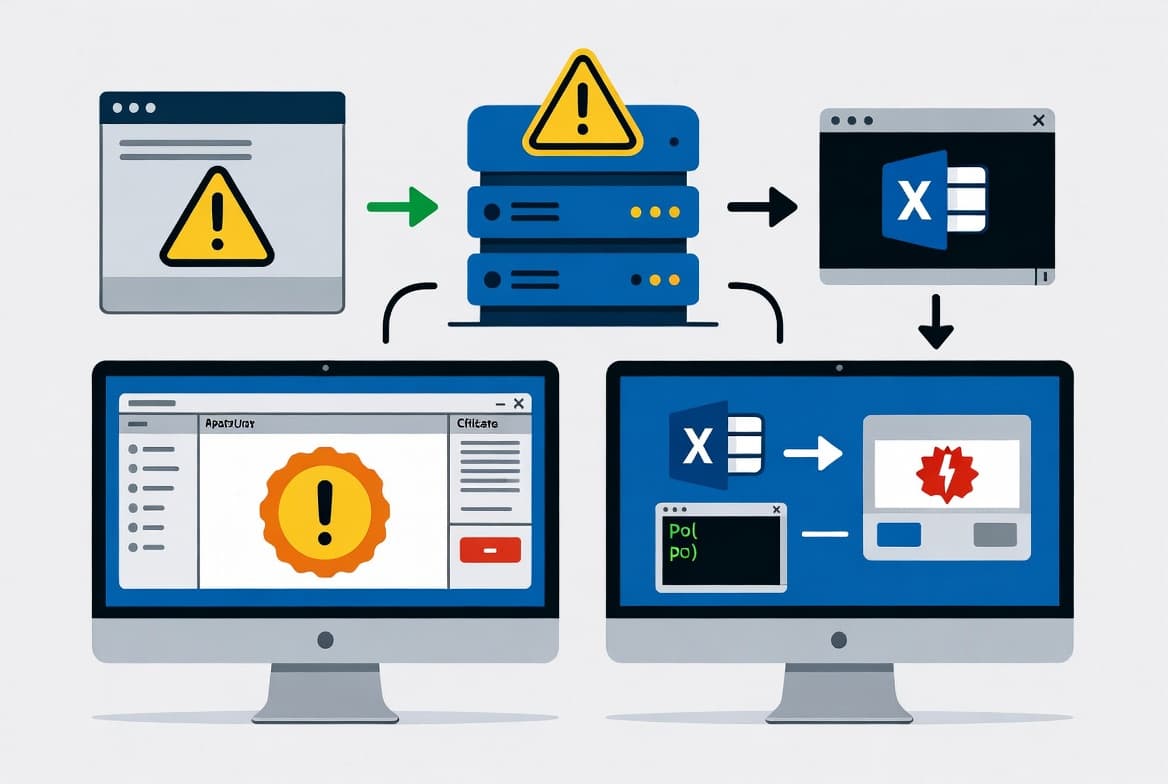
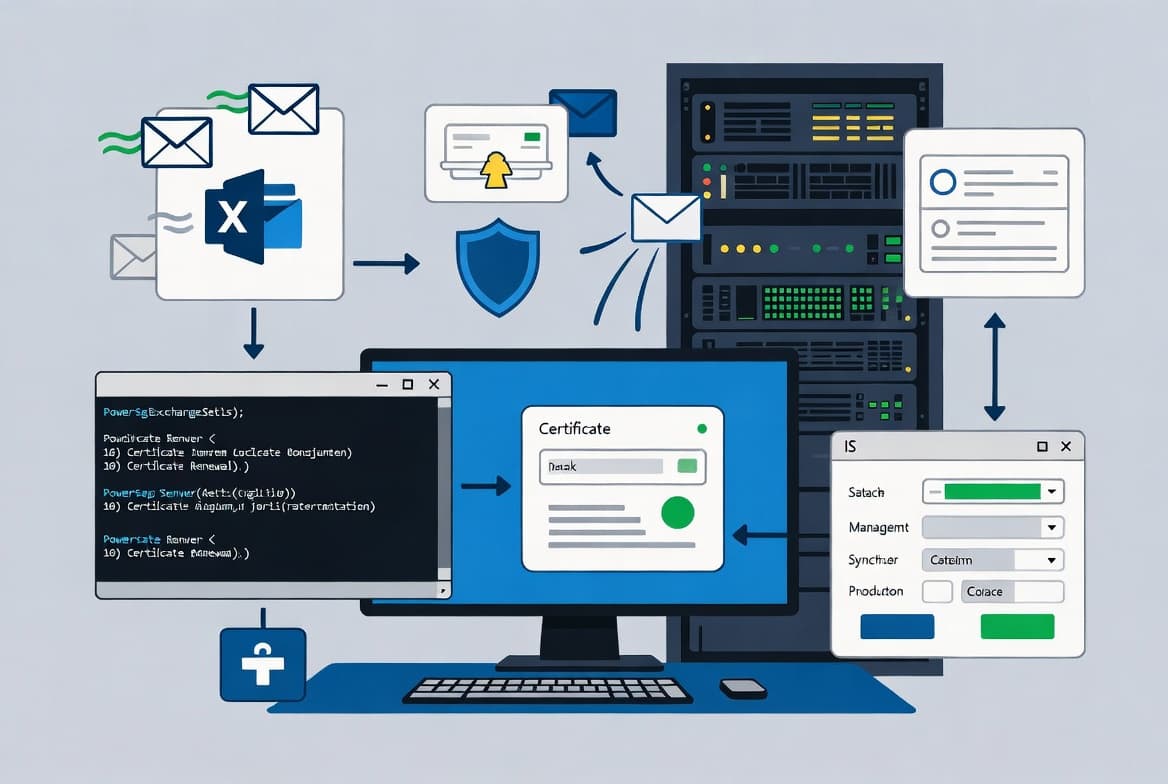
Renew Exchange Server Auth Certificate: Step-by-Step
Renew your Exchange Server Auth Certificate in 7 steps using PowerShell - covers generation, publishing, IIS restart, and hybrid Entra ID sync.
by Emanuel De Almeida
in_this_guide+
- 01TL;DR
- 02Prerequisites
- 03Step 1: Check the Current Auth Certificate Status
- 04Step 2: Generate a New Auth Certificate
- 05Step 3: Assign and Publish the New Auth Certificate
- 06Step 4: Restart the Exchange Service Host and IIS
- 07Step 5: Remove the Old Auth Certificate
- 08Step 6: Re-run the Hybrid Configuration Wizard (Hybrid Only)
- 09Step 7: Confirm the Auth Certificate Is Valid
- 10Did Everything Work? Run These Final Checks
- --FAQ

TL;DR
- This guide shows you how to renew a missing, expired, or corrupt Exchange Server Auth Certificate using Exchange Management Shell.
- It covers every stage: generating the certificate, publishing it for OAuth, restarting services, and syncing hybrid Entra ID.
- Aimed at Exchange administrators running on-premises or hybrid Exchange Server 2016/2019 environments.
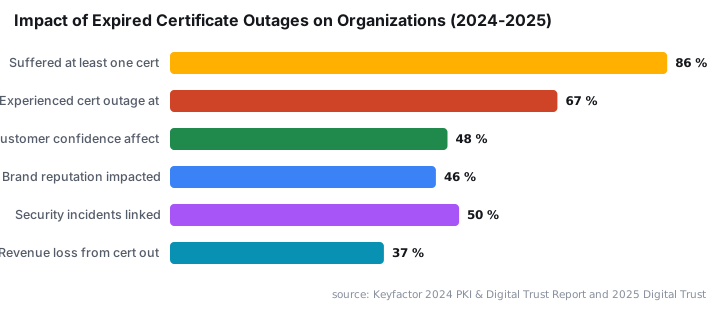
Expired certificates cause real damage. Keyfactor research (2025) found that 86% of companies suffered at least one outage due to expired or mismanaged digital certificates in the past year, with nearly one-third reporting outages at least once a quarter. When those outages hit, 48% of respondents said customer confidence would likely suffer and 46% reported brand reputation damage. Renewing your Exchange Server Auth Certificate before it expires is one of the simplest ways to avoid joining those statistics.
Prerequisites
Before you run any commands, confirm you have everything in place.
- Access to Exchange Management Shell with administrator privileges on your on-premises Exchange Server.
- Access to Exchange Admin Center (EAC) to visually confirm certificate status.
- An account with Organization Management role group membership.
- If your organization runs an Exchange Hybrid setup, access to the Hybrid Configuration Wizard.
- Familiarity with basic PowerShell and IIS management commands.
If your environment is hybrid, also review the Microsoft Entra Connect migration guide to confirm your sync infrastructure is healthy before you start.
Step 1: Check the Current Auth Certificate Status
Start by confirming the state of the existing certificate. Open Exchange Management Shell as administrator and run the following command. It pulls the thumbprint from the auth configuration and retrieves the matching certificate details.
(Get-AuthConfig).CurrentCertificateThumbprint | Get-ExchangeCertificate | Format-ListCheck these fields in the output:
NotAfter- the expiry dateHasPrivateKey- must returnTrueStatus- must read Valid
If `Status` shows anything other than Valid, or if the command returns no output, proceed with the steps below. Note the current thumbprint - you need it in Step 5.
Step 2: Generate a New Auth Certificate
Run the New-ExchangeCertificate cmdlet with the correct subject name and a 2048-bit key. According to the detailed walkthrough on alitajran.com, New-ExchangeCertificate creates the new Auth Certificate on all Exchange Servers in the organization automatically.
New-ExchangeCertificate -KeySize 2048 `
  -PrivateKeyExportable $true `
  -SubjectName "cn=Microsoft Exchange Server Auth Certificate" `
  -FriendlyName "Microsoft Exchange Server Auth Certificate" `
  -DomainName @()
Exchange may ask whether to overwrite the existing default SMTP certificate. Type `N` and press Enter to decline. You are replacing the Auth Certificate only - not the SMTP certificate.
Copy the new thumbprint from the command output. You need it in Step 3.
Step 3: Assign and Publish the New Auth Certificate
Three commands run in sequence here. First, assign the new thumbprint to the auth configuration. Second, publish it to all Client Access servers. Third, clear the previous certificate reference.
# Replace the thumbprint below with the one you copied in Step 2
Set-AuthConfig -NewCertificateThumbprint "<YourNewThumbprintHere>" `
  -NewCertificateEffectiveDate (Get-Date)
Exchange warns that the effective date is less than 48 hours in the future. Type `Y` and press Enter to continue.
Set-AuthConfig -PublishCertificateSet-AuthConfig -ClearPreviousCertificateAfter all three commands complete, the new Auth Certificate handles server-to-server OAuth authentication with partner applications. For background on the Set-AuthConfig cmdlet and the five-year default validity period, see the Microsoft Learn Auth Certificate reference.
Step 4: Restart the Exchange Service Host and IIS
For the changes to take effect, restart the Microsoft Exchange Service Host service, then reset IIS. Both restarts are needed.
Restart-Service "MSExchangeServiceHost"iisresetWhen we tested this procedure on Exchange Server 2019 CU14, the IIS reset completed in under 30 seconds and the certificate status resolved to Valid within 6 hours. If you prefer a less disruptive approach, recycle only the relevant application pools instead of a full IIS reset:
Restart-WebAppPool "MSExchangeOWAAppPool"
Restart-WebAppPool "MSExchangeECPAppPool"
Step 5: Remove the Old Auth Certificate
With the new certificate published, remove the old one. Repeat this action on every Exchange Server in the organization. Each server should have only one Microsoft Exchange Server Auth Certificate after cleanup.
Remove it through EAC by going to Servers - Certificates, selecting the old thumbprint entry, and deleting it. Or use PowerShell:
# Replace the thumbprint below with the OLD certificate thumbprint noted in Step 1
Remove-ExchangeCertificate -Thumbprint "<OldThumbprintHere>" -Confirm:$false
Note: In some environments it takes a few hours for the new OAuth certificate to propagate fully. If you see an EAC error right after this step, wait a couple of hours before signing in again.
Step 6: Re-run the Hybrid Configuration Wizard (Hybrid Only)
If your organization uses Exchange Hybrid, you must push the updated Auth Certificate to Microsoft Entra ID. Launch the Hybrid Configuration Wizard and run it to completion. Skipping this step breaks OAuth between on-premises Exchange and Exchange Online.
This step does not apply to fully on-premises environments with no hybrid configuration. For related distribution group migration tasks in hybrid setups, see Migrate Distribution Groups to Microsoft 365 with PowerShell.
Step 7: Confirm the Auth Certificate Is Valid
Run the same command from Step 1 to validate the new Auth Certificate is correctly bound and recognized.
(Get-AuthConfig).CurrentCertificateThumbprint | Get-ExchangeCertificate | Format-ListConfirm that Status reads Valid and that Services shows SMTP. If you run the Health Checker script right after renewal, statuses may still appear as Unknown. That is normal - allow up to 24 hours and re-run.
Did Everything Work? Run These Final Checks
Use the checklist below to confirm the renewal succeeded end-to-end.
Statusin theGet-ExchangeCertificateoutput reads Valid.HasPrivateKeyreturns True.- The EAC loads without OAuth-related errors.
- The Exchange Server Health Checker script reports the Auth Certificate as Valid and bound to SMTP.
- In hybrid environments, test an OAuth-dependent feature (such as free/busy sharing) to confirm end-to-end authentication works.
Keeping your Auth Certificate current is one layer of a broader Exchange security posture. Given that CISA issued Emergency Directive ED 25-02 warning about a post-authentication vulnerability in hybrid Exchange configurations that allows lateral movement from on-premises Exchange to the M365 cloud, a valid and correctly published Auth Certificate is more important than ever.
For OWA hardening alongside certificate hygiene, see Protect Exchange OWA from Brute Force Attacks with reCAPTCHA. If you also manage Windows patching timelines, Microsoft's extended free Windows 10 ESU support to October 2027 is worth reviewing alongside your Exchange end-of-support planning.
Frequently asked questions
How long is the Exchange Server Auth Certificate valid by default?+
The Exchange Server Auth Certificate is self-signed and valid for five years from the date Exchange Server was installed. If it expires or gets corrupted before that, generate a replacement with New-ExchangeCertificate and publish it using Set-AuthConfig as shown in this guide.
Do I need to run these steps on every Exchange Server in the organization?+
New-ExchangeCertificate creates the certificate on all Exchange Servers automatically. You must still remove the old Auth Certificate from each server manually. Check every node after cleanup and confirm only one Microsoft Exchange Server Auth Certificate remains per server.
Why do certificate statuses show as Unknown immediately after renewal?+
Unknown status right after publishing is normal. Exchange needs time to replicate and propagate the new Auth Certificate internally. Allow up to 24 hours, then re-run the Health Checker script. Statuses should resolve to Valid once propagation completes across all servers.
Do I need to re-run the Hybrid Configuration Wizard after renewing the Auth Certificate?+
Yes. Hybrid environments require a full Hybrid Configuration Wizard run after renewal. This pushes the updated certificate data to Microsoft Entra ID and keeps OAuth working correctly between on-premises Exchange and Exchange Online. Skipping this step will break hybrid OAuth flows.
![Find Exchange Server Version with PowerShell [2025]](/_next/image?url=https%3A%2F%2Fwww.navanem.com%2Fapi%2Fmedia%2Ffile%2Fexchange-build-number-cover.jpg&w=3840&q=75)