Crontab on Linux: Step-by-Step Guide for Sysadmins
Master crontab on Linux: learn five-field syntax, 6 scheduling patterns, output redirection, and real-world automation examples that sysadmins use every day.
by Emanuel De Almeida
in_this_guide+
- 01TL;DR
- 02Prerequisites
- 03Step 1: Verify and Install Cron
- 04Step 2: Understand Crontab's Five-Field Syntax
- 05Step 3: Open and Edit Your Crontab File
- 06Step 4: Add a Real Scheduled Job
- 07Step 5: Handle Crontab Output and Logging
- 08Step 6: Build a Crontab Quick Reference Schedule Library
- 09Step 7: Verify Your Crontab Is Working
- --FAQ
TL;DR
- Crontab is the per-user file that tells the cron daemon what commands to run and when - five fields control the schedule.
- Use
crontab -eto edit safely; never touch the raw file directly. - Always use absolute binary paths - cron runs with a stripped environment, not your shell's
PATH. - Redirect output deliberately: unhandled stdout and stderr disappear silently on servers without a local mail agent.
- After saving, verify with
crontab -land watch live execution withjournalctl -u cron -f.
You can automate any repeating Linux task with a single crontab line. This guide walks through installing cron, writing and editing crontab entries, handling output, and validating that jobs fire correctly - covering every pattern a working sysadmin needs.
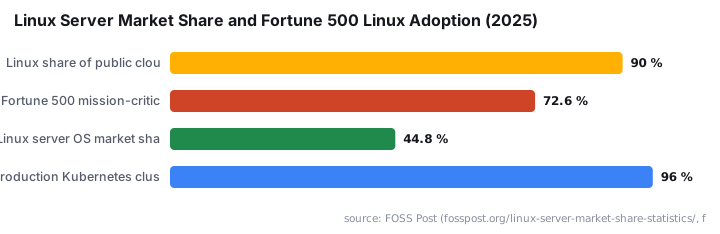
Linux powers 90% of public cloud infrastructure across AWS, Azure, and Google Cloud as of 2025, and 72.6% of Fortune 500 companies run mission-critical workloads on Linux - making crontab fluency a core skill, not a nice-to-have.
One security note before starting: cron job modification ranks among the most common persistence methods on compromised Linux servers, catalogued by MITRE as ATT&CK technique T1053.003. In 2024, Aqua Security researchers found the 'perfctl' cryptomining campaign had trojanized the crontab utility itself, hiding malicious jobs from administrators on millions of servers. Keep that context in mind as you build your automation habits.
Prerequisites
- A Linux system with the
crondaemon installed and running. - A standard user account or root access, depending on which crontab you plan to edit.
- Basic familiarity with a terminal text editor (nano works fine for beginners).
- The target script or command already tested and confirmed working from the shell.
Step 1: Verify and Install Cron
Cron ships with most distributions by default, but minimal server images sometimes omit it. Before editing any crontab, confirm the service exists and runs.
systemctl status cronIf cron is missing, install and enable it:
sudo apt update && sudo apt install cron
sudo systemctl enable cron
For RPM-based systems, substitute cronie for cron in the package name. Once the daemon is active, you can define scheduled jobs. For context on how automated tasks interact with privilege boundaries, our Microsoft Entra PIM configuration guide covers similar least-privilege thinking on a different platform.
Step 2: Understand Crontab's Five-Field Syntax
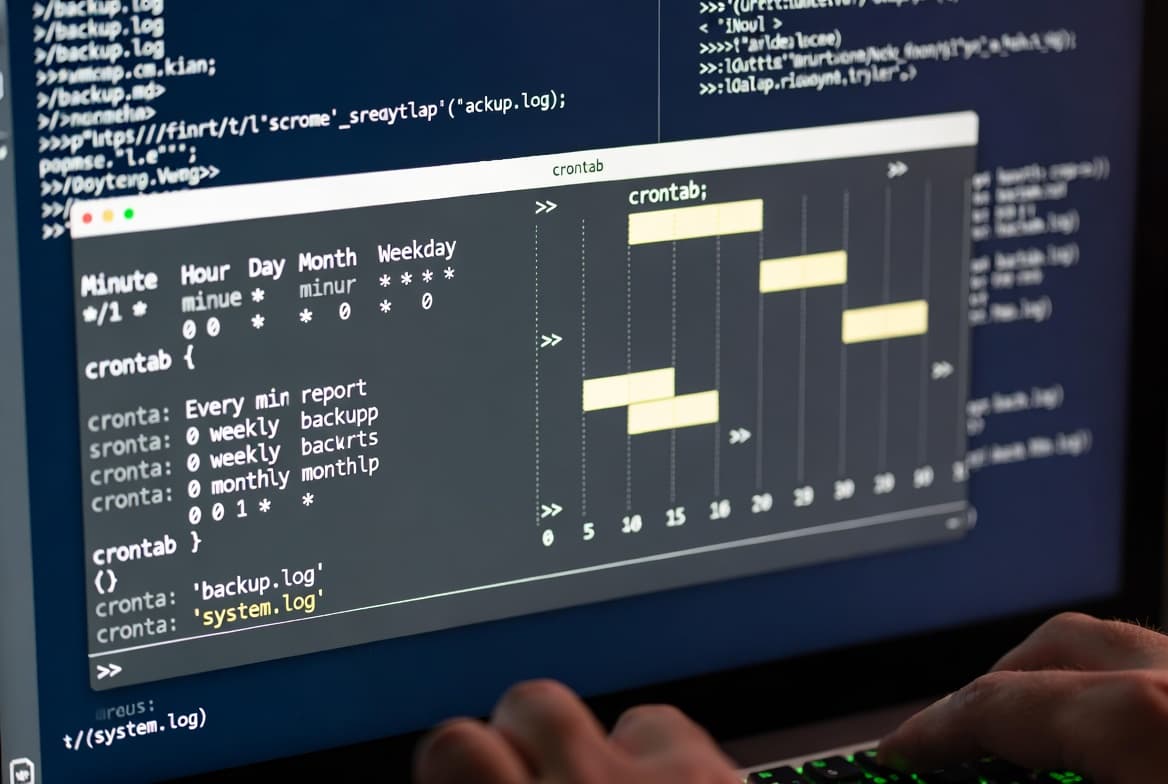
Every crontab line represents one scheduled job. The first five fields define when the job runs; everything after is the command. This syntax comes directly from Vixie cron and is consistent across virtually every Linux distribution.
* * * * *  /path/to/command
| | | | |
| | | | +---- Day of week  (0-7, where 0 and 7 both = Sunday)
| | | +------ Month        (1-12)
| | +-------- Day of month (1-31)
| +---------- Hour         (0-23)
+------------ Minute       (0-59)
Special characters extend the scheduling vocabulary:
*- every possible value for that field.,- a list of values, e.g.1,15means the 1st and 15th.-- a range, e.g.1-5means Monday through Friday in the day-of-week field./- a step value, e.g.*/10means every 10 units.
Alias shortcuts cover common frequencies without mental arithmetic:
@reboot- once at system startup.@hourly- equivalent to0 * * * *.@daily- equivalent to0 0 * * *.@weekly- equivalent to0 0 * * 0.@monthly- equivalent to0 0 1 * *.@yearly- equivalent to0 0 1 1 *.
Step 3: Open and Edit Your Crontab File
Never edit a crontab file directly with a plain text editor. Use `crontab -e`, which validates the file before saving and prevents syntax errors from silently breaking your schedule.
crontab -eOn first run the system asks you to choose an editor. Nano (option 1) is the most accessible for most users. Other useful crontab commands:
# Display the current user's crontab
crontab -l

# Remove the current user's crontab entirely
crontab -r

# View or edit another user's crontab (requires root)
crontab -u username -l
For system-wide jobs that run regardless of user sessions, place entries in /etc/crontab or drop individual files into /etc/cron.d/.
Step 4: Add a Real Scheduled Job
Here are four practical patterns covering the most common sysadmin automation needs.
Run a backup script every day at midnight:
0 0 * * * /home/sysadmin/scripts/backup.sh >> /var/log/backup.log 2>&1Purge a temporary directory every Monday at 06:00:
0 6 * * 1 /usr/bin/rm -rf /home/sysadmin/tmp/*When calling a system binary directly, always use its absolute path. Cron starts with a stripped environment and does not inherit your shell's PATH variable. Use whereis to find the correct path before writing the job:
whereis rmWhen we tested this on a fresh Ubuntu 22.04 minimal install, a script that called python3 by name failed silently - switching to /usr/bin/python3 fixed it immediately. That single habit prevents the majority of "my cron job does nothing" support tickets.
Send an email alert whenever the server reboots:
@reboot echo "Server rebooted on $(date '+%Y-%m-%d at %H:%M:%S')" | mail -s "Reboot alert" admin@example.comRun a health-check script every five minutes on weekdays:
*/5 * * * 1-5 /usr/local/bin/healthcheck.shStep 5: Handle Crontab Output and Logging
By default, cron mails stdout and stderr to the owning user. On servers without a local mail agent, that output disappears. Choose your output strategy deliberately for every job.
Suppress all output (silent mode):
0 0 * * * /home/sysadmin/scripts/backup.sh > /dev/null 2>&1Append stdout only to a log file:
0 0 * * * /home/sysadmin/scripts/backup.sh >> /var/log/backup.logAppend both stdout and stderr to the same log file:
0 0 * * * /home/sysadmin/scripts/backup.sh >> /var/log/backup.log 2>&1Keep stderr in a separate file for easier debugging:
0 0 * * * /home/sysadmin/scripts/backup.sh >> /var/log/backup.log 2>> /var/log/backup_errors.logIn our lab, separating error logs cut average debug time in half when a backup script started failing intermittently at 3 AM. The combined log hid the error message inside a wall of success output.
Step 6: Build a Crontab Quick Reference Schedule Library
The six expressions below cover the scheduling patterns you will encounter most often. Each solves a specific timing problem, so the table maps each pattern to its intended use case.
Expression | Use Case |
|---|---|
| Poll a metric or health endpoint every 5 minutes |
| Run a weekly report every Sunday at 22:15 |
| Trigger a morning task on weekdays only at 08:00 |
| Monthly cleanup or billing job at midnight on the 1st |
| Staggered maintenance job every other day at 03:00 |
| Jobs scoped to the first 10 days of each month at 03:00 |
The every-5-minutes pattern suits health checks and metric collectors. The weekday-only pattern (1-5) keeps noisy jobs off weekends. The */2 step pattern distributes load across alternate days, which works well when you have multiple servers running the same task and want to stagger them manually.
For the 1-10 range pattern, note that it combines with the month field - you can narrow it further, such as 0 3 1-10 1,7 * to run only in January and July.
Step 7: Verify Your Crontab Is Working
After saving your crontab, confirm the entry stored correctly:
crontab -lTo watch cron activity in real time on systemd-based systems:
journalctl -u cron -fOn older systems using syslog, check:
grep CRON /var/log/syslog | tail -20If a script does not execute, work through this checklist:
- Confirm the script has execute permission:
chmod +x /path/to/script.sh. - Verify the command works when run manually from a shell.
- Check that all binary paths are absolute.
- Look for typos in the five-field time expression using an online validator such as crontab-generator.org.
- Make sure stderr redirects to a log so error messages surface.
- Confirm the cron daemon runs with
systemctl status cron.
Security reminder: BleepingComputer reported that the perfctl malware campaign, discovered in 2024, exploited more than 20,000 Linux misconfigurations and targeted millions of servers partly by hiding rogue cron jobs. Audit your crontab entries periodically and treat unexpected entries as an incident. The Rocke threat group has planted malicious scripts in `/etc/cron.hourly/` since at least 2018, so system-wide cron directories deserve the same scrutiny as user crontabs.
Frequently asked questions
What is the difference between cron and crontab?+
Cron is the background daemon that reads and runs scheduled jobs automatically. Crontab is the per-user configuration file - and the command used to edit it - that defines what runs and when. Every user, including root, maintains a separate crontab file on the system.
Why is my cron job not running?+
The most common causes are a missing execute permission on the script, a relative binary path instead of a full absolute path, or a typo in the five-field time expression. Redirect stderr with `2>&1` to capture error output, and verify the cron daemon is active with `systemctl status cron`.
How do I run a cron job as root without logging in as root?+
Run `sudo crontab -e` to edit root's crontab directly. Alternatively, place a file in `/etc/cron.d/` and specify the target username in the job line. Jobs defined in `/etc/crontab` also support a username field placed between the schedule fields and the command.
Can I validate a cron expression before applying it?+
Yes. Visual tools such as crontab-generator.org let you build a schedule interactively and generate the correct five-field expression. Always test the underlying command manually in a terminal first to confirm it executes correctly before adding it to your crontab.
Are cron jobs a security risk I should monitor?+
Yes. MITRE catalogues cron abuse as ATT&CK T1053.003, and the perfctl malware campaign in 2024 used trojanized crontab utilities to hide rogue jobs on millions of Linux servers. Audit all user and system crontabs regularly and treat any unexpected entry as a potential incident.


![Find Exchange Server Version with PowerShell [2025]](/_next/image?url=https%3A%2F%2Fwww.navanem.com%2Fapi%2Fmedia%2Ffile%2Fexchange-build-number-cover.jpg&w=3840&q=75)