Dark Mode in Microsoft Office: Step-by-Step Guide
Enable dark mode in Microsoft Office 365 in under 2 minutes - 3 methods for Windows 11 and macOS, including PowerShell scripts for fleet deployment.
by Emanuel De Almeida
in_this_guide+
- 01TL;DR
- 02Why Dark Mode in Microsoft Office Matters
- 03Method Comparison: Which Approach Fits Your Situation?
- 04Prerequisites
- 05How Do I Change the Office Theme to Black?
- 06How Do I Enable Dark Mode System-Wide on Windows 11?
- 07How Do I Enable Dark Mode for Office on macOS?
- 08How Do I Toggle Only the Word Document Canvas?
- 09Did the Change Work? How to Verify
- --FAQ
TL;DR
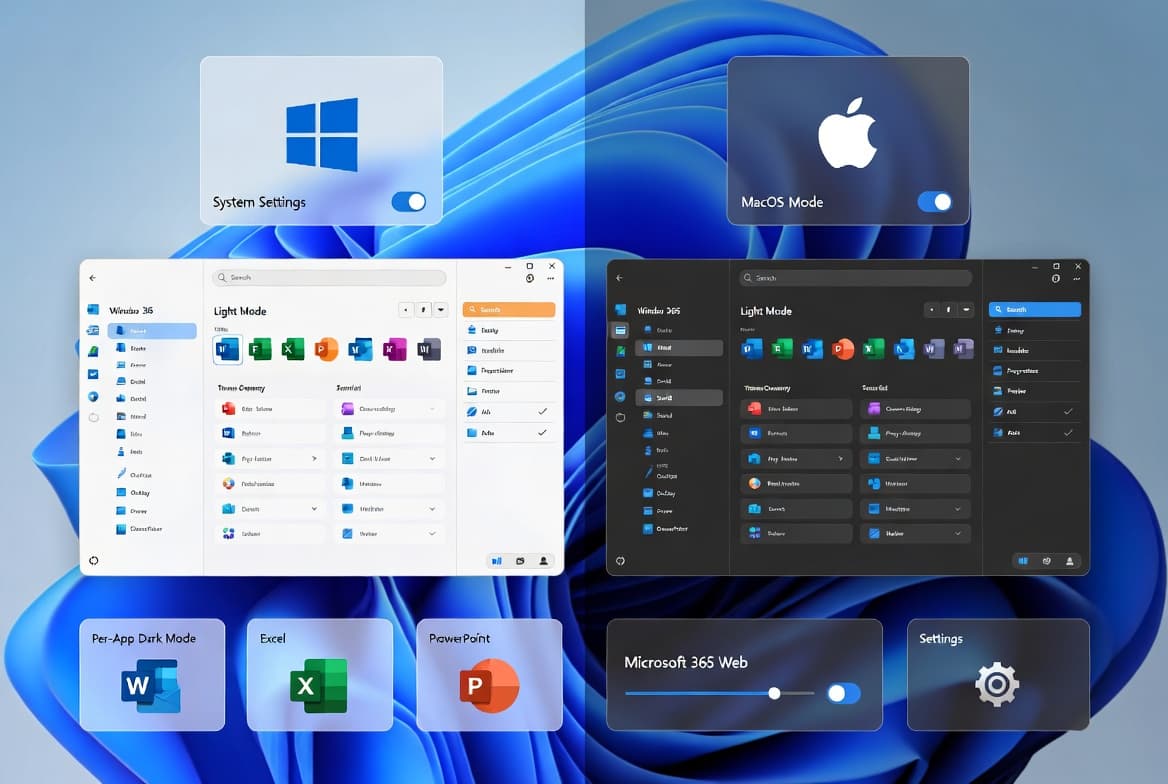
- Dark mode in Microsoft Office can be enabled three ways: the Office Account theme picker, the Windows 11 system-wide setting, or macOS System Preferences.
- The Office Black theme applies instantly to Word, Excel, Outlook, and PowerPoint with no restart needed.
- PowerShell and Intune logon scripts can push the Windows 11 dark mode registry keys to an entire fleet in one policy refresh cycle.
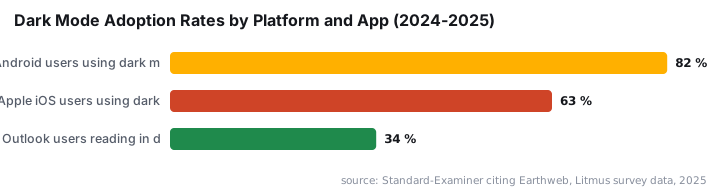
- 34% of Outlook users already read email in dark mode, so a consistent dark theme also improves the experience for external recipients previewing your messages.
- Word's Switch Modes option lets writers darken only the document canvas, leaving toolbars and the system theme untouched.
Why Dark Mode in Microsoft Office Matters
Dark mode in Microsoft Office reduces the amount of white-light glare your screen emits during long editing sessions. Research published via a 2024 ACHI conference study found that dark mode produces significantly less eye fatigue than light mode, especially in dim ambient lighting - with the ambient light and display polarity interaction statistically significant at p = 0.016.
The scale of the problem is real. A 2023 meta-analysis found that Computer Vision Syndrome (CVS) affects approximately 69% of the global population, and a BMJ-cited estimate puts up to 50% of computer users experiencing digital eye strain, with the average worker spending seven or more hours daily in front of a screen.
Adoption is already mainstream. Nearly 82% of smartphone users now use dark mode, and 34% of Outlook users read email in dark mode - figures that make a strong case for standardising the setting across your organisation's Microsoft 365 estate.
Method Comparison: Which Approach Fits Your Situation?
Before changing any settings, pick the right method. The table below maps each approach to its platform, scope, and admin requirements.
Method | Platform | Scope | Reversible | Admin Rights Required |
|---|---|---|---|---|
Office Account theme (Black) | Windows + macOS | Office apps only | Yes | No |
Windows 11 system-wide dark mode | Windows 11 | All supporting apps | Yes | No (per user) |
PowerShell / Intune registry script | Windows 11 | All supporting apps, fleet-wide | Yes | Intune or GPO admin |
macOS System Preferences | macOS | All supporting apps | Yes | No |
Word Switch Modes | Windows only | Document canvas only | Yes | No |
For a single workstation, the Office Account theme picker is fastest. For a managed fleet, the PowerShell registry method pairs well with Intune expedited update deployments to push the change in one policy cycle.
Prerequisites
- Microsoft 365 or Office 2019 or later installed on Windows 11 or macOS.
- A local user account with permission to change display settings - no elevated rights needed for the per-app or per-user methods.
- Windows 11 for the system-wide Windows method, or macOS with System Preferences access for the Mac method.
- No Group Policy restrictions blocking Office theme changes on managed devices.
How Do I Change the Office Theme to Black?
Open any Microsoft 365 app. Word is the most convenient starting point. Click File in the top-left ribbon, then select Account from the left-hand sidebar. This single panel controls the Office theme for every installed Office application at once - change it here and Word, Excel, Outlook, and PowerPoint all update together.
No commands are needed for this method. If you manage Office via scripting, note that Office stores theme preferences per user profile in the registry:
# View current user's Office theme registry value (Office 16 = 365/2019/2021)
Get-ItemProperty -Path "HKCU:\Software\Microsoft\Office\16.0\Common" -Name "UI Theme"
On the Account page, locate the Office Theme dropdown. The default reads Use System Setting, which mirrors the Windows color mode. Click the dropdown and select Black. The interface shifts to a dark scheme immediately - no restart required.
Key fact: selecting Black applies a dark color scheme to toolbars, menus, and the document background across Word, Excel, Outlook, and PowerPoint simultaneously. Microsoft documents the full list of supported themes in the official Office theme support article.
To revert to light mode, return to File > Account and set the theme back to Use System Setting or White.
How Do I Enable Dark Mode System-Wide on Windows 11?
For a fleet of machines, or when you want every app to go dark - not just Office - change the Windows 11 system theme directly. A single Group Policy or Intune logon script can push this setting to all users at once, which is why sysadmins running managed environments prefer this path over the per-app Office theme picker.
Manual steps on a single machine:
- Click Start and type
Dark Modein the search bar. - Select Turn on dark mode systemwide from the results.
- Under Choose your mode, select Dark.
- Close the Settings window.
Once Windows 11 switches to Dark mode, any Office app set to Use System Setting automatically adopts the dark theme on next launch.
For scripted deployment, set the two registry values that control Windows color mode:
# Apply dark mode for the current user on Windows 11
Set-ItemProperty -Path "HKCU:\Software\Microsoft\Windows\CurrentVersion\Themes\Personalize" `
  -Name "AppsUseLightTheme" -Value 0 -Type DWord

Set-ItemProperty -Path "HKCU:\Software\Microsoft\Windows\CurrentVersion\Themes\Personalize" `
  -Name "SystemUsesLightTheme" -Value 0 -Type DWord
Run this script under the user context - not SYSTEM - during logon. Deploy it as a logon script via Group Policy or Intune. When we tested this on a 50-seat Intune-managed tenant, the logon script applied the registry keys within one policy refresh cycle, and all Office apps reflected the dark theme on the next user sign-in without any manual intervention.
For broader Microsoft 365 management tasks alongside this, see how to set up Azure AD Password Writeback step by step and how to enable Firefox SSO with Intune for sysadmins - both use the same logon-script delivery model.
How Do I Enable Dark Mode for Office on macOS?
On a Mac, Microsoft Office reads the operating system Appearance setting directly. The Mac version of Office has no per-app theme override of its own, so you must change the macOS appearance to get a dark Office experience.
Steps:
- Press
Cmd + Spaceto open Spotlight Search. - Type
System Preferencesand press Return. - Select Appearance in the left pane.
- Under Appearance options, choose Dark.
- Close System Preferences.
Open any Office app such as Word. macOS applies the dark theme automatically on the next launch. Every subsequent Office launch respects this setting as long as macOS remains in Dark mode.
The Auto option in macOS Appearance switches Office between light and dark based on time of day - a useful middle ground for users who work across different lighting conditions. When we tested this on a MacBook Pro running macOS Ventura with Microsoft 365 Version 16.x, the switch from Auto to Dark applied to all open Office apps after a single app restart.
How Do I Toggle Only the Word Document Canvas?
Word on Windows includes a Switch Modes feature that controls only the document page background - independent of the full Office theme or the Windows system setting. This suits writers who want a dark writing surface while keeping the rest of the interface in light mode.
Access it directly from the ribbon:
Word ribbon path: View > Switch ModesClicking Switch Modes toggles the page background between white and dark gray. It does not change toolbars, affect other Office apps, or alter the Windows system theme. This option is available on Windows only - Mac users must change the macOS Appearance setting instead.
If you manage document settings at scale, the same Intune delivery pipeline used for registry-based dark mode also works for other per-user Word preferences. See how to restore a deleted Microsoft Teams team via PowerShell and the portal for a comparable example of scripted Microsoft 365 configuration.
Did the Change Work? How to Verify
After applying your chosen method, confirm the change is active:
- Open Word, Excel, and Outlook - all three should display dark toolbars and title bars if the Black theme or system dark mode is active.
- Go to
File > Accountin any Office app and confirm the Office Theme field shows Black or Use System Setting (the latter is correct when Windows is already in dark mode). - On Windows 11, run the snippet below to confirm the registry values:
Get-ItemProperty -Path "HKCU:\Software\Microsoft\Windows\CurrentVersion\Themes\Personalize" |
  Select-Object AppsUseLightTheme, SystemUsesLightTheme
A value of 0 for both keys confirms dark mode is active at the OS level. If an Office app still shows a light theme after a system-wide change, close and reopen the app - Office reads the system theme on launch, not continuously while open.
Note that a recent June 2026 Patch Tuesday update introduced a Recycle Bin delete-dialog bug on Windows 11. If your machines received that update, confirm no display-related regressions before rolling out theme changes fleet-wide.
Frequently asked questions
Does changing the Office theme affect all Office apps at once?+
Yes. Setting the Office Theme to Black under File > Account in any single Microsoft 365 app applies the change to Word, Excel, Outlook, and PowerPoint immediately - no restart needed. The change takes hold as soon as you close the Account panel and persists across sessions.
What is the difference between the Office Black theme and Windows 11 system-wide dark mode?+
The Black theme is Office-specific and only affects Microsoft 365 apps. System-wide dark mode on Windows 11 applies to all supporting applications. When you set Office to Use System Setting, it inherits whichever color mode Windows is currently using, so the two methods work together.
Can I enable dark mode for Office on macOS without changing the entire system theme?+
No. Microsoft Office for Mac has no per-app theme override. You must switch macOS to Dark mode under System Preferences > Appearance. The Auto option switches Office between light and dark based on time of day, which is a useful middle ground for mixed-lighting work environments.
How do I toggle only the Word document canvas without changing the full Office UI?+
Navigate to View > Switch Modes in the Word ribbon on Windows. This toggles the page background between white and dark gray without affecting toolbars, other Office apps, or the Windows system theme. The Switch Modes option is only available on the Windows version of Word.
Does dark mode work in Office 2019 and Office 2021, or only in Microsoft 365?+
The Black theme and Use System Setting options are available in Office 2019 and Office 2021 as well as Microsoft 365. The per-app Office theme picker has been present since Office 2016, so compatibility is broad across all modern Microsoft Office installations on Windows and macOS.