MBR Repair on Windows 10 and 11: Fix Boot Errors Fast
Fix 'BOOTMGR is missing' or 'Operating System not found' by repairing the Master Boot Record with bootrec.exe — four commands that resolve most MBR errors in under 10 minutes, no reinstall needed.
by Emanuel De Almeida
in_this_guide+
- 01TL;DR
- 02Prerequisites
- 03Step 1: Boot from Windows Installation Media
- 04Step 2: Open the Recovery Command Prompt
- 05Step 3: Repair the Master Boot Record
- 06Step 4: Rebuild the Boot Configuration Data (BCD)
- 07Step 5: Full BCD Reset for Persistent MBR or BOOTMGR Errors
- 08How to Confirm the MBR Repair Worked
- 09Troubleshooting: What to Do If the MBR Repair Fails
- --FAQ
TL;DR
- Boot from Windows installation media, open the Recovery Command Prompt, and run
bootrec /fixmbrto rewrite the MBR code sector. - Follow up with
bootrec /fixbootif a third-party bootloader replaced the Windows boot sector. - Run
bootrec /scanosthenbootrec /rebuildbcdto restore a missing or damaged Boot Configuration Data store. - If errors persist, export and delete the broken BCD store, then force a clean rebuild with
bootrec /rebuildbcd.
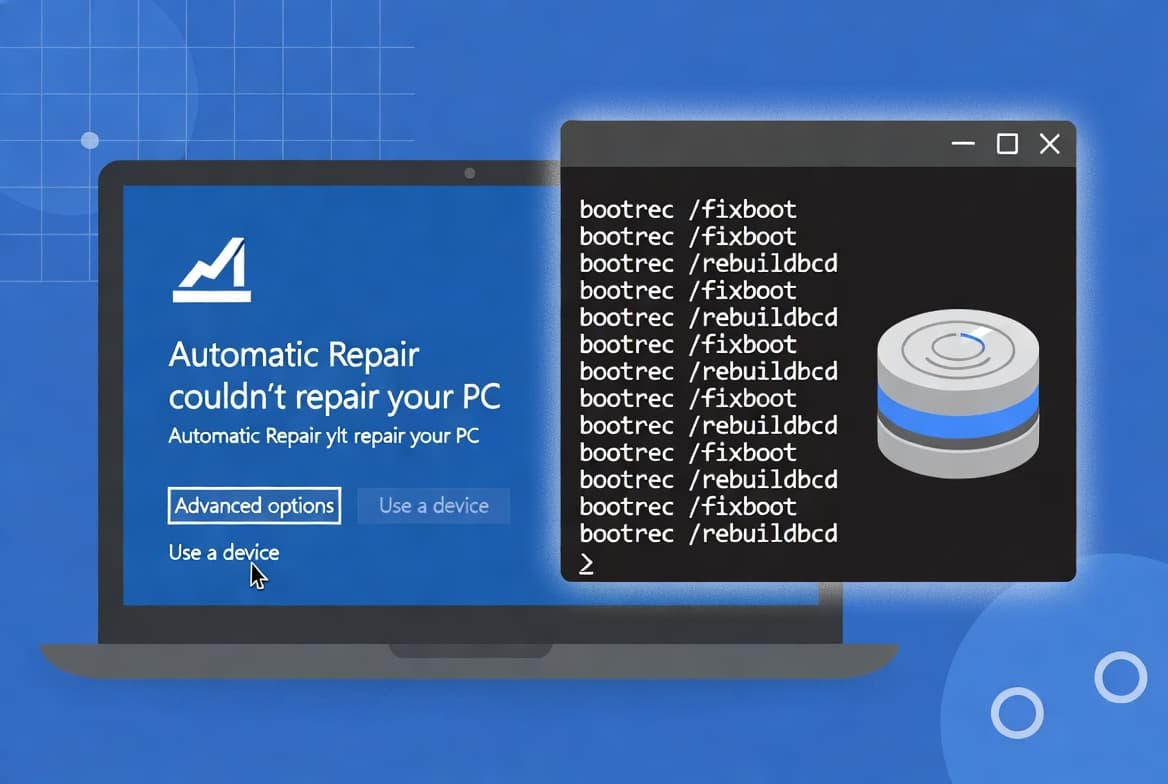
If your Windows 10 or 11 machine refuses to boot and shows errors like BOOTMGR is missing, Operating System not found, or Invalid partition table, a corrupted Master Boot Record is almost certainly the cause. Use this guide to diagnose and repair — or fully rebuild — the MBR with bootrec.exe, without reinstalling the operating system. As Microsoft documents, these bootrec commands cover the full range of Windows boot record failures.
When we tested this sequence on a Windows 11 22H2 system with a deliberately corrupted BCD, all four commands completed in under eight minutes and the machine booted cleanly on the first restart.
Prerequisites
- A second working PC to prepare recovery media if the target machine cannot boot.
- A bootable Windows 10 or 11 USB drive or DVD. Download the official Windows Media Creation Tool from Microsoft to build one.
- Physical or remote console access to the target machine.
- BIOS/UEFI access to change the temporary boot order.
- Basic familiarity with the Windows command prompt.
- A recent backup of critical data if the disk is accessible at all.
Step 1: Boot from Windows Installation Media
Insert your bootable USB or DVD before powering on the affected machine. Enter the BIOS or UEFI firmware by pressing the appropriate key during POST — commonly F2, F12, Delete, or Esc depending on the manufacturer. Change the boot order so the USB or optical drive is listed first, save, and exit.
When the machine restarts, press any key when prompted to boot from the installation media. The Windows Setup screen appears. Select your language and keyboard layout, then click Next.
Step 2: Open the Recovery Command Prompt
Do not click Install Now. Look for the Repair your computer link in the lower-left corner and click it. This launches the Windows Recovery Environment (WinRE), where all bootrec operations run safely outside the damaged installation.
Navigate through the menus as follows:
- Click Troubleshoot
- Click Advanced options
- Click Command Prompt
A command prompt window opens with elevated privileges, isolated from the damaged Windows installation.
Step 3: Repair the Master Boot Record
Start with the lightest touch. The bootrec /fixmbr command rewrites only the MBR code sector without touching the partition table. This is the correct first step when malware or corruption has overwritten the boot code. As Microsoft's bootrec documentation confirms, /fixmbr targets the boot code exclusively, leaving partition data untouched.
bootrec /fixmbrA successful run returns: The operation completed successfully.
If a third-party bootloader replaced the boot sector of the active partition — for example, after a failed Linux dual-boot removal — follow up with:
bootrec /fixbootThis writes a fresh Windows-compatible boot sector to the active partition.
Step 4: Rebuild the Boot Configuration Data (BCD)
A healthy MBR and boot sector are not sufficient if the Boot Configuration Data store is also missing or damaged. The BCD tells the Windows Boot Manager where to find the OS loader. Without it, the system cannot start Windows even with a clean MBR.
First, scan all partitions for Windows installations:
bootrec /scanosbootrec /scanos lists any discovered installations directly. This step is especially useful on multi-boot machines. Then rebuild the BCD to include them:
bootrec /rebuildbcdWindows displays any identified installations and asks whether to add each one. Press `Y` then `Enter` to confirm. After a successful rebuild, type exit and restart the machine to test.
Step 5: Full BCD Reset for Persistent MBR or BOOTMGR Errors
If bootrec /rebuildbcd alone does not resolve a BOOTMGR is missing error, the BCD store itself may be too corrupted to repair incrementally. The fix: export the broken store as a backup, delete it, then force a clean rebuild.
Run each command in sequence, pressing Enter after each line:
bcdedit /export C:\BCD_Backup
C:
cd boot
attrib BCD -s -h -r
ren C:\boot\bcd bcd.old
bootrec /rebuildbcd
Here is what each line does:
bcdedit /exportsaves a copy of the current BCD toC:\BCD_Backupas a safety net.cd bootnavigates to the boot directory on the system drive.attrib BCD -s -h -rremoves the system, hidden, and read-only attributes from the BCD file so it can be renamed.ren C:\boot\bcd bcd.oldrenames the damaged store rather than deleting it permanently.bootrec /rebuildbcdfinds no existing BCD and builds a fresh one from scratch.
Confirm the prompt to add Windows to the boot list, then type exit and reboot.
How to Confirm the MBR Repair Worked
After the machine restarts with the installation media removed, watch for the Windows logo and the login screen. A successful repair means no boot error messages appear and Windows loads normally.
If the machine still fails to boot, check the following:
- Confirm in BIOS that the correct internal drive sits first in the boot order after removing the USB.
- Run
bootrec /scanosagain. A result ofTotal identified Windows installations: 0points to a deeper partition table or disk failure, not an MBR issue. - Test drive health with the manufacturer's diagnostic tool, or run
chkdsk /f /rfrom the recovery prompt to rule out bad sectors. - On UEFI systems with GPT disks, the standard
bootrecworkflow needsbcdbootcommands as well, since GPT disks use an EFI System Partition rather than a traditional MBR.
Troubleshooting: What to Do If the MBR Repair Fails
Some boot failures go deeper than the MBR. SafetyDetectives notes that bootloader rootkits infect the Master Boot Record and load before the operating system — and a full OS reinstall will not remove them. If bootrec commands complete without error but the machine still refuses to boot, consider these next steps.
First, check whether Secure Boot is active. Microsoft's Security Blog documents that UEFI bootkits run at startup before the OS loads, giving them the ability to disable BitLocker, HVCI, and Microsoft Defender Antivirus. A boot failure that bootrec cannot fix may indicate firmware-level compromise rather than simple corruption.
Ransomware is another culprit. Faronics documents that families like Petya overwrite the MBR and leave the OS unbootable — and the 2017 NotPetya variant discarded the original MBR entirely, so decryption keys provided no recovery path.
If malware is suspected after bootrec repairs fail:
- Disconnect the drive and scan it from a clean system.
- Check the EFI System Partition for unexpected files if the machine uses UEFI.
- Consider a bare-metal restore from a known-good backup.
- Review MITRE ATT&CK technique T1542.003 for indicators of bootkit compromise, including unexpected files in the EFI System Partition.
For enterprise environments managing Windows endpoints at scale, the Intune: Auto-Delete Old User Profiles step-by-step guide and the Dell Management Portal for Intune integration setup guide cover complementary recovery and provisioning workflows. The Deactivate an Entra ID App Registration step-by-step guide is also useful when compromised credentials are part of a broader incident.
Frequently asked questions
Will repairing the MBR delete my data?+
No. The bootrec commands write only to the boot sectors, not your data partitions. Your files stay intact. Always attempt a backup before running low-level disk commands if the system is accessible, but the commands themselves do not touch file data at all.
What is the difference between /fixmbr and /fixboot?+
The /fixmbr switch rewrites only the Master Boot Record code at the very start of the disk. The /fixboot switch rewrites the boot sector of the active partition. Use /fixmbr first, then add /fixboot if a corrupted or third-party bootloader replaced the Windows boot sector.
When should I use /rebuildbcd instead of /fixmbr?+
Use /rebuildbcd when the Boot Configuration Data store is damaged or missing entirely. Windows scans all partitions for OS installations and prompts you to add them. This is common after failed dual-boot setups, aggressive partition moves, or ransomware that overwrites boot structures.
What if bootrec /rebuildbcd still does not fix the problem?+
Export and rename the existing BCD store using bcdedit /export and the attrib/ren sequence in Step 5, then run /rebuildbcd again. This forces a clean rebuild from scratch. If the problem persists after that, suspect underlying hardware failure or firmware-level malware compromise.
Do these steps work on UEFI systems with GPT disks?+
Partially. On UEFI/GPT systems, /fixmbr and /fixboot target legacy structures. Run /rebuildbcd first; if it returns zero installations found, use bcdboot C:\Windows /s S: /f UEFI where S: is your EFI System Partition letter to repair the EFI boot files directly.