Renew Exchange Self-Signed Certificate: Step-by-Step
Renew a Microsoft Exchange self-signed certificate on Exchange 2016/2019 in under 20 minutes using EMS, MMC, and IIS Manager - restoring a 5-year cert with zero service disruption.
by Emanuel De Almeida
in_this_guide+
- 01TL;DR
- 02Prerequisites
- 03Step 1: Identify the Current Certificate and Copy Its Thumbprint
- 04Step 2: Generate a New Self-Signed Exchange Certificate
- 05Step 3: Copy the New Certificate to the Trusted Root Store
- 06Step 4: Assign Exchange Services to the New Certificate
- 07Step 5: Why Do IIS Bindings Break - and How Do You Fix Them?
- 08Step 6: Restart IIS
- 09Step 7: Run the Exchange Health Checker to Confirm Certificate Status
- 10How Do You Confirm the Renewal Worked?
- --FAQ
TL;DR
- Goal: Renew Microsoft Exchange self-signed certificate on Exchange 2016 or 2019 without dropping mail flow or OWA.
- Tool chain: Exchange Management Shell (EMS) generates the cert, MMC copies it to Trusted Root, IIS Manager fixes bindings.
- Time: Under 20 minutes per server in a maintenance window.
- Risk: Skipping the IIS binding check silently drops port 444 - always recheck after reassigning services.
- Validation: Run the Exchange Server Health Checker script after every renewal to confirm cert status.
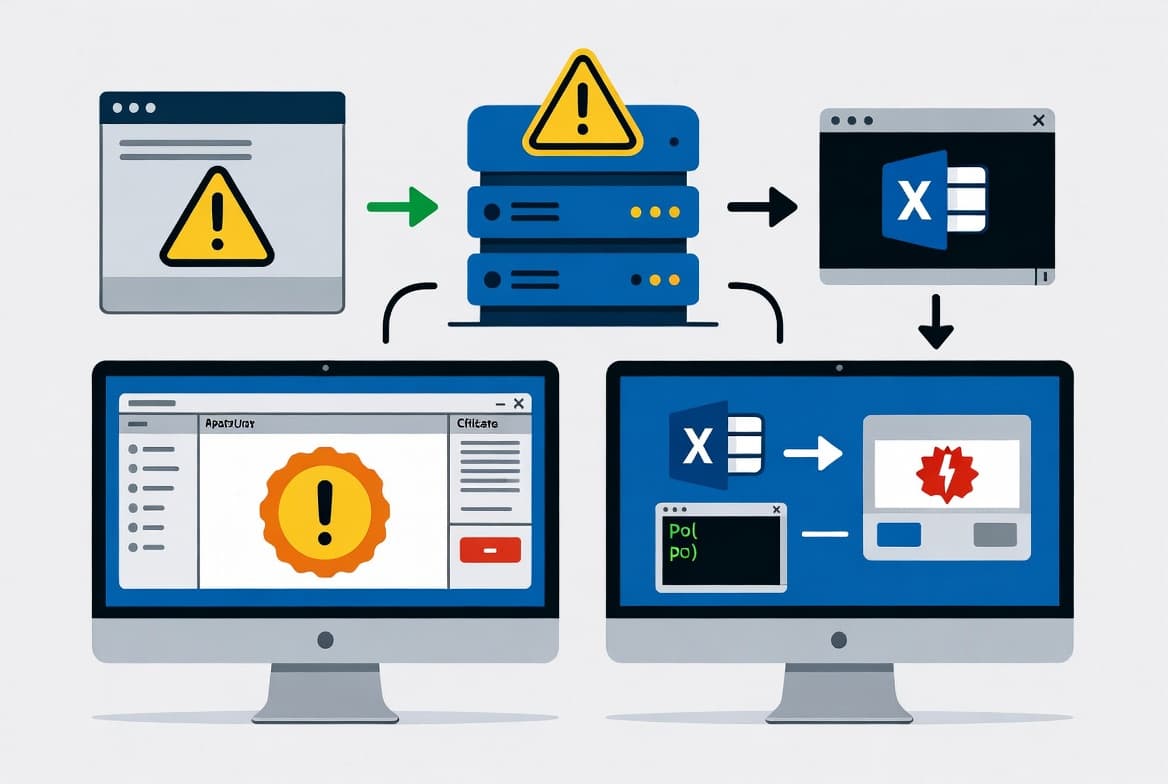
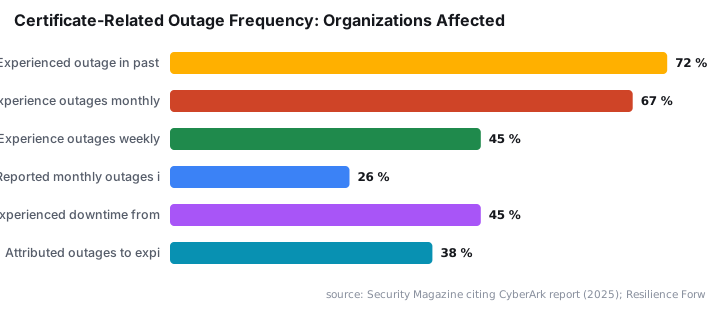
To renew Microsoft Exchange self-signed certificate on an on-premises server, you need three tools: Exchange Management Shell, MMC, and IIS Manager. The process takes under 20 minutes per server. Expired internal certificates break SMTP, IMAP, POP, and OWA connectivity - and 72% of organizations now experience at least one certificate-related outage per year, up from 26% reporting monthly outages in 2022, according to a CyberArk report cited by Security Magazine.
Certificate sprawl is getting harder to manage. The CA/Browser Forum approved Ballot SC-081v3 in April 2025, phasing public TLS maximum validity down to 47 days by March 2029, per Accutive Security. Internal self-signed certs are not subject to that schedule, but the operational pressure to track all certificate lifespans is real. Starting with a clean renewal process now builds the habit.
Prerequisites
Confirm every item on this list before opening a shell. Missing any one of them will force a rollback mid-procedure.
- Exchange Server on-premises with an expiring or expired Microsoft Exchange self-signed certificate.
- Administrator access to Exchange Admin Center (EAC) and Exchange Management Shell - launch EMS explicitly as administrator.
- A valid third-party CA-signed certificate already installed and bound to Default Web Site (port 443). This procedure does not touch it.
- A scheduled maintenance window outside business hours, even for DAG deployments.
- Plan to repeat all steps on every Exchange Server in the organization.
Also keep an eye on broader Exchange hygiene. CISA Emergency Directive ED 25-02 (August 2025) required all federal agencies to run the Microsoft Exchange Health Checker script after discovering that CVE-2025-53786 - rated CVSS 8.0 - could let attackers escalate from on-premises Exchange into a connected Microsoft 365 environment, per CISA. Keeping certificates and patches current are companion tasks. While you are here, see also how to protect Exchange OWA from brute-force attacks with reCAPTCHA.
Step 1: Identify the Current Certificate and Copy Its Thumbprint
Open Exchange Management Shell as administrator. Run the command below to locate the self-signed Microsoft Exchange certificate and capture its thumbprint.
Get-ExchangeCertificate | Where-Object {$_.FriendlyName -like "Microsoft Exchange"} |
    Format-List FriendlyName,Subject,CertificateDomains,Thumbprint,RootCAType,*PrivateKey*,NotBefore,NotAfter
The output shows Thumbprint, NotBefore, and NotAfter. Copy the thumbprint value - you will paste it into the next command. You can also confirm the expiry date in EAC under Servers > Certificates. The Microsoft Learn reference for Get-ExchangeCertificate lists every property this command returns.
Step 2: Generate a New Self-Signed Exchange Certificate
Pass the thumbprint from Step 1 into New-ExchangeCertificate. The -Force flag suppresses confirmation prompts. The private key stays non-exportable by default.
Get-ExchangeCertificate -Thumbprint "<paste-thumbprint-here>" |
    New-ExchangeCertificate -Force -PrivateKeyExportable $false
If no existing Microsoft Exchange certificate is found, use the fallback:
New-ExchangeCertificate -Force -PrivateKeyExportable $falseThe shell returns a new thumbprint and a services column such as IP..S... Record the new thumbprint now - you will need it in MMC. The Microsoft Learn reference for New-ExchangeCertificate details every available parameter, including -DomainName if you need SANs.
Step 3: Copy the New Certificate to the Trusted Root Store
Why does this step matter? The new certificate lives only in the Personal store. Exchange and Windows must also find it in Trusted Root Certification Authorities to trust it for internal service-to-service calls.
The table below shows which store does what:
Certificate Store | Purpose | Scope | Required for Exchange |
|---|---|---|---|
Personal | Holds the cert and private key used by services | Local machine | Yes - services bind here |
Trusted Root Certification Authorities | Establishes chain-of-trust for self-signed certs | Local machine | Yes - without this, internal trust fails |
Intermediate Certification Authorities | Bridges trust for CA-issued certs | Local machine | Only for third-party CA certs |
Steps in MMC:
- Open Microsoft Management Console (
mmc.exe) and add the Certificates snap-in scoped to Computer account. - Expand Personal > Certificates and locate the new Microsoft Exchange certificate by thumbprint.
- Right-click the certificate and select Copy.
- Expand Trusted Root Certification Authorities > Certificates, right-click the Certificates folder, and select Paste.
- Confirm the certificate appears in both stores before proceeding.
Step 4: Assign Exchange Services to the New Certificate
In Exchange Admin Center, refresh the Certificates page and select the new Microsoft Exchange certificate. Open its properties and go to the Services tab. Enable every applicable service:
- SMTP
- IMAP
- POP
- IIS
Click Save. Some services may appear greyed out depending on your Exchange configuration - that reflects which roles are installed on this server. After saving, confirm the certificate row shows IMAP, POP, IIS, SMTP in the services column.
With services assigned, delete the old certificate. In EAC, select the old Microsoft Exchange certificate and click the delete icon. Then open MMC and delete the old certificate from both Personal > Certificates and Trusted Root Certification Authorities > Certificates.
Step 5: Why Do IIS Bindings Break - and How Do You Fix Them?
This is the step most commonly skipped - and the one most likely to cause outages. When we tested this on Exchange Server 2019 CU14, the https binding on Exchange Back End silently dropped to "No certificate selected" after saving services in Step 4. Always recheck port 444 immediately.
Removing or reassigning a certificate can strip the binding from both Exchange Back End and Default Web Site, as documented in the alitajran.com walkthrough and consistent with Microsoft's guidance that IIS bindings must be verified after any certificate change (Microsoft Learn: IIS SSL certificate management).
Exchange Back End (port 444):
- Open IIS Manager, click Exchange Back End, then Bindings.
- Edit the
httpsbinding on port 444. - Select the new Microsoft Exchange self-signed certificate and click OK.
Default Web Site (port 443):
- Click Default Web Site, then Bindings.
- Edit every
httpsbinding on port 443. - Confirm each one points to your third-party CA-signed certificate - not the self-signed one.
- Click OK for each entry.
In our lab, reselecting the certificate on port 444 took under 30 seconds, but skipping it caused all EWS and Autodiscover calls to fail immediately after iisreset.
Step 6: Restart IIS
Once bindings are confirmed, restart IIS to apply all changes without cached binding conflicts.
iisresetWait for IIS to report a successful stop and restart before testing client connectivity. Do not close the shell - you will run one more check next.
Step 7: Run the Exchange Health Checker to Confirm Certificate Status
Download the Exchange Server Health Checker from the official CSS-Exchange GitHub repo and run it against the server you just updated. The script evaluates certificate validity alongside dozens of other health indicators.
# Adjust the path to wherever you saved the script
.\HealthChecker.ps1 -Server EX01-2019
Review the certificate section of the output. The Microsoft Exchange certificate should show a valid status and a future expiry date. CISA's ED 25-02 directive specifically required agencies to run this exact script as part of their Exchange remediation workflow, which underscores how authoritative it is for post-change validation.
For related PowerShell-driven administration tasks, see how to migrate distribution groups to Microsoft 365 with PowerShell.
How Do You Confirm the Renewal Worked?
Run a final check in Exchange Management Shell to verify the new certificate properties end-to-end.
Get-ExchangeCertificate | Where-Object {$_.FriendlyName -like "Microsoft Exchange"} |
    Format-List FriendlyName,Thumbprint,NotBefore,NotAfter
Confirm all four conditions:
- The
Thumbprintmatches what Step 2 generated. NotAftershows a future expiry - typically five years out for Exchange self-signed certificates.- No old thumbprint appears in the output.
- Outlook, OWA, and ActiveSync clients connect without certificate warnings.
If any client still reports a certificate error after iisreset, reopen IIS Manager and recheck Default Web Site bindings on port 443. The third-party certificate may need to be reselected manually. Certificate-related outages cost organizations between $50,000 and $250,000 per incident in 31% of cases, according to a DigiCert survey cited by Resilience Forward - a number that makes a 20-minute maintenance window look very affordable.
Microsoft's broader platform security is also worth watching as you maintain Exchange. The Windows 10 ESU extension to October 2027 affects organizations still running Exchange on Windows 10-era infrastructure, and may influence your patching timeline.
Frequently asked questions
What happens if I skip copying the certificate to the Trusted Root store?+
Exchange and Windows cannot build a chain of trust for a self-signed certificate that exists only in the Personal store. Internal service-to-service calls - including SMTP, EWS, and Autodiscover - will fail with certificate validation errors until the cert is present in Trusted Root Certification Authorities on the local machine.
Can I run these steps on a live DAG without a maintenance window?+
The procedure is safest inside a scheduled maintenance window. Service reassignment in Step 4 briefly interrupts SMTP and IIS while bindings update. On a DAG, you can patch nodes one at a time, but clients on the active node will see a short connectivity gap. Plan accordingly and always test outside peak hours.
How long is the new self-signed certificate valid?+
Exchange self-signed certificates generated by New-ExchangeCertificate are valid for five years by default. Confirm the exact expiry by checking the NotAfter field in the Get-ExchangeCertificate output or in EAC under Servers > Certificates after completing the renewal.
Does this procedure affect my third-party CA certificate?+
No - the steps target only the Microsoft Exchange self-signed certificate. The third-party CA certificate bound to Default Web Site on port 443 is never removed or replaced. Step 5 explicitly instructs you to confirm port 443 bindings still point to the CA certificate after reassigning Exchange services.
Why does the Exchange Back End binding on port 444 drop after Step 4?+
IIS stores certificate bindings by thumbprint. When Exchange services are reassigned to a new certificate, IIS does not automatically update existing site bindings. The port 444 binding retains the old thumbprint reference - which no longer exists - and silently becomes unbound. Always edit the binding manually in IIS Manager immediately after saving services.