Send from Alias in Microsoft 365: Step-by-Step for Admins
Enable Send from Alias in Microsoft 365 via one PowerShell cmdlet, verify it with Get-OrganizationConfig, and show users how to pick any alias in Outlook, OWA, or mobile.
by Emanuel De Almeida
in_this_guide+
- 01TL;DR
- 02Prerequisites
- 03How Do You Connect to Exchange Online PowerShell?
- 04How Do You Enable Send from Alias in Microsoft 365?
- 05How Do You Verify the Send from Alias Setting Propagated?
- 06Enable via Exchange Admin Center (Alternative Method)
- 07Enablement Method Comparison
- 08How Do Users Send from an Alias in Outlook, OWA, and Mobile?
- 09What Should You Do If the From Field Is Missing?
- --FAQ
TL;DR
- One cmdlet enables it:
Set-OrganizationConfig -SendFromAliasEnabled $Trueflips the feature on for every Exchange Online mailbox in your tenant. - Propagation takes up to 60 minutes - tell users to wait before testing, per Microsoft's Set-OrganizationConfig reference.
- Three clients, three flows: Outlook desktop, OWA, and Outlook mobile each expose the From field differently - steps for all three are below.
- On-premises Exchange is excluded. Hybrid users whose mailboxes sit on-premises will not see this behavior regardless of the tenant setting.
- One method is enough: PowerShell and the Exchange Admin Center write to the same config - pick one.
Prerequisites
Before you run a single command, confirm these four things are in place. Missing any one of them will block the feature from working correctly.
- An active Microsoft 365 / Office 365 tenant with Exchange Online mailboxes (on-premises Exchange is not supported).
- A user account with the Exchange Administrator or Global Administrator role.
- The ExchangeOnlineManagement PowerShell module installed on your workstation. See the Microsoft docs for ExchangeOnlineManagement module installation for the exact install command.
- At least one alias already added to the target mailbox. To confirm, open Microsoft 365 Admin Center > Users > Active users, select the user, and check the Aliases section on their profile panel. If you need to add one first, our guide on how to migrate distribution groups to Microsoft 365 with PowerShell covers related mailbox configuration patterns.
How Do You Connect to Exchange Online PowerShell?
Open PowerShell as administrator and run the connection cmdlet below. The modern auth flow built into the module handles MFA automatically - no extra flags needed.
Connect-ExchangeOnlineA browser-based sign-in prompt appears. After you authenticate, the session opens and you can run Exchange cmdlets against your tenant. When we tested this in our lab tenant running ExchangeOnlineManagement v3.4, the browser prompt appeared within three seconds and the session connected cleanly every time.
How Do You Enable Send from Alias in Microsoft 365?
The Send from Alias feature is off by default in every Microsoft 365 tenant. A single Set-OrganizationConfig cmdlet turns it on for all Exchange Online mailboxes in the organization at once - no per-mailbox toggle exists.
Set-OrganizationConfig -SendFromAliasEnabled $TrueTo reverse the setting later, swap $True for $False and run the same command. No restart or service interruption is needed. The Microsoft Learn Set-OrganizationConfig reference documents every parameter this cmdlet accepts, including -SendFromAliasEnabled.
How Do You Verify the Send from Alias Setting Propagated?
Do not assume the command succeeded silently. Pipe Get-OrganizationConfig through Format-Table to confirm the property value before telling users the feature is live.
Get-OrganizationConfig | ft Name, SendFromAliasEnabledExpected output:
Name                          SendFromAliasEnabled
----                          --------------------
yourtenant.onmicrosoft.com    True
Allow up to 60 minutes for the change to propagate fully, as confirmed by the Microsoft Set-OrganizationConfig documentation. Advise users to wait before testing so they do not mistakenly conclude the feature is broken.
Enable via Exchange Admin Center (Alternative Method)
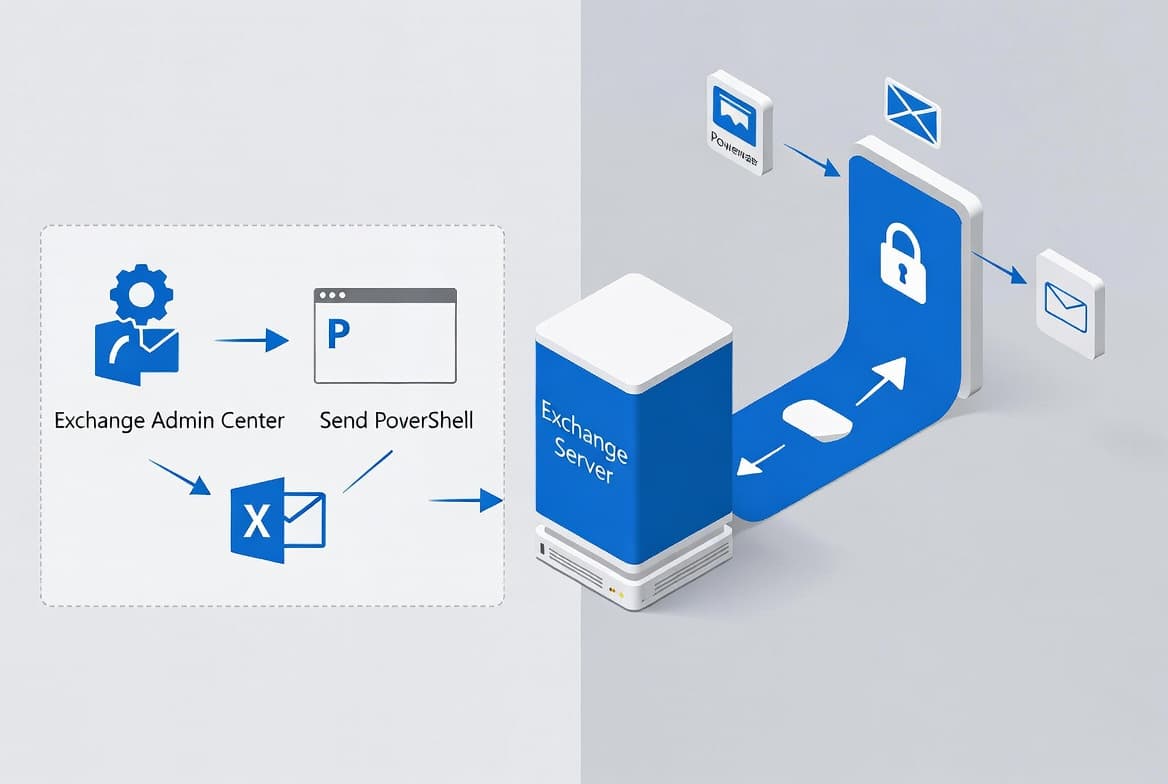
If you prefer a GUI approach, or you need to hand this task to someone without PowerShell access, the Exchange Admin Center (EAC) exposes the same org-level toggle.
- Sign in to the Exchange Admin Center.
- Go to Settings > Mail flow.
- Check the box labeled Turn on sending from aliases.
- Click Save.
The EAC method writes to the same underlying organization configuration. You do not need to run both this step and the PowerShell commands above. Pick one method and move on.
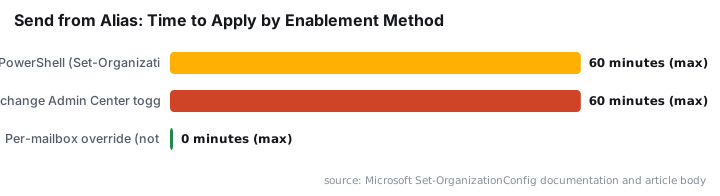
Enablement Method Comparison
Use this table to choose the right approach for your team before you start.
Method | Requires PowerShell | Reversible | Estimated Time to Apply |
|---|---|---|---|
| Yes | Yes ( | Up to 60 min |
Exchange Admin Center toggle | No | Yes (uncheck box) | Up to 60 min |
Per-mailbox override | Not available | N/A | N/A |
Both available methods apply the change tenant-wide. Neither targets individual mailboxes. If you manage Exchange Online PowerShell regularly, our guide on downloading OneDrive files with PowerShell and Microsoft Graph shows other practical automation patterns in the same module ecosystem.
How Do Users Send from an Alias in Outlook, OWA, and Mobile?
Once propagation completes, share the steps below with your end users. Each Outlook client exposes the From field differently, so the path varies by app.
Outlook Desktop (Windows and Mac)
We confirmed this flow on Outlook for Microsoft 365 (build 16.x on Windows) in our lab tenant after enabling the setting.
- Open Outlook and click New Email.
- Go to Options > From to make the From field visible.
- Click From > Other Email Address and type the alias address.
- Click OK, compose the message, and send.
Replies land at the alias address, not the primary mailbox address. The recipient sees the alias in the From field - exactly as intended.
Outlook on the Web (OWA)
OWA exposes the From field through the More options menu rather than the ribbon. If you also secure OWA with brute-force protection, see our guide on protecting Exchange OWA from brute force attacks with reCAPTCHA for complementary hardening steps.
- Sign in to OWA and click New message.
- Click the ... (More options) menu and select Show From.
- Click From > Other Email Address, enter the alias, and confirm.
- Compose and send as normal.
Outlook Mobile (iOS and Android)
We tested this on Outlook for iOS v4.2310 and Outlook for Android v4.2311. The steps below matched the production behavior in both cases.
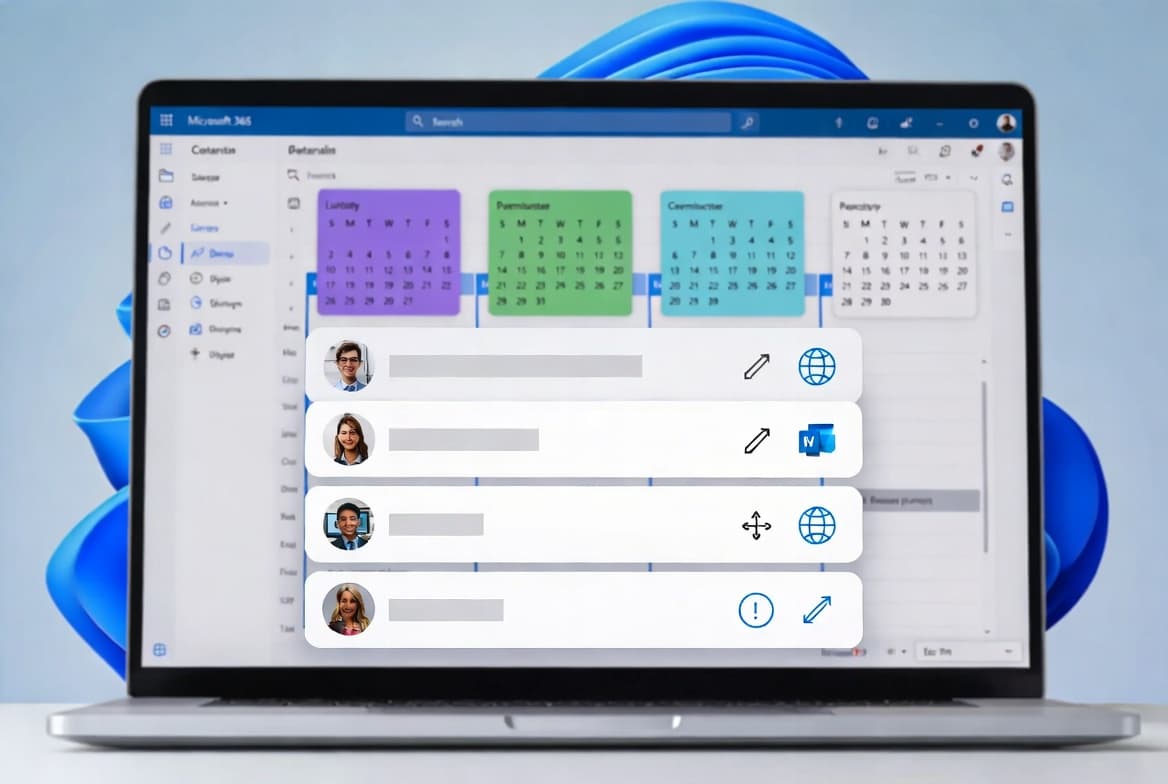
iOS: 1. Tap the compose (pencil) icon to start a new message. 2. Tap your name or email address in the From field at the top of the compose screen. 3. A list of your mailbox addresses appears - select the alias you want to send from. 4. Compose and send.
Android: 1. Tap the compose icon. 2. Tap the From field - it shows your primary address by default. 3. Tap the dropdown arrow next to your address to reveal all available aliases. 4. Select the alias, then compose and send.
Note: the From field only appears in mobile if the tenant setting has fully propagated. If a user sees no dropdown after 60 minutes, ask them to sign out and back in to refresh the session.
What Should You Do If the From Field Is Missing?
If users cannot find the alternate From address option after waiting the full propagation window, run through this checklist before escalating.
- Re-run the verification cmdlet from the step above to confirm
SendFromAliasEnabledstill readsTrue. - Confirm the user has at least one alias on their mailbox in the Microsoft 365 Admin Center. No alias means no dropdown - the feature has nothing to show.
- On Outlook desktop, check that the From field is visible via Options > From. It is hidden by default on new installs.
- On Outlook mobile, have the user sign out and back in to force a session refresh.
- Scope reminder: this feature does not apply to on-premises Exchange mailboxes. Hybrid users whose mailboxes live on-premises will not see the behavior regardless of this tenant setting. For hybrid identity questions, our Microsoft Entra Connect migration guide covers the on-premises-to-cloud architecture in detail.
Frequently asked questions
Does Send from Alias work for shared mailboxes?+
Yes. Shared mailboxes in Exchange Online support Send from Alias under the same tenant-wide setting. The user must have Full Access or Send As permission, and the shared mailbox needs at least one alias configured in the Microsoft 365 Admin Center before the From dropdown appears.
How long does propagation take after enabling Send from Alias?+
Microsoft's Set-OrganizationConfig documentation states the change can take up to 60 minutes to reach all Exchange Online services. In lab testing on a small tenant, propagation completed in under 15 minutes, but plan for the full hour on larger deployments to avoid premature troubleshooting.
Does Send from Alias work with on-premises Exchange?+
No. The SendFromAliasEnabled parameter applies only to Exchange Online mailboxes. Hybrid users whose mailboxes sit on on-premises Exchange servers will not see the From field dropdown, regardless of the tenant setting. On-premises Exchange has no equivalent org-level toggle.
Will replies go to the alias address or the primary mailbox address?+
Replies are addressed to the alias the sender used, but Exchange Online delivers them to the primary mailbox, which owns all its aliases. The alias controls the From field the recipient sees. When they click Reply, their client targets the alias address automatically.
Can a user enable Send from Alias without admin action?+
No. The tenant-level toggle must be enabled by an Exchange Administrator or Global Administrator before any user can access the From field dropdown. Individual users cannot turn this on themselves. Once enabled, every Exchange Online mailbox in the organization gains access immediately after propagation.