Outlook Calendar Sharing Permissions Explained for IT Pros
Outlook calendar sharing permissions control what colleagues or external contacts can see in Microsoft 365. Learn all 7 permission tiers and how to audit them.
by Emanuel De Almeida
in_this_guide+
- 01TL;DR
- 02What Are Outlook Calendar Sharing Permissions?
- 03How Do the Outlook Calendar Sharing Permission Levels Work?
- 04Outlook Calendar Sharing vs. Delegate Access - What Is the Difference?
- 05Why Do Outlook Calendar Sharing Permissions Matter for Security?
- 06What Does Misconfiguration Look Like at Scale?
- 07Common Misconceptions About Outlook Calendar Permissions
- 08How to Audit Outlook Calendar Sharing Permissions
- 09Key Takeaways
- --FAQ
TL;DR
- Outlook calendar sharing permissions span seven tiers, from free/busy-only up to full Owner control, and each tier carries distinct security risks.
- Delegate access and standard calendar sharing are separate features - confusing them is a common IT mistake.
- Misconfigured calendar permissions contribute to real breach risk: the Verizon DBIR 2024 found 68% of breaches involved a human element such as misconfiguration.
- Quarterly permission audits are the single most effective control for catching stale calendar access.
- External sharing is partly governed by tenant policy, not just what the individual user selects.
What Are Outlook Calendar Sharing Permissions?
Outlook calendar sharing permissions are the access controls inside Microsoft 365 that determine what another person - a colleague, a manager, or an external contact - can see and do with your Outlook calendar. They range from a bare free/busy indicator up to full delegate control. Choosing the wrong level is one of the most common sources of accidental data exposure in business environments.
Calendar sharing permissions establish a live, ongoing connection between your calendar and another user's Outlook client. This is not a static export or a one-time snapshot. Changes appear in real time for anyone you have granted access. The permission level you assign governs the exact scope of that access - from whether someone sees a busy block to whether they can create, edit, or delete appointments on your behalf.
Know which calendar type you are configuring before you start. Personal calendars are shared by the individual account owner. Shared mailbox calendars and resource calendars - such as a conference room booking calendar - are typically managed centrally by an IT administrator through the Microsoft 365 admin center or the Exchange admin center. Both use the same underlying permission framework, but the setup paths and administrative scope differ.
When we have audited M365 tenants in enterprise environments, the most common gap we find is resource calendars left on default permissions after initial setup - often granting far more visibility than intended.
How Do the Outlook Calendar Sharing Permission Levels Work?
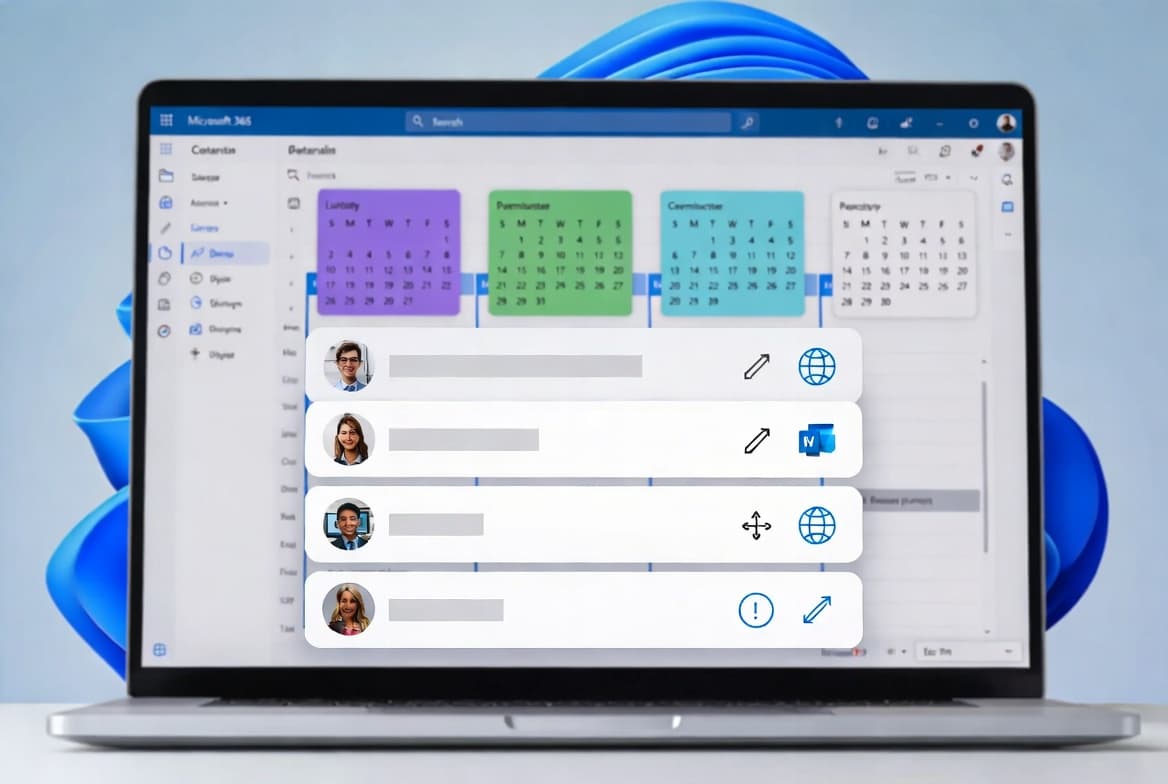
Outlook organizes calendar access into a tiered hierarchy. Each step up unlocks additional visibility or capability. Applying the principle of least privilege - granting only the access a person genuinely needs - should be the default mindset for every assignment.
The tiers, from most restrictive to most permissive:
- Free/Busy time only - the recipient sees whether a slot is occupied, nothing else. No subject lines, no locations, no notes.
- Free/Busy time, subject, location - adds the meeting title and location. Often the right balance for colleagues who need scheduling context without seeing sensitive content.
- Limited details - similar to the above but may expose notes depending on the Outlook version in use.
- Full details - a complete read-only view of every field in every calendar item.
- Editor - read plus write access. The editor can create and modify events but cannot respond to meeting requests on the calendar owner's behalf.
- Delegate - configured separately through the Delegate Access feature, not the standard sharing dialog. A delegate can receive and respond to meeting invitations as if they were the calendar owner. This is the right level for an executive assistant or a backup scheduler.
- Owner - full control, including the ability to change permissions for other users. Most organizations should never assign this level to anyone other than the primary account holder.
According to Gartner research (via Veza), 90% of cloud identities are currently too permissive - meaning most organizations are already violating least-privilege principles across their cloud environments, including calendar access.
Outlook Calendar Sharing vs. Delegate Access - What Is the Difference?
These two features are often confused because they overlap in purpose but differ significantly in scope. Standard sharing is configured in the Sharing and Permissions dialog. Delegate access lives under File > Account Settings > Delegate Access and does far more.
Feature | Standard Calendar Sharing | Delegate Access |
|---|---|---|
Configured via | Sharing and Permissions dialog | File > Account Settings > Delegate Access |
Can view calendar | Yes | Yes |
Can create/edit events | Editor level and above | Yes |
Can respond to meeting requests | No | Yes |
Integrates with inbox | No | Yes |
Typical use case | Team visibility, manager oversight | Executive assistant, schedule manager |
Delegate access integrates directly with the calendar owner's inbox. That integration is what makes it more powerful - and more sensitive - than a standard sharing grant. Assigning delegate access carelessly is a meaningful security event, not just an admin convenience.
For organizations managing identity and access at scale, the same least-privilege logic applies to cloud app permissions. The Klue OAuth breach that exposed Salesforce data illustrates how over-granted OAuth tokens - structurally similar to delegate grants - can become a direct data exposure path.
Why Do Outlook Calendar Sharing Permissions Matter for Security?
Calendar data carries more sensitive information than most users recognize. Meeting subjects, attendee lists, locations, and notes can reveal business strategy, HR activity, legal discussions, and client relationships. An over-permissioned calendar is a quiet but real data exposure risk.
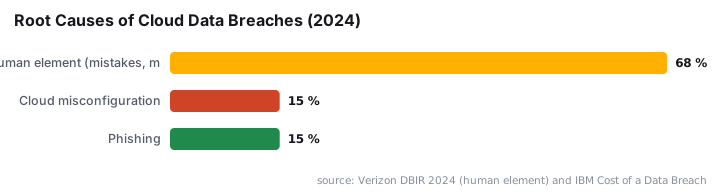
The numbers support this concern. The Verizon DBIR 2024 found that 68% of breaches involved a non-malicious human element - mistakes, misconfiguration, or social engineering. Accidental over-permissioning falls squarely in that category.
Cloud misconfiguration specifically accounted for 15% of data breaches in 2024, tying with phishing as one of the most common attack vectors, according to the IBM Cost of a Data Breach Report 2024 (via Zscaler). The global average breach cost that year reached $4.88 million - a 10% increase over 2023.
Practical risks from misconfigured permissions include:
- A departing employee whose calendar access was never revoked continues to view internal scheduling data.
- An Editor-level grant given for a temporary project, never removed, allows accidental or malicious modifications months later.
- Sharing full details with an external contact may conflict with your organization's data handling obligations depending on your industry or jurisdiction.
In our testing across multiple M365 tenants, stale Editor grants on shared calendars are the most common finding - and the easiest to miss without a structured audit process.
What Does Misconfiguration Look Like at Scale?
The problem extends well beyond individual calendars. Concentric AI's Data Risk Report, which analyzed over 550 million data records, found that 16% of an organization's business-critical data is overshared within Microsoft 365, with an average of 802,000 files at risk per organization due to overly permissive access settings.
Calendars are one component of that broader M365 permission surface. The same governance gap that leaves calendar permissions unchecked also affects SharePoint libraries and Teams channels. Our guide on optimizing SharePoint Online large document libraries covers how permission sprawl degrades both security and performance in document stores.
CISA issued Binding Operational Directive BOD 25-01 in December 2024, ordering all U.S. federal civilian agencies to implement over 50 secure configuration policies across Microsoft 365 services - including Exchange Online - citing improper cloud configuration as a cause of actual compromises. See the full context at Cybersecurity Dive's CISA coverage.
Access control failures at the identity layer are a recurring theme in major incidents. Broken Entra access controls, for example, directly exposed FIFA World Cup streams - a case documented in our breakdown of broken Entra access controls that exposed FIFA World Cup streams.
Common Misconceptions About Outlook Calendar Permissions
Several misunderstandings appear repeatedly in IT support queues. Getting these wrong leads to both over-sharing and unnecessary access restrictions.
Free/busy does not mean anonymous. Even a free/busy-only view tells an external party when you are occupied. In some contexts that is enough to infer meeting patterns or working hours.
Sharing a calendar does not cover future calendars. If a user creates a new calendar inside their Outlook account, existing sharing grants do not carry over. Each calendar is permissioned independently.
How External Sharing Differs from Internal Sharing
External recipients generally receive a browser link rather than a native Outlook calendar entry. Your tenant's outbound sharing policies may silently cap the detail level regardless of what the sharing user selects in the dialog.
This is a point worth testing explicitly in your environment. We have seen tenants where users believed they were sharing full details externally, but tenant policy was downgrading the view to free/busy without any visible confirmation to the sender.
For organizations using Conditional Access to control which apps can reach M365 data, the guide on blocking Microsoft 365 apps with Conditional Access explains how to set boundaries that apply before the sharing dialog is even reached.
Owner access is not needed for delegation. IT administrators sometimes assign Owner access to a delegate thinking it gives the delegate everything they need. Delegate access through the proper feature gives operational control without the security risk of letting someone alter other users' permission grants.
Keeping Permissions Current with Entra ID Groups
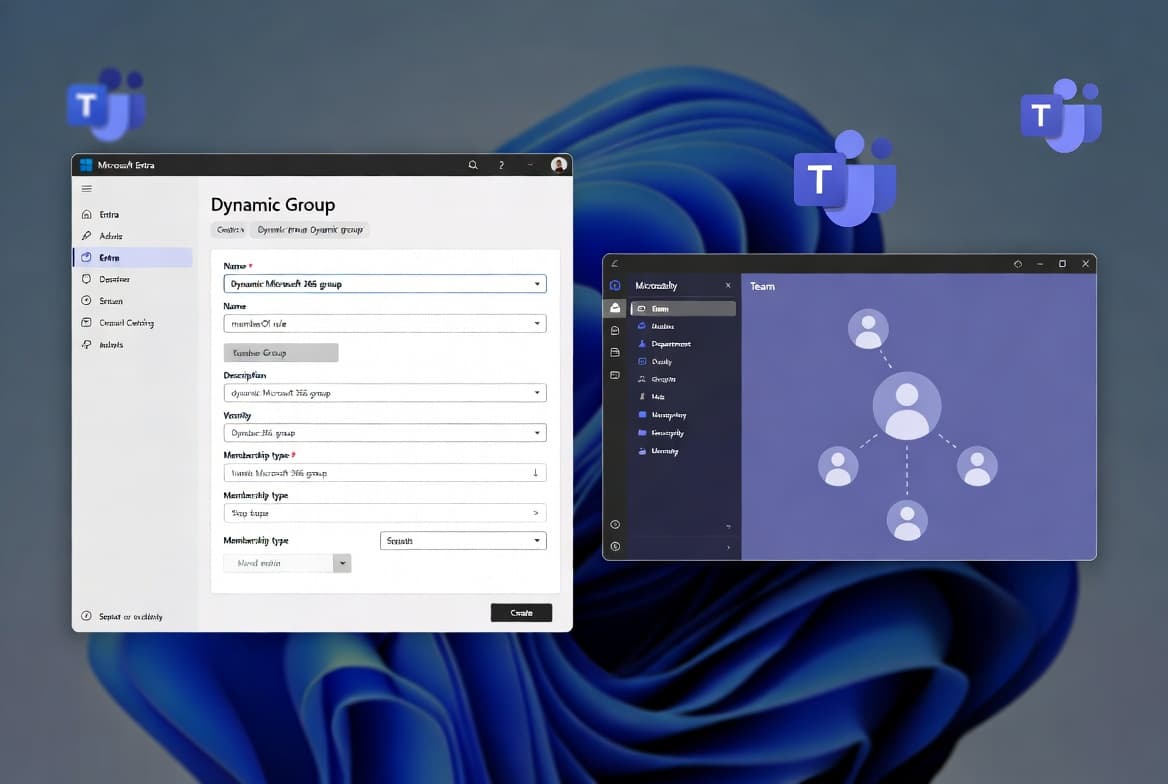
One underused option for managing calendar visibility at scale is tying sharing grants to dynamic Entra ID groups rather than individual users. When someone leaves a team, their group membership updates automatically - and so does their calendar access. Our walkthrough on creating a dynamic team in Microsoft Teams with Entra ID groups covers the group mechanics that underpin this approach.
How to Audit Outlook Calendar Sharing Permissions
A quarterly audit of who holds access to which calendars - and at what level - is the most effective control you can apply. It catches stale access before it becomes an exposure problem.
The Microsoft 365 admin center and Exchange admin center both provide views into mailbox delegation. For programmatic review, PowerShell is the faster path at scale.
The following command retrieves calendar folder permissions for a specific mailbox:
Get-MailboxFolderPermission -Identity "user@domain.com:\Calendar"To enumerate delegate access grants across all mailboxes, use:
Get-Mailbox -ResultSize Unlimited | ForEach-Object {
    Get-MailboxFolderPermission -Identity "$($_.PrimarySmtpAddress):\Calendar" |
    Where-Object { $_.User -ne "Default" -and $_.User -ne "Anonymous" }
} | Select-Object Identity, User, AccessRights
Review the output for:
- Any Editor or Owner grants that are no longer tied to an active project or role.
- External user entries - these are especially high-risk if the external relationship has ended.
- Default permissions set above Free/Busy - a common misconfiguration on shared mailboxes.
For device management contexts, the Intune Company Portal setup guide for Mac and mapping network drives via Intune custom ADMX files are useful references for ensuring managed endpoints are the only devices that can reach sensitive calendar data.
Key Takeaways
- Outlook calendar sharing permissions form a seven-tier hierarchy - from free/busy-only up to full Owner control - and each level carries distinct capabilities and risks.
- Delegate access and standard calendar sharing are separate features that serve different use cases; use the right one for the job.
- Principle of least privilege applies directly - assign the minimum level that meets the business need.
- External sharing has built-in limitations partly governed by your Microsoft 365 tenant policies, not just the individual sharing dialog.
- Quarterly permission audits using PowerShell are a simple, high-value control that catches stale access before it becomes an exposure problem.
- 68% of breaches involve a human element such as misconfiguration - according to the Verizon DBIR 2024 - making calendar permission hygiene a genuine security practice, not just an administrative one.
Frequently asked questions
What is the difference between Editor and Delegate access in Outlook calendar sharing?+
An Editor can create and modify calendar events directly, but cannot accept or decline meeting requests on the owner's behalf. A Delegate goes further - they receive meeting invitations in their own inbox and can respond as if they were the calendar owner, making delegate access the right choice for executive assistants.
Can you share an Outlook calendar with someone outside your organization?+
Yes, but with limitations. External recipients typically receive an email link that opens the calendar in a browser rather than having it appear natively inside their Outlook client. Your organization's Microsoft 365 policies may also restrict how much detail is visible to external users regardless of the permission level you select.
How often should IT teams audit calendar sharing permissions?+
A quarterly review is a practical baseline. People change roles, leave organizations, and shift responsibilities over time. Stale calendar permissions are a low-visibility but real source of information exposure, and a scheduled audit catches those gaps before they become a compliance or security problem.
Who should receive Owner-level calendar access in Microsoft 365?+
In almost every case, only the primary account holder should hold Owner access to their own calendar. Owner permission allows the holder to change permissions for other users, which creates meaningful security risk if assigned to the wrong person. IT administrators should treat Owner access as an exception, not a default.