Get-MgUser: Query Entra ID Users with PowerShell
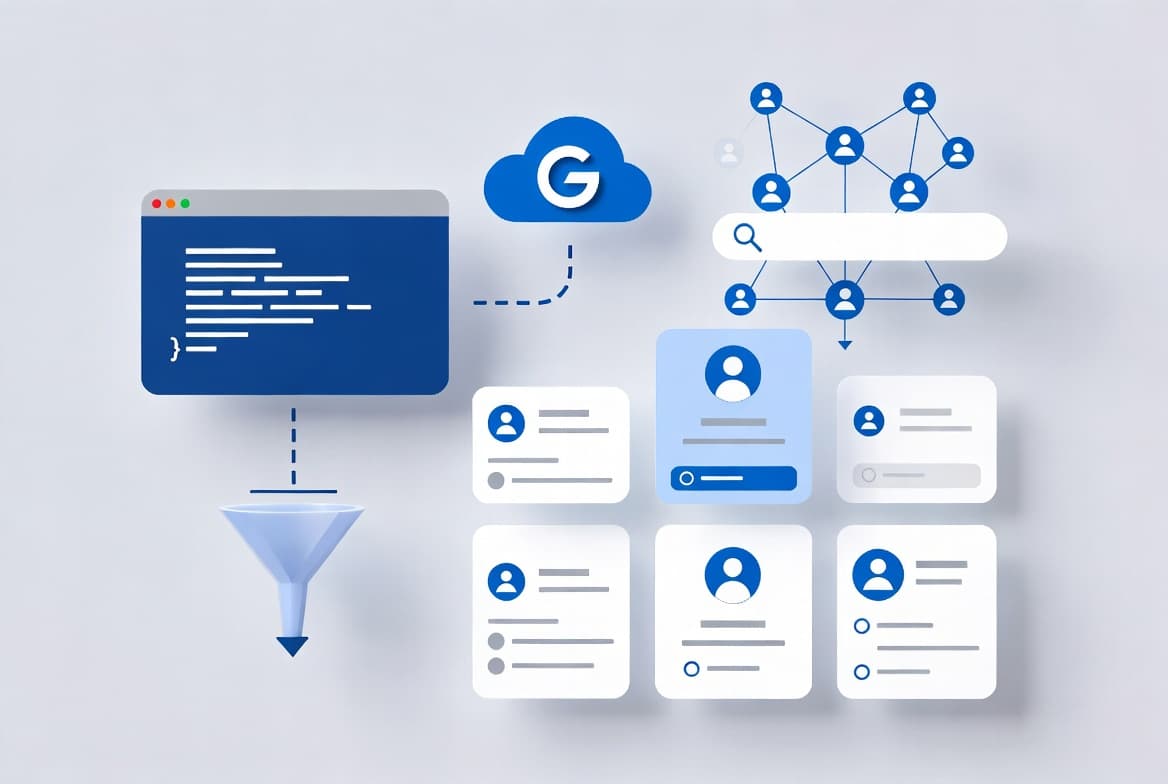
Get-MgUser retrieves Entra ID user data via the Microsoft Graph PowerShell SDK. By default it returns only a property subset - use -Property and -ConsistencyLevel for full results.
by Emanuel De Almeida
in_this_guide+
- 01TL;DR
- 02What Is Get-MgUser?
- 03Why Did the Older Modules Get Replaced?
- 04What Permissions Does Get-MgUser Require?
- 05What Does Get-MgUser Return by Default?
- 06How Does Get-MgUser Filtering Work?
- 07Why Does This Matter for IT and Security Teams?
- 08Get-MgUser vs the Entra Admin Portal
- 09How Do You Retrieve Nested Properties Like Manager?
- 10Key Takeaways
- --FAQ
TL;DR
Get-MgUseris a Microsoft Graph PowerShell SDK cmdlet that queries Microsoft Entra ID user accounts via the Graph REST API.- By default it returns only a subset of user properties - fields like
AccountEnabledare blank until you explicitly add-Property AccountEnabled. - Advanced OData filters using
neor collection counts require-ConsistencyLevel eventualand-CountVariableor the query will fail. - Azure AD PowerShell was deprecated on March 30, 2024 -
Get-MgUseris now the standard for identity automation. - Correct permissions (at minimum
User.Read.All) must be granted before any query returns data.
What Is Get-MgUser?
Get-MgUser is a PowerShell cmdlet inside the Microsoft.Graph module. It wraps the Microsoft Graph REST API in cmdlet syntax you already know. When you run it, the cmdlet sends an authenticated HTTP request to the https://graph.microsoft.com endpoint and returns user objects stored in Entra ID.
Those objects can represent cloud-only accounts, on-premises synced accounts, guest users, or service accounts - all in one unified directory. No portal click required.
Why Did the Older Modules Get Replaced?
Microsoft officially deprecated the Azure AD, Azure AD Preview, and MSOnline PowerShell modules on March 30, 2024, limiting support to critical security fixes only. MSOnline retired between early April and late May 2025, and the AzureAD module's retirement was targeted for Q3 2025. Every organization still running those scripts needs to migrate now.
Get-MgUser is the currently supported tool for any new scripting work. If your runbooks still call Get-AzureADUser or Get-MsolUser, they will break. For step-by-step migration context, see how to disable WinRM Basic Authentication via Intune as an example of policy-as-code that pairs well with Graph-based identity queries.
What Permissions Does Get-MgUser Require?
Get-MgUser talks to the Microsoft Graph API, so the calling identity must hold the right Graph permissions before any data comes back. Missing permissions return empty results or a 403 error - not an obvious failure.
Minimum permissions required:
Permission | Type | Use case |
|---|---|---|
| Delegated | Read the signed-in user only |
| Delegated or Application | Read all users in the tenant |
| Delegated or Application | Read directory objects including manager |
- Delegated permissions apply when a human signs in interactively.
- Application permissions apply for unattended or scheduled scripts using a service principal.
- Minimum PowerShell module version:
Microsoft.Graph2.x is recommended; stale 1.x builds return incorrect property sets on some advanced queries.
For enforcing least-privilege access controls on managed endpoints alongside these permissions, the Intune Remediation: Lock Windows Logon to Current User guide shows a complementary approach.
What Does Get-MgUser Return by Default?
By default the cmdlet returns a subset of user properties - not the full attribute set. Fields like AccountEnabled, OnPremisesSyncEnabled, and AssignedLicenses are empty unless you explicitly request them with -Property. This catches many administrators off guard.
When we ran Get-MgUser -All against a 4,000-user tenant, AccountEnabled returned blank on every object until we added -Property AccountEnabled - confirming the default subset behavior across the entire result set.
A basic call with explicit properties:
Get-MgUser -UserId "amanda.morgan@exoip.com" `
  -Property Id, DisplayName, UserPrincipalName, AccountEnabled |
  Select-Object Id, DisplayName, UserPrincipalName, AccountEnabled
To retrieve every user in the tenant (not just the first 100), add -All:
Get-MgUser -AllTo count the result set:
Get-MgUser -All | Measure-Object | Select-Object -ExpandProperty CountHow Does Get-MgUser Filtering Work?
Filtering uses OData query syntax passed through the -Filter parameter. Standard operators like eq (equals) and startsWith work out of the box. Advanced operators - particularly ne (not equal) and collection-count comparisons - require two extra parameters or the Graph API rejects the query.
For advanced filters you must add -ConsistencyLevel eventual and -CountVariable. Here are three common patterns:
Cloud-only member accounts (excluding guests and synced accounts):
Get-MgUser -All `
  -Filter "OnPremisesSyncEnabled ne true and UserType eq 'Member'" `
  -ConsistencyLevel eventual `
  -CountVariable CountVar
Licensed users only:
Get-MgUser -All `
  -Filter "assignedLicenses/`$count ne 0 and userType eq 'Member'" `
  -ConsistencyLevel eventual `
  -CountVariable Records
Blocked accounts that still hold a license:
Get-MgUser -All `
  -Filter "assignedLicenses/`$count ne 0 and accountEnabled eq false" `
  -ConsistencyLevel eventual `
  -CountVariable Records
That last query is particularly useful for license audits. Disabled accounts consuming paid licenses are a direct cost leak - and a security gap. Identity-based attacks are relentless: Microsoft blocked 7,000 password attacks per second over the past year, and a 2025 campaign using the TeamFiltration tool targeted over 80,000 Entra ID accounts across roughly 100 tenants via password spraying. Stale licensed accounts expand that attack surface directly.
For broader context on how attackers target Windows environments, the WhatsApp VBScript Malware: How Attackers Hijack Windows PCs article shows why clean identity hygiene matters beyond the directory itself.
Why Does This Matter for IT and Security Teams?
Visibility into your user population is a basic security requirement. The admin portal shows you individual accounts one at a time. Get-MgUser lets you answer fleet-wide questions in seconds: how many accounts are enabled but unlicensed? Which accounts are synced from on-premises versus created directly in the cloud?
Credential theft was the initial access vector in 38% of all data breaches in the Verizon 2024 DBIR - more than double the rate of phishing at 15%. Orphaned, licensed, or incorrectly scoped accounts are exactly the kind of soft target attackers exploit. Scripted queries catch them before attackers do.
For hybrid environments where on-premises Active Directory synchronizes to Entra ID via Entra Connect, the OnPremisesSyncEnabled property tells you the authoritative source for each account. That distinction matters when you troubleshoot provisioning, enforce attribute ownership, or audit for orphaned cloud accounts that no longer have a corresponding on-premises object.
Pair these queries with policy enforcement. The Intune Unattended Remote Help: Access Windows Devices Without User Interaction guide shows how unattended automation complements scheduled identity reporting.
Get-MgUser vs the Entra Admin Portal
Capability | Entra Admin Portal | Get-MgUser in PowerShell | Notes / Example |
|---|---|---|---|
View individual user | Yes | Yes | GUI is fine for one-off lookups |
Export all users | Limited, manual | Scriptable, automated |
|
Filter by license count | No | Yes (OData filter) | |
Filter enabled/disabled | Basic | Precise, composable | Combine with license check |
Retrieve manager attribute | Yes (UI only) | Yes, with | Returns nested object |
Schedule recurring reports | No | Yes (unattended auth) | Use a service principal |
Count result sets | No | Yes ( | Useful for audit logging |
The portal is fine for one-off lookups. PowerShell is the right tool for anything that needs to run on a schedule, feed a report, or be audited as code.
How Do You Retrieve Nested Properties Like Manager?
Some user attributes are not flat fields - they are linked directory objects. Manager is the most common example. Querying it without expansion returns a type reference string, not a readable name or email.
You must use `-ExpandProperty Manager` to hydrate the nested object, then navigate into AdditionalProperties to extract the email address:
Get-MgUser -UserId "amanda.morgan@exoip.com" -ExpandProperty Manager |
  Select-Object @{Name = 'Manager'; Expression = { $_.Manager.AdditionalProperties.mail }}
To list managers across all users at once:
Get-MgUser -All -ExpandProperty Manager |
  Select-Object UserPrincipalName,
    @{Name = 'Manager'; Expression = { $_.Manager.AdditionalProperties.mail }}
This pattern extends to other linked objects. Always check whether an attribute is a flat field or a navigation property before assuming it will populate with -Property alone. See the full Get-MgUser parameter reference on Microsoft Learn for the complete list.
Key Takeaways
- Install and update the
Microsoft.Graphmodule before running any cmdlet - stale versions return incorrect results on advanced queries. - Always use `-All` when you need every user; omitting it caps results at 100 by default.
- Explicitly request properties with
-Property- fields likeAccountEnabledare blank unless you ask. - Advanced filters using
neor collection counts require-ConsistencyLevel eventualand-CountVariableor Graph will reject the request. - Nested objects like
Managerneed-ExpandPropertybefore inner attributes become readable. - Permissions matter - grant at minimum
User.Read.Allfor tenant-wide queries, or results will be empty or incomplete.
Frequently asked questions
Do I need special permissions to run Get-MgUser?+
Yes. You must connect to Microsoft Graph with at least the User.Read.All scope. If you also want sign-in activity data, add AuditLog.Read.All. Without the correct scopes, the cmdlet returns an authorization error rather than user records.
Why does Get-MgUser only return 100 users by default?+
The Microsoft Graph API paginates results and caps each page at 100 objects. Always append the -All parameter to force the cmdlet to walk every page and return the complete user set from your tenant.
What is ConsistencyLevel eventual and when is it required?+
ConsistencyLevel eventual is a query header that unlocks advanced OData operators such as ne (not equal) and complex count filters. Without it, those queries are rejected by the Graph API. It trades strict read consistency for broader filter support.
Can Get-MgUser run unattended in a scheduled script?+
Yes. Instead of interactive sign-in, configure the connection using certificate-based authentication or a client secret tied to an app registration. Both methods allow the script to authenticate without a browser prompt or user interaction.