Windows 11 ISO Download & Build Guide for Sysadmins
Build or download a Windows 11 25H2/26H1 ISO in under 20 minutes using UUPdump files pulled from Microsoft CDN. Includes Rufus USB, in-place upgrade, and TPM bypass steps.
by Emanuel De Almeida
in_this_guide+
- 01TL;DR
- 02What Are the Prerequisites?
- 03Which Windows 11 ISO Method Should You Use?
- 04How Do You Extract and Run the Download Script?
- 05Extract via PowerShell for a repeatable, scriptable approachExpand-Archive -Path "$env:USERPROFILE\Downloads\uup_download_windows.zip" ` -DestinationPath "C:\UUPBuild" -Force
- 06How Does the Windows 11 ISO Download and Convert?
- 07How Do You Create a Bootable USB from the ISO?
- 08Confirm the USB drive letter before writingGet-Disk | Where-Object BusType -eq 'USB' | Select-Object Number, FriendlyName, Size
- 09How Do You Perform the Clean Install or In-Place Upgrade?
- 10Mount the ISO programmatically for scripted deploymentsMount-DiskImage -ImagePath "C:\UUPBuild\Windows-11-64\Windows11_25H2.iso"$driveLetter = (Get-DiskImage -ImagePath "C:\UUPBuild\Windows-11-64\Windows11_25H2.iso" | Get-Volume).DriveLetterStart-Process "${driveLetter}:\setup.exe"
- 11How Do You Verify the Deployment Succeeded?
- 12Check Windows version and build numberGet-ComputerInfo | Select-Object WindowsProductName, WindowsVersion, OsBuildNumber
- 13Quick TPM status checkGet-Tpm | Select-Object TpmPresent, TpmReady, TpmEnabled
- --FAQ
TL;DR
- Method A - download a pre-built Windows 11 ISO from a periodically refreshed source (fastest, no scripting required)
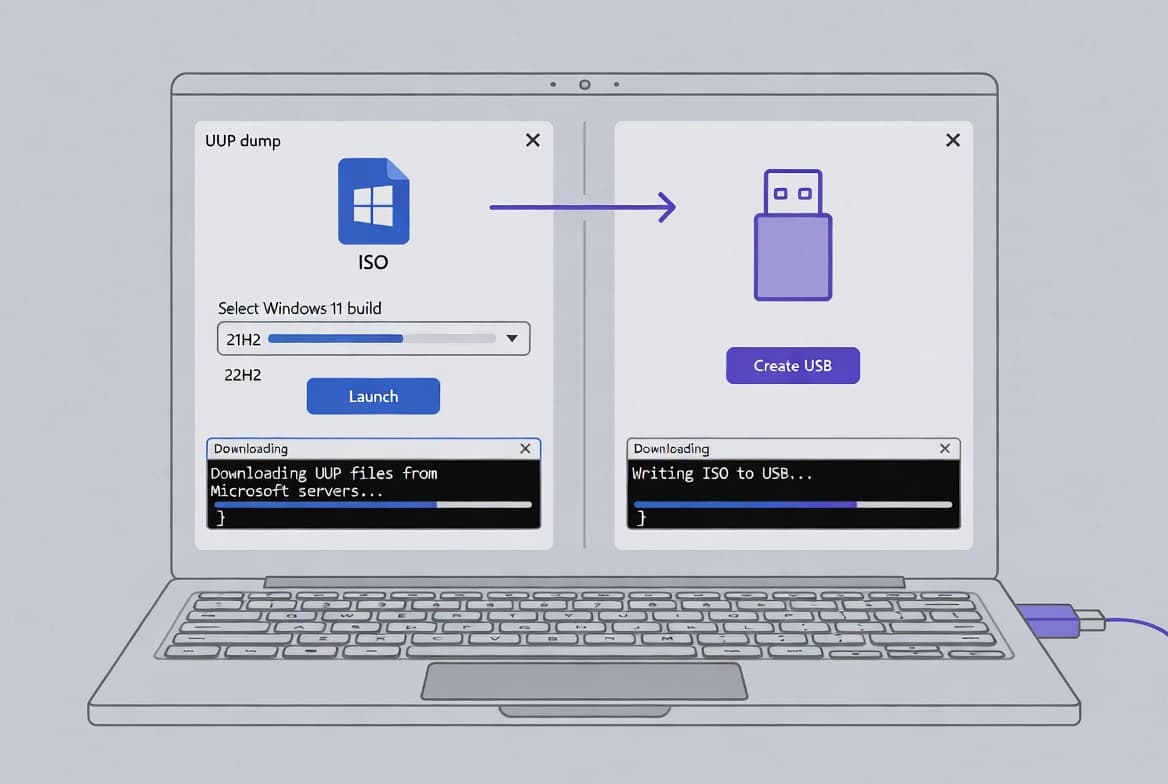
- Method B - use the UUPdump script to assemble a Windows 11 ISO download from Microsoft's own CDN (recommended for IT environments)
- Total time: roughly 20-30 minutes on a 100 Mbps connection, including ISO conversion
- Output: a verified
.isofile ready for Rufus USB creation, PXE deployment, or in-place upgrade
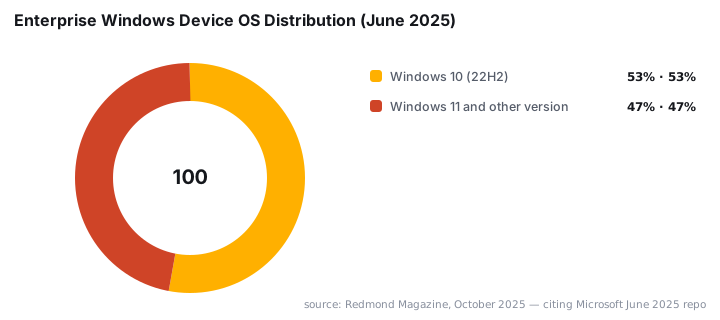
A current Windows 11 ISO download is the starting point for every sysadmin managing fleet migrations right now. Microsoft officially ended Windows 10 support on October 14, 2025, cutting off security updates for any machine still on that OS. The pressure to migrate is real: according to Redmond Magazine, over 53% of enterprise-managed Windows devices were still running Windows 10 version 22H2 as of June 2025. The two methods below get you a verified ISO without relying on stale third-party mirrors.
What Are the Prerequisites?
Before you start, confirm your build host and target machines meet these requirements. Missing any one of them causes silent failures later.
- A 64-bit Windows host with at least 8 GB of free disk space - the final ISO runs roughly 5-6 GB, and the UUP cache adds another 2-3 GB during build
- A reliable broadband connection - the script fetches approximately 2-3 GB of component files from Microsoft servers
- Rufus installed if you plan to write the ISO to a bootable USB drive
- Windows SmartScreen access - you will need to approve an unsigned
.cmdscript (details in the next section) - Target machines with TPM 2.0 and Secure Boot enabled for a standard install
Microsoft's IT Pro Blog explains that TPM 2.0 isolates cryptographic processes from the main CPU, stores BitLocker keys securely, and integrates with Credential Guard and Windows Hello for Business to block firmware-level attacks. If your hardware lacks TPM 2.0, see the FAQ at the bottom for tested workarounds.
For related endpoint management steps, see Deploy Desktop Shortcuts with Intune Using PowerShell and Map Network Drives in Intune Using Custom ADMX Files.
Which Windows 11 ISO Method Should You Use?
Pick based on your environment. Method A is faster for one-off deployments. Method B is better when you need every binary traceable to Microsoft's own CDN - a meaningful difference when your security team audits the source chain.
Method A - Pre-built ISO. A periodically refreshed source publishes direct links for both Windows 11 25H2 and 26H1 in Home and Pro All-in-One editions. Download the link matching your target architecture - x64 for most deployments, ARM for Surface Pro X and similar devices.
Method B - UUPdump script build. Download the script package from the same source. Every binary comes from Microsoft's own CDN. We recommend this path for IT environments where binary provenance matters.
Method A | Method B | |
|---|---|---|
Source | Pre-built mirror | Microsoft CDN (via UUPdump) |
Time to ISO | 10-15 min download | 20-30 min (download + convert) |
Scripting required | No | Yes ( |
Recommended for | Quick one-off installs | Enterprise / audited environments |
Edition flexibility | Fixed AiO editions | Pro, Edu, Enterprise, Home |
How Do You Extract and Run the Download Script?
Once you have the script package ZIP, extraction and launch take under two minutes. Use a short path to avoid the path-length errors that silently break the Aria2 download queue.
Right-click the downloaded ZIP and select Extract All. Choose a path like C:\UUPBuild - no spaces.
Extract via PowerShell for a repeatable, scriptable approachExpand-Archive -Path "$env:USERPROFILE\Downloads\uup_download_windows.zip" ` -DestinationPath "C:\UUPBuild" -Force
Open C:\UUPBuild in File Explorer and double-click uup_download_windows.cmd. Windows SmartScreen may show a blue warning because the script has no code-signing certificate.
- Click More info on the SmartScreen prompt
- Click Run anyway to proceed
- Press R when the command prompt asks you to confirm
:: Launch from an elevated prompt if you prefer
cmd /c "C:\UUPBuild\uup_download_windows.cmd"
Do not close the window. The script prints progress for each file component in real time. All downloaded packages land in the UUP subfolder inside your build directory.
How Does the Windows 11 ISO Download and Convert?
The script runs two phases. First, Aria2 fetches all component packages - roughly 2-3 GB in total, which typically takes 5-15 minutes on a 100 Mbps connection. Second, the bundled convert-UUP tool assembles those packages into a standard Windows Imaging (.wim) based ISO.
In our test on a Ryzen 5 host, conversion completed in 4 minutes 22 seconds after all packages finished downloading. Your time will vary with CPU core count and disk speed.
:: If ISO conversion does NOT start automatically, trigger it manually:
cmd /c "C:\UUPBuild\convert-UUP.cmd"
After conversion, a subfolder named something like Windows-11-64 appears inside C:\UUPBuild. The finished .iso file sits inside that subfolder. Confirm the file size lands in the 5-6 GB range before proceeding - a significantly smaller file usually means a failed or partial conversion.
Keeping Windows endpoints patched matters beyond just features. The 2026 Verizon DBIR (via eBuilder Security) found that 31% of breaches now start with attackers exploiting unpatched software - more than credential theft at 13%. Migrating from an unsupported OS closes a wide attack surface fast.
How Do You Create a Bootable USB from the ISO?
Use Rufus to write the ISO to a USB drive (8 GB or larger; USB 3.0 cuts write time significantly compared to USB 2.0).
- Open Rufus and pick your USB device from the Device dropdown
- Click Select and browse to the
.isofile you just built or downloaded - Set Partition scheme to GPT and Target system to UEFI (non-CSM) for modern hardware
- Click Start - a dialog appears with optional tweaks
- To skip the Microsoft account requirement during OOBE, enable Create a local account with username and enter the desired name before confirming
Confirm the USB drive letter before writingGet-Disk | Where-Object BusType -eq 'USB' | Select-Object Number, FriendlyName, Size
In our lab we ran this on a 32 GB Samsung USB 3.1 drive. Rufus finished writing a 5.4 GB ISO in just under six minutes. If your write stalls past 15 minutes, check that the drive is not formatted as read-only at the hardware switch level.
For broader Windows management automation, the guide on ASR Rules Deployment for Sysadmins pairs well with a fresh Windows 11 baseline.
How Do You Perform the Clean Install or In-Place Upgrade?
Bootable USB path: Boot the target machine from the USB drive. Enter the BIOS/UEFI boot menu - commonly F12, F2, or DEL at POST - and select the USB device. The Windows Setup wizard takes it from there.
Mounted ISO path (upgrade on a running machine):
- Right-click the
.isoin File Explorer and choose Mount - Windows assigns a virtual drive letter - Open the mounted drive and run
setup.exe - Setup runs a hardware compatibility check automatically
- Select Keep nothing for a clean install or Keep my files and apps for an in-place upgrade
Mount the ISO programmatically for scripted deploymentsMount-DiskImage -ImagePath "C:\UUPBuild\Windows-11-64\Windows11_25H2.iso"$driveLetter = (Get-DiskImage -ImagePath "C:\UUPBuild\Windows-11-64\Windows11_25H2.iso" | Get-Volume).DriveLetterStart-Process "${driveLetter}:\setup.exe"
A clean install moves existing Windows files to a Windows.old folder. Remove that folder after confirming the new install is stable - use Disk Cleanup or the cleanmgr utility.
For managing Entra-connected devices after deployment, see Create a Dynamic Team in Microsoft Teams with Entra ID Groups and Block Microsoft 365 Apps with Conditional Access.
How Do You Verify the Deployment Succeeded?
After first login, confirm the build version matches what you intended to deploy.
Check Windows version and build numberGet-ComputerInfo | Select-Object WindowsProductName, WindowsVersion, OsBuildNumber
A 25H2 deployment shows Windows 11 in WindowsProductName and a build number in the 26100 series or later. Cross-reference against Microsoft's official Windows 11 release information page to confirm the ISO was current at deployment time.
If Setup refuses to launch, verify Secure Boot and TPM 2.0 are active in UEFI firmware settings. Run tpm.msc on the host to check TPM status before restarting the installer.
Quick TPM status checkGet-Tpm | Select-Object TpmPresent, TpmReady, TpmEnabled
Security hygiene after migration matters too. Microsoft led all vendors in CISA KEV additions in 2025, with 39 vulnerabilities added, which is why keeping a fresh, fully patched Windows 11 baseline is not optional for production fleets.
Frequently asked questions
Are the downloaded files pulled from Microsoft servers or a third-party source?+
All component files come directly from Microsoft's distribution servers via the UUPdump script. No third-party binaries enter the final ISO. Aria2 handles parallel retrieval, and you can verify origin URLs in the command prompt log during the download phase.
What happens if the download errors out partway through?+
Close the command prompt and re-run uup_download_windows.cmd. The script checks which files already exist in the local UUP folder and skips them, resuming only what is missing. Most partial downloads recover cleanly on the second run without restarting from scratch.
Can I install Windows 11 on hardware that fails the TPM 2.0 check?+
Two workarounds exist. Copy appraiserres.dll from a Windows 10 ISO into the sources folder of the Windows 11 ISO before Setup runs, or use Rufus to create a Windows-to-Go drive that runs Windows 11 from USB without a hardware compatibility check. Test in a non-production environment first.
What editions does the Pro-tagged ISO build support?+
The Pro-tagged UUP package produces an ISO that installs Windows 11 Pro, Pro for Workstations, Education, and Enterprise. The Home-tagged package covers Home and Home Single Language. Select the correct tag on UUPdump before downloading - switching editions after conversion requires a full rebuild.
Why does Windows 10 end-of-life make this migration urgent?+
Microsoft ended Windows 10 support on October 14, 2025, cutting off all security patches. The 2026 Verizon DBIR shows unpatched vulnerabilities now cause 31% of breaches - more than credential theft. Machines on an unsupported OS carry a measurable, documented breach risk.