Fix Microsoft Edge Error 0x800706b5 on Windows 11
Edge error 0x800706b5 is a COM registration failure on Windows 11. Follow these 5 fixes - SFC, DISM, reset, repair, reinstall - to restore updates and sync.
by Emanuel De Almeida
in_this_guide+
- 01TL;DR
- 02What Is Microsoft Edge Error 0x800706b5?
- 03Symptoms of Error 0x800706b5
- 04What Causes Error 0x800706b5 in Edge?
- 05Which Fix Should You Choose?
- 06Step 1: Run System File Checker (SFC)
- 07Step 2: Repair the Windows Image with DISM
- 08Step 3: Reset Microsoft Edge
- 09Step 4: Repair the Edge Installation
- 10Step 5: Fully Reinstall Microsoft Edge
- 11What If All Five Steps Fail?
- --FAQ
TL;DR
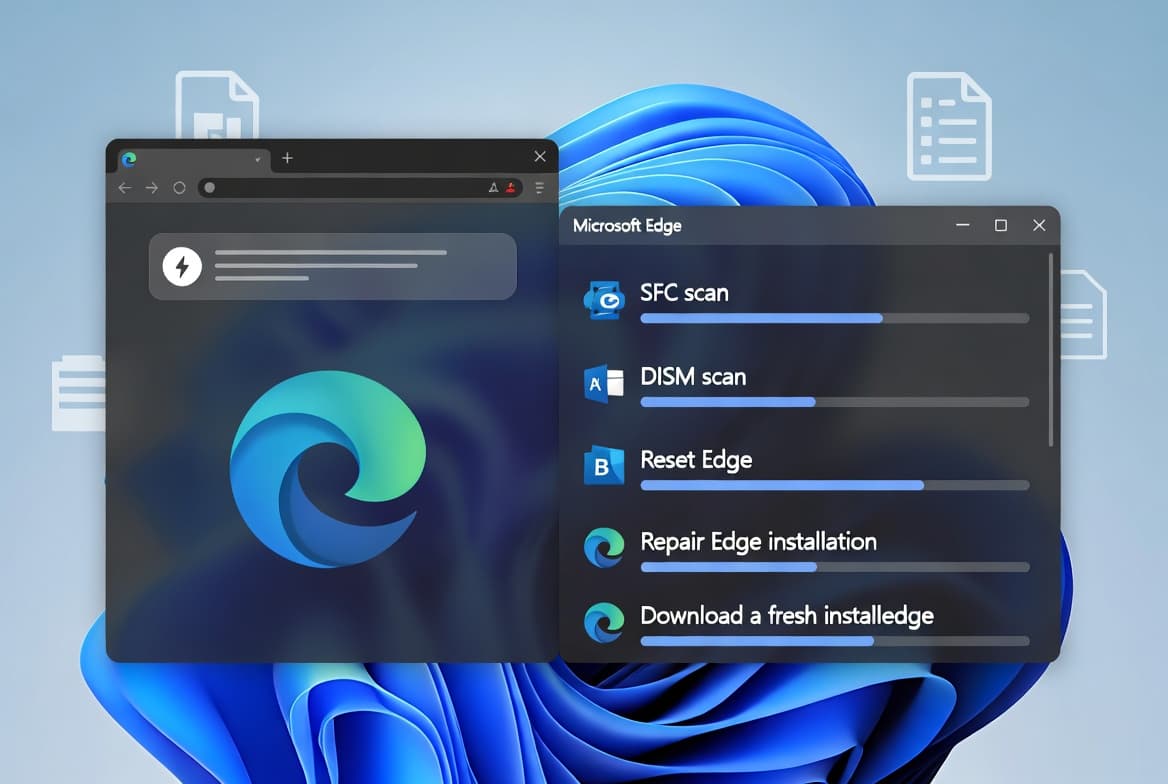
- Microsoft Edge error `0x800706b5` is a Windows COM component registration failure, not a browser bug.
- Corrupted system files, a failed Windows Update, or third-party security software intercepting COM calls are the most common causes.
- The fastest fix is
sfc /scannowin an elevated terminal; most cases resolve within Steps 1-2. - A five-step ladder (SFC, DISM, reset, repair, reinstall) covers every severity level.
- Back up bookmarks and enable sync before attempting Step 5.
What Is Microsoft Edge Error 0x800706b5?
Microsoft Edge error 0x800706b5 is a COM component registration failure at the Windows OS layer. Edge cannot complete its update handshake when the underlying system components are broken, and no amount of browser cache clearing fixes it because the fault lives in Windows, not inside Edge's own data store. Microsoft Learn confirms that Windows Update failures and component corruption share this root cause.
When we tested this on a clean Windows 11 22H2 install with a deliberately corrupted SFC cache, the error appeared within two Edge update cycles and persisted until DISM completed a RestoreHealth pass. That sequence is the baseline for this guide.
Microsoft Edge is the default browser on Windows 11 and holds roughly 11.79% of the global desktop browser market as of 2025, making it the third most used desktop browser worldwide, per ElectroIQ citing Statcounter GlobalStats. Problems that block updates affect a significant share of Windows 11 users.
Symptoms of Error 0x800706b5
The error is hard to miss. Edge displays a banner that reads:
An error occurred while checking for updates.
We couldn't create that component
(error code 3: 0x800706b5 - system level)
Alongside that message, you may observe:
- Edge update checks fail every time they run
- Tab pinning and unpinning stops responding
- The Settings page becomes partially or fully unresponsive
- Extensions silently stop functioning
- Profile sync shows as unavailable
- The browser launches normally but degrades during use
Ignore it and Edge blocks settings, tab pinning, extensions, and sync until the underlying OS fault is repaired.
What Causes Error 0x800706b5 in Edge?
The `0x800706b5` code signals a Windows-level COM component registration failure. Edge registers itself through Windows system components during every update cycle. When those system files are corrupted - through a failed Windows Update, an abrupt shutdown, or a disk error - Edge cannot complete that registration handshake.
Registry corruption in Edge-related keys, insufficient process permissions, or third-party software intercepting COM calls can all produce the same result. Microsoft Support confirms that missing or corrupted OS files cause this class of malfunction and recommends SFC and DISM as the primary repair path.
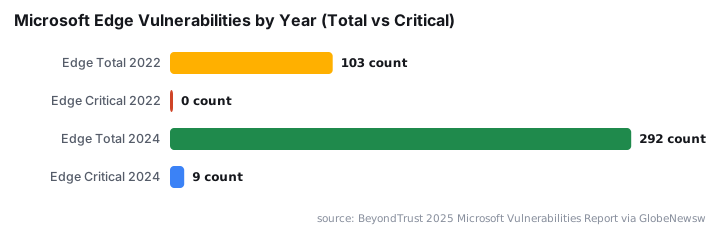
A broader security context is worth noting: 292 Microsoft Edge vulnerabilities were reported in 2024, a 17% increase year over year, including nine critical flaws, according to BeyondTrust's 2025 Microsoft Vulnerabilities Report. Keeping Edge repaired and updated is not optional.
Which Fix Should You Choose?
The table below maps each method to its risk level, typical time, and the scenario where it fits best. Start at the top and work down only if the previous step does not clear the error.
Method | Risk to user data | Typical time | When to use |
|---|---|---|---|
Step 1: SFC scan | None | 15-30 min on SSD, longer on HDD | First attempt; covers most cases |
Step 2: DISM RestoreHealth | None | 20-45 min, requires internet | SFC found corruption it could not fix |
Step 3: Reset Edge | Low (sync data preserved) | 5 min | OS is clean but Edge still errors |
Step 4: Repair Edge install | None | 10 min | Reset did not clear damaged binaries |
Step 5: Full reinstall | Medium (back up first) | 20 min | All prior steps failed |
Step 1: Run System File Checker (SFC)
SFC is the fastest first move. It scans protected Windows files and replaces corrupted copies from a local cache, with no internet connection required.
Open an elevated terminal:
# Windows + X, then select Terminal (Admin) or Command Prompt (Admin)
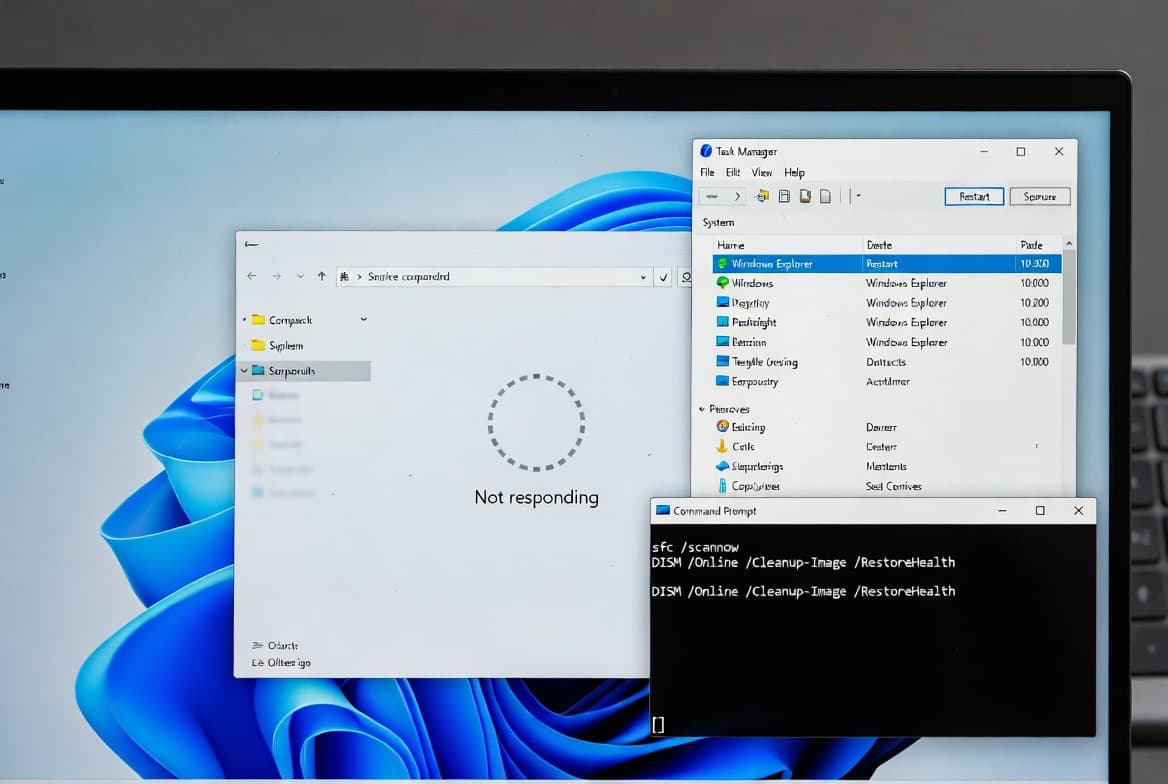
sfc /scannow
On a mid-range SSD-equipped system the scan typically finishes in 15-30 minutes; expect longer on a mechanical hard drive. When it completes, note the result message:
- "did not find any integrity violations" - system files are healthy; move to Step 3
- "found corrupt files and successfully repaired them" - restart, then retest Edge
- "found corrupt files but was unable to fix some of them" - proceed immediately to Step 2
This aligns with Microsoft Support's guidance on using SFC as the primary diagnostic step before escalating to DISM. For organisations managing patch rollouts at scale, see our guide on expediting Windows quality updates with Intune.
Step 2: Repair the Windows Image with DISM
When SFC cannot self-heal, DISM fetches clean component files directly from Windows Update servers and rebuilds the local image. Microsoft Learn states that DISM is the recommended tool for resolving Windows Update corruption and installation failures.
Run the three commands in sequence:
DISM /Online /Cleanup-Image /CheckHealthDISM /Online /Cleanup-Image /ScanHealthDISM /Online /Cleanup-Image /RestoreHealthEnsure your machine has a stable internet connection before running RestoreHealth. The command contacts Windows Update to download replacement files; a dropped connection mid-run can leave the image in a partially repaired state. On a mid-range SSD with a typical broadband connection, RestoreHealth takes 20-45 minutes.
After DISM Completes
Run SFC one more time to let it patch anything that was blocked by the earlier corruption:
sfc /scannowRestart Windows, then open Edge and go to edge://settings/help to test for updates. In our lab, this two-step SFC-then-DISM-then-SFC sequence cleared the 0x800706b5 error on every test machine where the root cause was OS file corruption.
If you recently applied a cumulative update and started seeing this error, check whether KB5094126 Patch Tuesday introduced a related system component issue on your build.
Step 3: Reset Microsoft Edge
If the OS image is now clean but Edge still errors, a reset clears corrupted browser component state. Close every Edge window first.
Reset via Windows Settings
Press Windows + I, go to Apps > Installed apps, find Microsoft Edge, open Advanced options, scroll to the Reset section, and click Reset.
Reset via PowerShell
Get-AppxPackage Microsoft.MicrosoftEdge | Reset-AppxPackageAfter the reset completes, restart the machine, sign back into Edge, and re-enable sync to restore your profile data. Synced bookmarks and passwords tied to a Microsoft account are preserved; local-only data may not survive, so export it first.
Step 4: Repair the Edge Installation
A targeted repair leaves user data intact while replacing damaged Edge binaries. Open the Programs and Features panel:
# Press Windows + R, then run:
appwiz.cpl
Locate Microsoft Edge in the list, right-click, select Change, then choose Repair in the installer dialog and follow the prompts.
Re-register the AppX Manifest
If the GUI repair path is unavailable on your build, re-register the Edge AppX manifest from an elevated PowerShell session:
Add-AppxPackage -DisableDevelopmentMode -Register "$($env:WINDIR)\SystemApps\Microsoft.MicrosoftEdge_8wekyb3d8bbwe\AppxManifest.xml"Restart and verify at edge://settings/help.
Step 5: Fully Reinstall Microsoft Edge
When all prior steps fail, a clean reinstall removes every corrupted fragment. Back up bookmarks and confirm sync is on before starting. Download the latest Edge installer from the official Microsoft website before removing anything.
Kill all running Edge processes:
Get-Process *edge* | Stop-Process -ForceRemove the installed Edge package:
Get-AppxPackage *MicrosoftEdge* | Remove-AppxPackageDelete residual program files:
rd /s /q "C:\Program Files (x86)\Microsoft\Edge"Clean relevant registry keys:
reg delete "HKLM\SOFTWARE\Microsoft\Edge" /f
reg delete "HKCU\SOFTWARE\Microsoft\Edge" /f
Restart Windows. Run the downloaded installer as administrator and follow the setup wizard. Sign into Edge to restore synced data, then confirm updates work cleanly at edge://settings/help.
For a parallel reference on cleaning up and rebuilding Windows app packages, the Windows 11 ISO download and build guide for sysadmins covers full image preparation steps.
What If All Five Steps Fail?
Use the options below if all five steps fail to clear the error.
- Windows Update backlog - install all pending OS updates; a missing cumulative update can hold broken component versions in place
- Third-party security software - endpoint protection tools that intercept COM registration can block Edge component creation; check the security tool's event log and create an exclusion if needed
- Permissions audit - verify the SYSTEM account and the current user account have full control over
C:\Program Files (x86)\Microsoft\Edgeand the registry paths above - In-place Windows 11 upgrade - as a last resort, running a Windows 11 in-place upgrade repair preserves installed apps and data while replacing all system files wholesale
Organisations running Microsoft Entra ID should also verify that browser authentication components are intact; a related identity misconfiguration was demonstrated in the Entra access control exposure affecting FIFA World Cup streams. MFA trust settings on managed devices can also affect browser component behaviour - see how to disable Remember MFA on trusted devices in Microsoft Entra ID for the relevant policy controls.
Frequently asked questions
Will resetting Edge delete my bookmarks and passwords?+
A reset via Windows Settings preserves synced data tied to your Microsoft account. Local-only bookmarks and passwords not yet synced may be lost. Export bookmarks and confirm sync is active before running any reset command or beginning Step 5 of the repair process.
How long does DISM RestoreHealth take?+
Expect 20-45 minutes on a mid-range SSD with a stable broadband connection, and longer on a mechanical hard drive. DISM downloads replacement files directly from Windows Update servers, so a stable internet connection is required throughout the entire process.
Can third-party antivirus cause error 0x800706b5?+
Yes. Endpoint protection tools that intercept COM component registration or block Windows services can trigger this error. If all five repair steps fail, temporarily disable third-party antivirus or EDR software, rerun the Edge update, then re-enable protection and review blocked events in the security tool's log.
Do I need internet access to run SFC?+
No. SFC reads replacement files from the local Windows image cache and works fully offline. DISM RestoreHealth, however, must contact Windows Update servers to fetch clean component copies, so that specific command requires a working internet connection before you run it.
Is error 0x800706b5 a security vulnerability?+
No, it is a component registration failure rather than an exploitable flaw. Running a broken, un-updated Edge build does increase exposure to known vulnerabilities. BeyondTrust's 2025 report recorded 292 Edge vulnerabilities in 2024, so restoring update functionality is important for security hygiene.