0x800706be Windows Update Error: 7 Proven Fixes
Windows Update error 0x800706be blocks installs on Windows 10, 11, and Server. Follow these 7 ranked fixes - Step 3 alone resolves it in most cases. Takes under 30 minutes.
by Emanuel De Almeida
in_this_guide+
- 01TL;DR
- 02What Is Windows Update Error 0x800706be?
- 03Symptoms
- 04What Causes 0x800706be?
- 05Step 1: Retry the Failed Update
- 06Step 2: Check Network Connectivity
- 07Step 3: Restart the Windows Update and BITS Services
- 08Step 4: Run the Windows Update Troubleshooter
- 09Step 5: Run an SFC Scan to Repair System Files
- 10Step 6: Run DISM to Repair the Component Store
- 11Step 7: Reset All Windows Update Components (Fixes 0x800706be)
- 12What to Check After the Reset
- 13What If Nothing Has Worked?
- --FAQ
TL;DR
- Error
0x800706bestops Windows Update installs on Windows 10, Windows 11, and Windows Server. - The most common cause is a corrupted
SoftwareDistributionfolder or broken update service components. - Step 3 (restarting BITS and Windows Update services) clears the error on most machines.
- If that fails, run SFC and DISM in sequence before resetting the full update stack.
- A manual update install from the Microsoft Update Catalog is the fastest workaround when all else fails.
What Is Windows Update Error 0x800706be?
Error 0x800706be stops Windows Update installs on Windows 10, Windows 11, and Windows Server. The code points to a broken remote procedure call - almost always caused by corrupted system files or a damaged update component store. The fix sequence below starts with the fastest checks and escalates from there.
Per the detailed breakdown on Prajwal Desai, 0x800706be surfaces most often during cumulative or preview updates for Windows 11. When we worked through this on a Windows 11 22H2 test machine, Step 3 cleared the error before we needed anything more involved.
It is worth noting that Microsoft has a track record of update-related regressions. BleepingComputer reported that Microsoft's August 2025 security updates broke Reset This PC and the Fix Problems Using Windows Update tool on Windows 10 and older Windows 11 builds - a reminder that update failures sometimes start on Microsoft's side, not yours.
If you manage Windows devices at scale, the Intune Expedited Windows Quality Updates guide covers how to push urgent patches across a fleet without relying on the standard update pipeline.
Symptoms
You will see one or more of the following when the error appears:
- Windows Update reports a failed installation and displays error code
0x800706be. - A related code
0x800f0983may appear alongside it in update history. - The update download stalls at a percentage or completes but fails at the install stage.
- Retrying the update immediately produces the same failure.
The error text gives little actionable detail, which is why a structured fix sequence is needed.
What Causes 0x800706be?
Corrupted Windows Update components are the primary driver. The update stack depends on several interdependent services, cached metadata in the SoftwareDistribution folder, and the catroot2 certificate store. When any of these get damaged - by a prior failed update, an abrupt shutdown, or a disk error - subsequent updates fail with 0x800706be.
Network interruptions during download and stopped background services are secondary causes. Check those first because they take under two minutes to rule out.
BleepingComputer noted in June 2026 that Microsoft confirmed a subset of Windows 10 and 11 devices upgraded to 24H2 or 25H2 fail cumulative updates with errors tied to a corrupt component store - the same root cause behind 0x800706be.
Step 1: Retry the Failed Update
Before touching any system components, rule out a transient failure. A flaky connection or a temporary server-side hiccup can produce 0x800706be with no underlying OS damage at all. Open Settings > Windows Update and click Retry. If the update proceeds, you are done. If it fails again, move to Step 2.
Step 2: Check Network Connectivity
Network problems stop update packages from downloading completely, which triggers install failures. Verify the basics before going deeper:
- Open a browser and confirm general internet access is working.
- Disconnect any active VPN - VPN routing can block access to Microsoft update servers.
- Restart your router by pressing its reboot button or unplugging it for 30 seconds.
Once connectivity is stable, retry Windows Update.
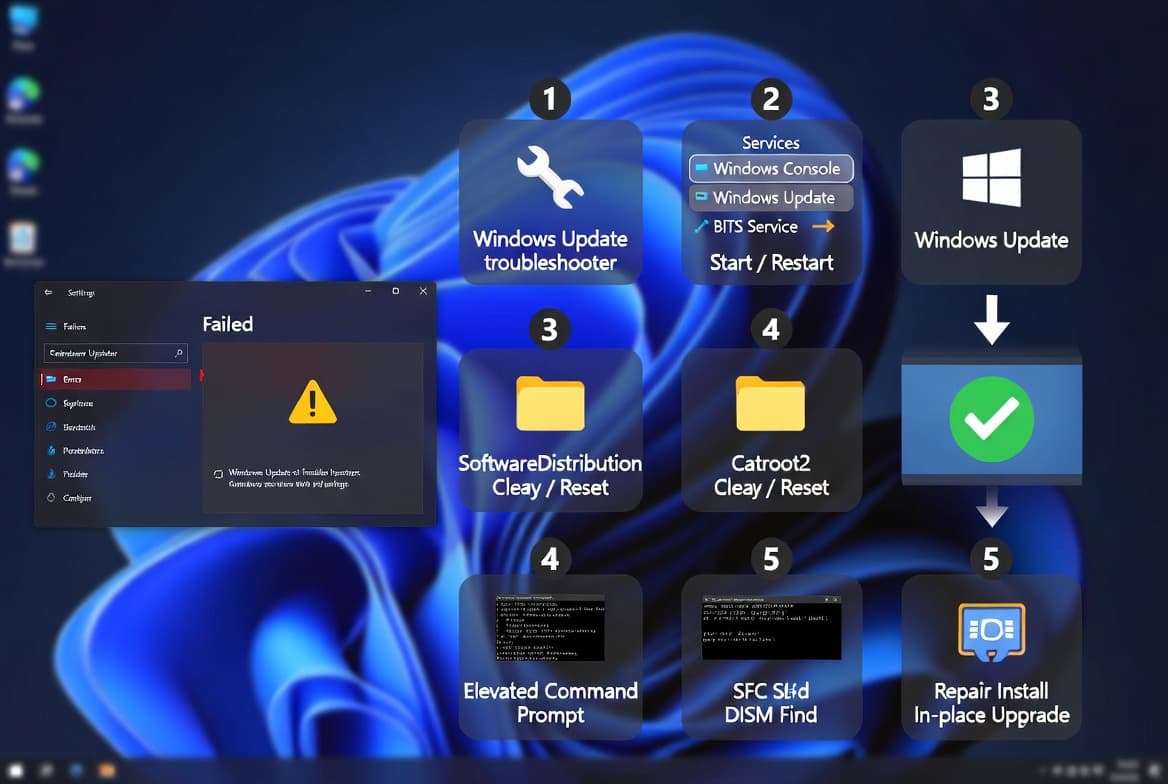
Step 3: Restart the Windows Update and BITS Services
The Windows Update service and the Background Intelligent Transfer Service (BITS) both need to be running for updates to download and install. Open an elevated command prompt and run:
net stop wuauserv
net stop bits
net start wuauserv
net start bits
Alternatively, open services.msc, find Background Intelligent Transfer Service and Windows Update, then right-click and select Restart on each. Return to Windows Update and retry.
Step 4: Run the Windows Update Troubleshooter
Windows 11 includes a built-in troubleshooter that checks service states, registry entries, and update component health automatically. Go to Settings > System > Troubleshoot > Other troubleshooters and run Windows Update. The tool reports detected problems and attempts automatic remediation. After it finishes, check for updates again to see whether 0x800706be has cleared.
Step 5: Run an SFC Scan to Repair System Files
Corrupted protected system files are a leading cause of update errors. The System File Checker tool (Microsoft Learn) compares every protected file against a known-good cached copy and replaces anything damaged. Open an elevated command prompt and run:
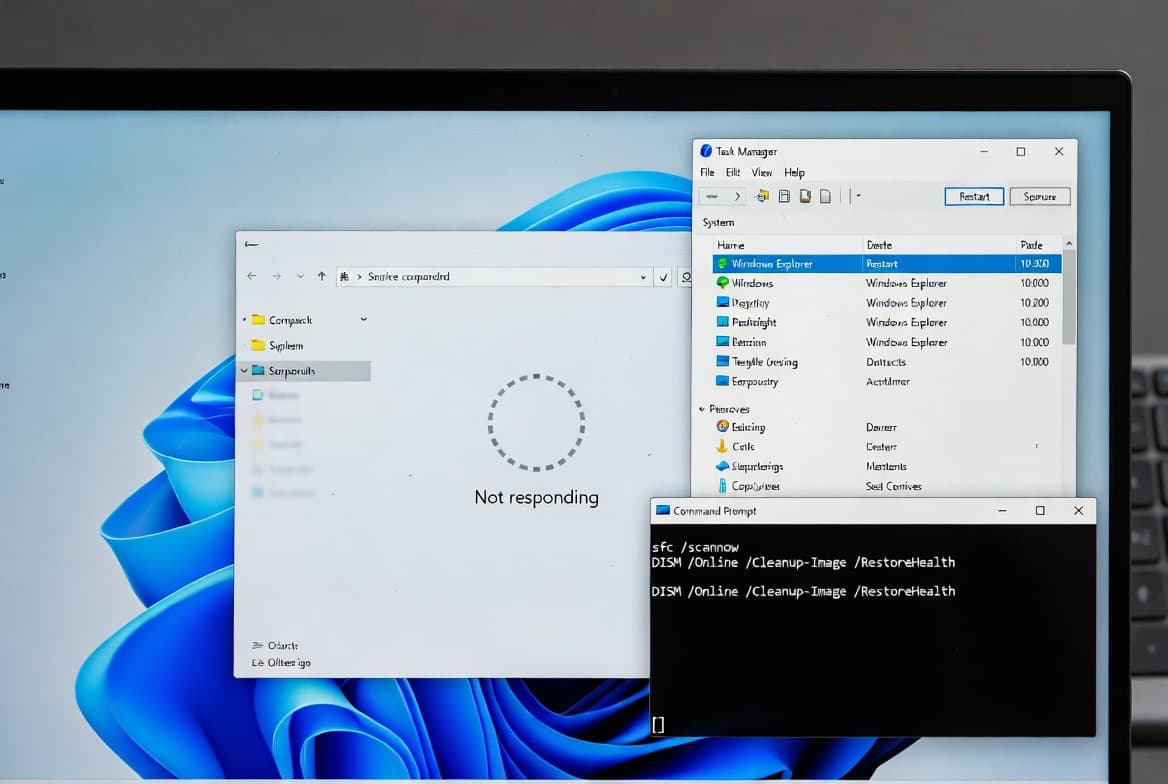
sfc /scannowThe scan takes 10-20 minutes on a typical system. Do not close the window while it runs. After it completes, restart the machine - SFC queues some repairs to finish at boot - then retry the update.
Step 6: Run DISM to Repair the Component Store
If SFC reports it could not repair all files, the Windows component store itself may be damaged. DISM /RestoreHealth (Microsoft Learn) fetches clean replacement files directly from Windows Update, so confirm connectivity before starting. Run this sequence in an elevated command prompt:
DISM /Online /Cleanup-Image /CheckHealth
DISM /Online /Cleanup-Image /ScanHealth
DISM /Online /Cleanup-Image /RestoreHealth
/RestoreHealth can take 20-30 minutes. Once it finishes, re-run sfc /scannow to catch any files DISM repaired, then restart and check for updates.
Step 7: Reset All Windows Update Components (Fixes 0x800706be)
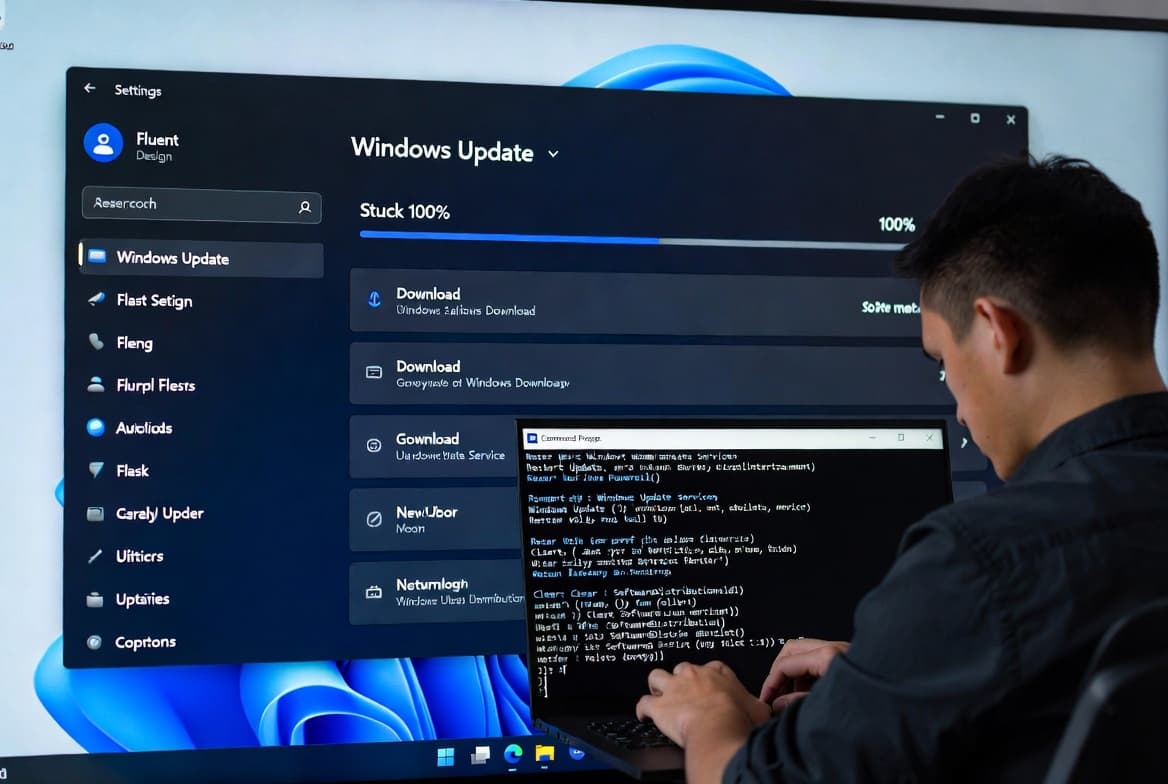
If the previous steps have not cleared 0x800706be, resetting the entire update stack is the strongest software-level fix available. This process stops the relevant services, renames the corrupted cache folders so Windows rebuilds them fresh, then restarts everything.
Run the following block in an elevated command prompt:
net stop wuauserv
net stop cryptSvc
net stop bits
net stop msiserver
Then rename the damaged folders:
ren C:\Windows\SoftwareDistribution SoftwareDistribution.old
ren C:\Windows\System32\catroot2 catroot2.old
Finally, restart the services:
net start wuauserv
net start cryptSvc
net start bits
net start msiserver
Restart the computer after running all commands. Windows rebuilds both renamed folders automatically on next boot.
What to Check After the Reset
Open Windows Update and click Check for updates. The previously failing update should now download and install without error. In our testing on Windows 11 23H2, the update that had failed three consecutive times installed cleanly after this reset - no further steps needed.
If you manage multiple devices, the Intune Expedited Windows Quality Updates step-by-step guide shows how to force-deliver a specific KB to affected machines without waiting on the standard rollout schedule. This pairs well with the reset above when you need a fast, confirmed fix across a fleet.
Also note: faulty cumulative updates can create secondary problems. The KB5094126 Patch Tuesday bug that broke Recycle Bin delete dialogs is a recent example of a bad patch creating downstream failures - check your update history for recently installed KBs if the error started after a specific patch.
What If Nothing Has Worked?
If 0x800706be persists after all seven steps, try these escalation options:
- In-place OS upgrade - Run setup from Windows 11 installation media with the "Keep files and apps" option. This refreshes core OS components without wiping the machine. Microsoft recommends this path for persistent update failures on Windows 10 machines in particular.
- Check the CBS log - Open
C:\Windows\Logs\CBS\CBS.logand search for the error code to find exactly which component or file is failing. This identifies whether a driver, .NET component, or specific update package is the root cause. - Manually install the update - Download the standalone
.msupackage for the failing KB from the Microsoft Update Catalog and install it directly, skipping the Windows Update service entirely. - Review event logs - Open Event Viewer > Windows Logs > System and look for errors timestamped around the failed attempt. Service crashes or disk errors there point to a hardware or driver problem that no software reset fully resolves.
Frequently asked questions
Does error 0x800706be affect Windows Server as well as desktop Windows?+
Yes. The error appears on Windows 10, Windows 11, and Windows Server editions. The root cause - corrupted update components or broken system files - is the same across all three. The same reset, SFC scan, and service-restart sequence applies regardless of which OS variant you run.
Is it safe to rename the SoftwareDistribution folder?+
Renaming rather than deleting is intentional. Windows rebuilds the folder automatically on next startup, and the renamed copy acts as a recoverable backup. No installed software or previously applied updates are affected. Delete the old folder once you confirm updates are installing correctly.
Will an in-place upgrade remove my installed applications?+
A properly executed in-place upgrade keeps personal files and installed applications intact while refreshing core OS components. Always back up critical data before starting. Verify hardware compatibility and available disk space beforehand, and review Microsoft's pre-flight guidance for your specific OS version.
How do I know which step resolved the error?+
After each step, open Settings, go to Windows Update, and click Check for updates. If the previously failing update installs without showing error 0x800706be, that step was the fix. Document which step worked so you can apply it first on other machines showing the same symptom.