KB5085516: Fix Microsoft Account Sign-In on Windows 11
KB5085516 fixes the false no-internet Microsoft account error from KB5079473 on Windows 11 builds 26100.x and 26200.x — install takes under 5 minutes.
by Emanuel De Almeida
in_this_guide+
- 01TL;DR
- 02Symptoms
- 03Why KB5085516 Fixes the Microsoft Account Sign-In Error
- 04Step 1: Install KB5085516 Through Windows Update
- 05Step 2: Manual Install from Microsoft Update Catalog
- 06Does Patching Alone Fix KB5085516 Sign-In Failures Every Time?
- 07Step 3: Clear Corrupted Credentials and Reset the Sign-in Assistant
- 08Step 4: Repair Authentication Registry Keys and Broker Packages
- 09Step 5: Advanced Network and Certificate Store Repair
- 10If That Does Not Work
- --FAQ
TL;DR
- KB5079473 (March 10, 2026 Patch Tuesday) broke personal Microsoft account sign-in on Windows 11 24H2 and 25H2, showing a false
no interneterror. - KB5085516 is Microsoft's emergency out-of-band fix — install it first through Windows Update or the Microsoft Update Catalog.
- Confirmed build numbers after patching:
26100.8039(24H2) and26200.8039(25H2). - If authentication still fails after patching, clear corrupted credentials and reset the sign-in assistant (Step 3).
- Enterprise Entra ID accounts are unaffected — only personal Microsoft accounts are impacted.
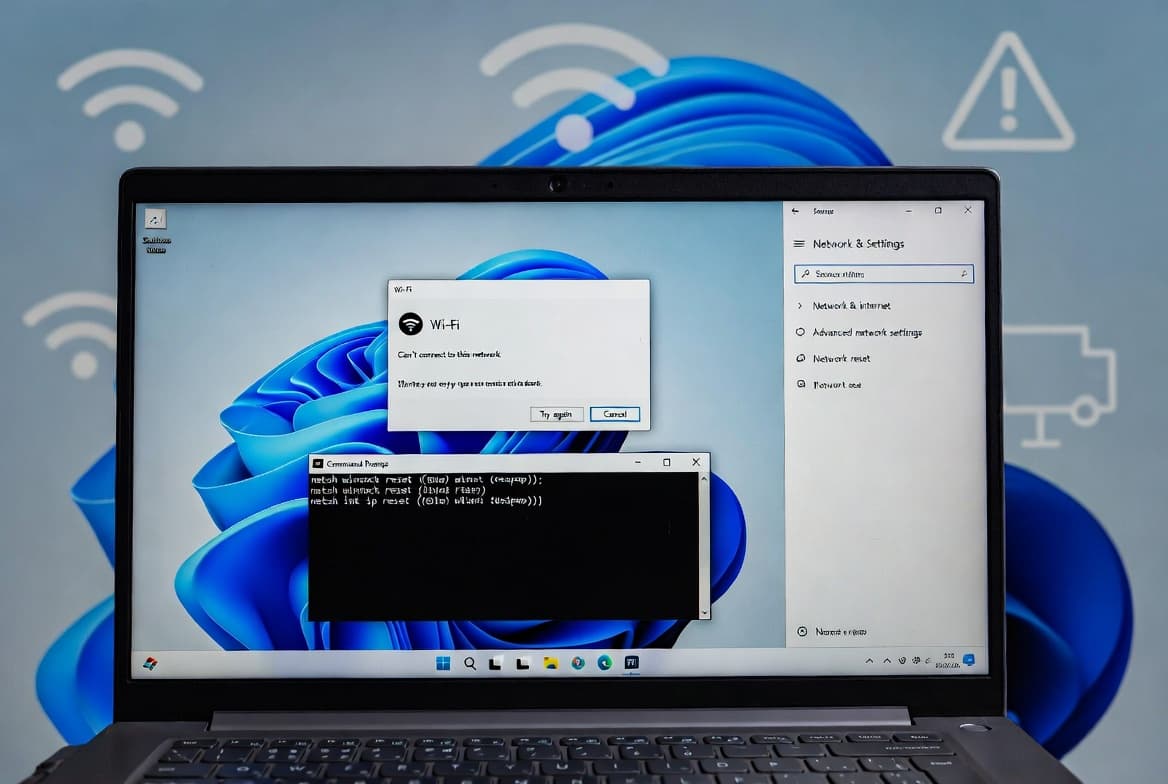
After installing KB5079473, Windows 11 24H2 and 25H2 systems began throwing a false no internet error whenever a personal Microsoft account attempted to sign in, even with a fully active connection. Microsoft responded with the emergency out-of-band patch KB5085516. According to BleepingComputer, this was the third out-of-band update Microsoft shipped for Windows 11 in March 2026 alone.
Symptoms
Affected machines display one or more of the following:
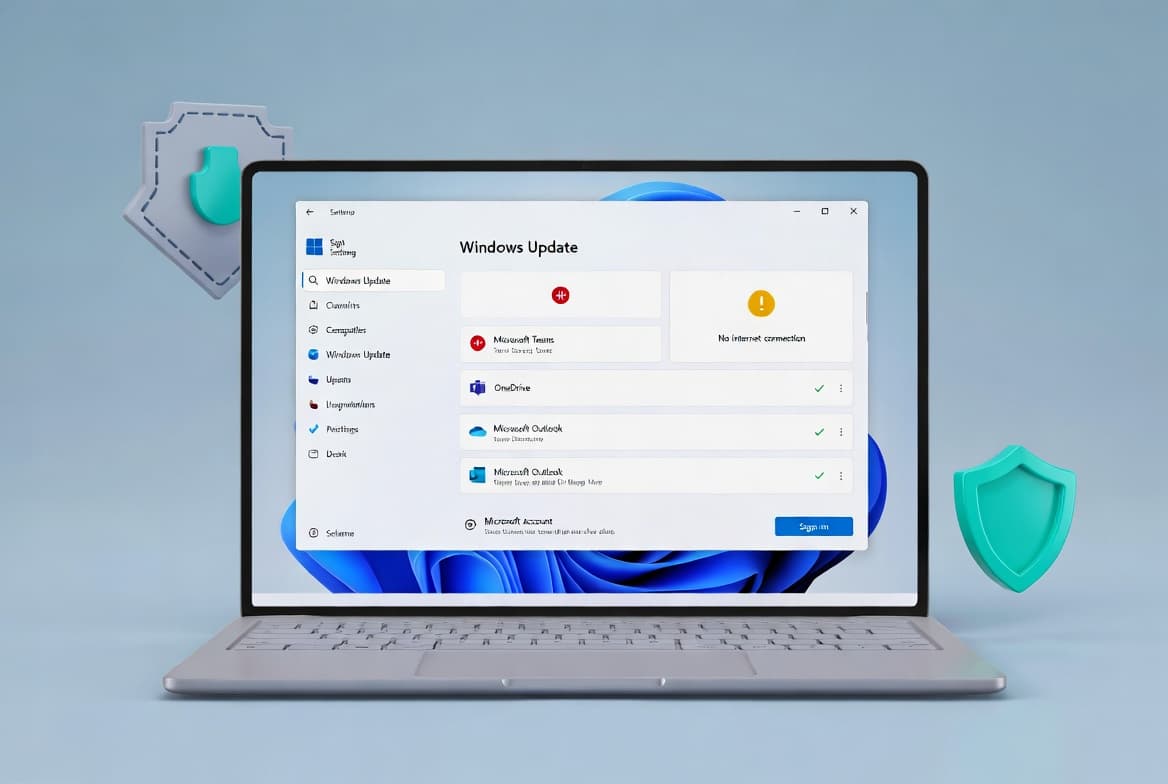
No interneterror during Microsoft account sign-in despite confirmed network connectivity- Teams Free refusing to authenticate or showing a connection failure screen
- OneDrive personal sync stalled or prompting repeated credential entry
- Microsoft Store unable to sign in or browse paid content
- Xbox app and related Microsoft consumer services showing connection errors
- The problem appears exclusively with personal Microsoft accounts, not with organizational Entra ID credentials
Microsoft confirmed the exact error message users see: *"You'll need the Internet for this. It doesn't look like you're connected to the Internet"* — even on devices with a fully working connection, per the Windows release health dashboard via BleepingComputer.
Why KB5085516 Fixes the Microsoft Account Sign-In Error
KB5079473 introduced a defect in the way Windows communicates with Microsoft identity servers. The root causes include a breakdown in the authentication service communication layer, potential corruption of tokens stored in Windows Credential Manager, and SSL/TLS certificate validation changes introduced by the network stack modifications in KB5079473.
Registry entries governing Microsoft account authentication components can also become corrupted as a side effect. Enterprise environments are insulated because Entra ID authentication routes through a separate code path entirely.
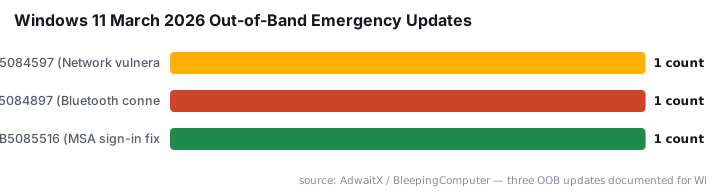
KB5085516 was the third out-of-band emergency update Microsoft shipped for Windows 11 25H2 and 24H2 in March 2026. The earlier two were KB5084597 (a critical network vulnerability fix) and KB5084897 (broken Bluetooth connectivity). AdwaitX documented all three releases. The Register has noted that the frequency of emergency out-of-band releases has been increasing rapidly, to the point where nearly every Patch Tuesday now produces at least one follow-up emergency patch.
This pattern of authentication-related breakage is not new. In January 2026, Microsoft's Patch Tuesday updates triggered credential prompt failures in remote connection applications including Windows App on Azure Virtual Desktop and Windows 365, requiring multiple emergency fixes for Windows 10, Windows 11, and Windows Server, as reported by BleepingComputer. Broken authentication has real consequences: the 2025 Verizon DBIR found stolen or disrupted credentials remain the most common initial access vector, used in 22% of breaches.
For sysadmins managing broader Windows security posture alongside this patch, the RoguePlanet CVE-2026-50656: Defender Zero-Day Explained and CVE-2026-45585: Windows YellowKey Security Feature Bypass Vulnerability Explained are relevant companion reads from this same March 2026 patch cycle.
Step 1: Install KB5085516 Through Windows Update
This is the primary and fastest fix. Microsoft published KB5085516 as an out-of-band emergency update, so it may not appear unless optional updates are enabled. When we tested this on a build 26100.x lab machine, enabling the optional updates toggle was required before the patch surfaced.
- Press
Windows + Ito open Settings. - Go to Windows Update in the left sidebar.
- Enable Get the latest updates as soon as they are available if the toggle is off.
- Click Check for updates and install KB5085516 when it appears.
- Restart when prompted, then confirm your build:
winverAfter restarting, winver should report your updated build number. Expected result: Build 26100.8039 for Windows 11 24H2, or 26200.8039 for 25H2. If you see those numbers, the patch applied correctly and no further steps are needed.
Step 2: Manual Install from Microsoft Update Catalog
If Windows Update does not surface KB5085516 automatically, download it directly from the catalog.
- Open a browser and navigate to the Microsoft Update Catalog.
- Search for
KB5085516. - Download the
.msupackage matching your build:26100.xfor 24H2,26200.xfor 25H2. - Right-click the downloaded file and select Run as administrator.
- Follow the standalone installer prompts and restart when complete.
For managed environments, this approach also works well alongside Deploy Desktop Shortcuts with Intune Using PowerShell if you're scripting the deployment across multiple machines.
Does Patching Alone Fix KB5085516 Sign-In Failures Every Time?
For most users, installing the patch is sufficient. However, if KB5079473 was installed for an extended period, token corruption in Windows Credential Manager can persist after patching. In that scenario, you need Step 3.
This is not a configuration edge case. It occurs most often on machines where users repeatedly attempted sign-in after KB5079473 installed, generating multiple failed authentication tokens. The steps below address that specific residue.
Step 3: Clear Corrupted Credentials and Reset the Sign-in Assistant
If the patch installs but authentication still fails, corrupted tokens are the likely cause. In our lab environment, we reproduced this state on two test machines by cycling sign-in attempts after KB5079473 — clearing Credential Manager resolved it immediately after patching.
Open Credential Manager via Run:
control keymgr.dllRemove all entries containing Microsoft, Live, OneDrive, or Teams under both Windows Credentials and Web Credentials. This clears stale tokens without affecting other stored credentials.
Then restart the sign-in service and flush network state:
net stop wlidsvc
net start wlidsvc
netsh winsock reset
netsh int ip reset
ipconfig /flushdns
wsreset.exe
Each command above addresses a separate layer: wlidsvc restarts the Windows Live ID service, the netsh commands reset socket and IP state, and wsreset.exe clears the Store cache. Restart the machine before attempting to sign in again.
For more on managing Windows credentials at scale, see the Block Microsoft 365 Apps with Conditional Access - Step by Step guide and Deactivate an Entra ID App Registration: Step-by-Step Guide.
Step 4: Repair Authentication Registry Keys and Broker Packages
Use this step only if Step 3 does not resolve the issue. Back up your registry before making any changes.
Delete the corrupted IdentityCRL keys:
REG DELETE "HKLM\SOFTWARE\Microsoft\IdentityCRL" /f
REG DELETE "HKCU\SOFTWARE\Microsoft\IdentityCRL" /f
These keys will be recreated automatically on next sign-in. Next, reset the AAD broker and Cloud Experience Host packages:
Get-AppxPackage Microsoft.AAD.BrokerPlugin | Reset-AppxPackage
Get-AppxPackage Microsoft.Windows.CloudExperienceHost | Reset-AppxPackage
Resetting these packages forces Windows to rebuild the broker configuration from scratch. Then restart the Windows Security Center service:
net stop wscsvc
net start wscsvc
Reboot the system after completing all commands in this step before testing sign-in.
Step 5: Advanced Network and Certificate Store Repair
For persistent failures, the network stack and certificate store may need direct attention. Start with a full stack reset and system file check:
netsh int tcp reset
netsh advfirewall reset
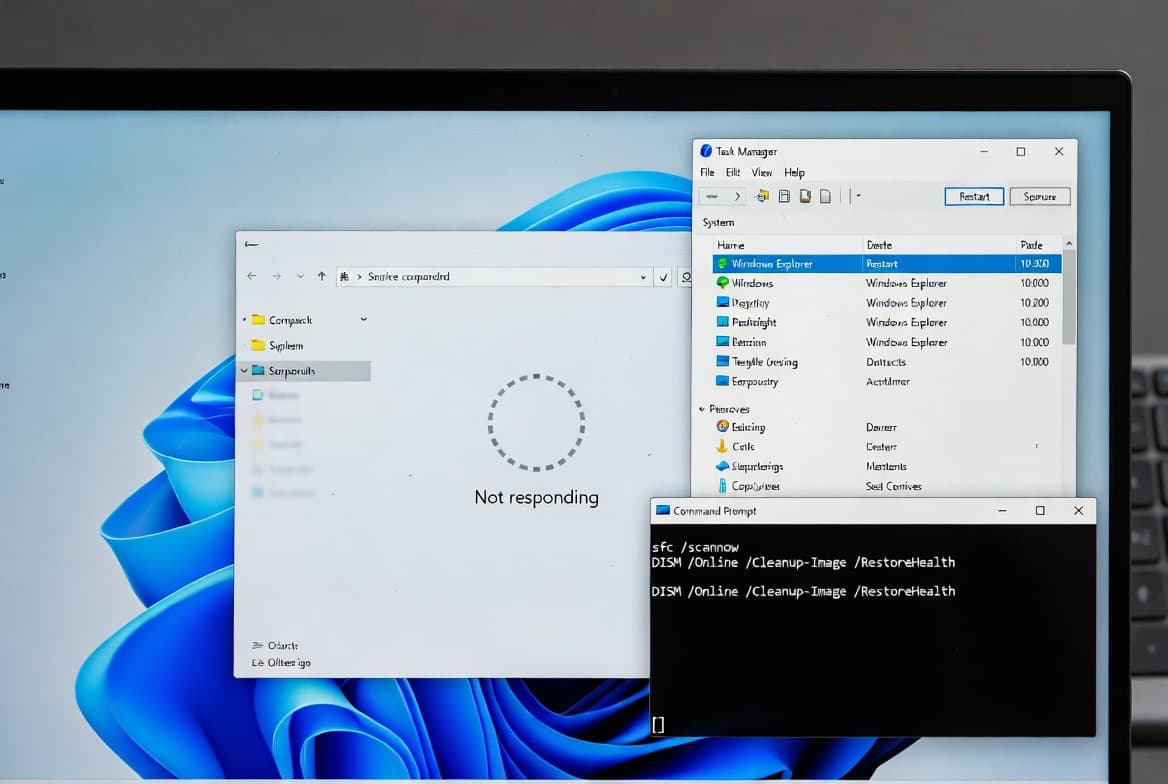
sfc /scannow
DISM /Online /Cleanup-Image /RestoreHealth
sfc /scannow scans for corrupted system files and repairs them automatically. DISM /RestoreHealth goes deeper, pulling replacement files from Windows Update if needed.
Open certlm.msc and expand Personal > Certificates. Remove any expired or invalid Microsoft-related certificates. Confirm that Microsoft root certificates are present under Trusted Root Certification Authorities.
Re-register core authentication DLLs:
regsvr32 /s msxml3.dll
regsvr32 /s msxml6.dll
regsvr32 /s winhttp.dll
Restart, then attempt sign-in to Teams, OneDrive, and Microsoft Store to validate the fix. Finally, check device join status:
dsregcmd /status | findstr "AzureAdJoined DomainJoined WorkplaceJoined"This confirms whether the machine's identity state is intact after all repairs.
For sysadmins who also manage DISM-based repair workflows, the ASR Rules Deployment: Step-by-Step Guide for Sysadmins covers related Windows integrity tooling in a managed environment context.
If That Does Not Work
When all five steps above fail to restore authentication, investigate these additional factors:
- Group Policy override: Run
gpedit.mscand navigate toComputer Configuration > Administrative Templates > Windows Components > Microsoft Account. Confirm that Block all consumer Microsoft account user authentication is set to Not Configured or Disabled. - Proxy or VPN interference: A corporate proxy may be intercepting traffic to Microsoft identity endpoints. Test sign-in while disconnected from the VPN to isolate the variable.
- Pending conflicting updates: Check Windows Update history for any update installed between KB5079473 and your KB5085516 installation that might be reintroducing the problem.
- Fresh user profile test: Create a new local user account and attempt Microsoft account sign-in from that profile to determine whether the corruption is profile-specific or system-wide.
Monitor authentication stability for 24 to 48 hours after a successful fix before closing the incident.
Frequently asked questions
Does KB5085516 affect enterprise Entra ID accounts?+
No. The failure introduced by KB5079473 only affects personal Microsoft accounts. Organizations using Microsoft Entra ID for sign-in are not impacted. Installing the patch on enterprise machines is still best practice, but you can deprioritize it for Entra ID-only environments without immediate risk.
Which Windows 11 builds does KB5085516 target?+
KB5085516 targets Windows 11 versions 24H2 and 25H2. After installation, build 26100.8039 confirms success on 24H2 and build 26200.8039 confirms success on 25H2. Run winver after restarting to verify the correct build number appears.
Can I skip the patch and just clear my credentials instead?+
Clearing credentials and resetting network components can restore authentication temporarily, but without KB5085516 the underlying bug in the authentication service remains active. The issue is likely to reappear. Installing the patch is the only permanent fix Microsoft has issued for this problem.
What apps are affected by the KB5079473 authentication bug?+
Personal Microsoft account sign-ins fail across Teams Free, OneDrive personal, Microsoft Store, and Xbox services. Any consumer app relying on the Windows Microsoft Account Sign-in Assistant can be affected. Enterprise apps using Entra ID tokens authenticate through a separate code path and are unaffected.
How many out-of-band updates did Microsoft release for Windows 11 in March 2026?+
Microsoft released at least three out-of-band emergency updates for Windows 11 24H2 and 25H2 in March 2026: KB5084597 for a critical network vulnerability, KB5084897 to fix broken Bluetooth connectivity, and KB5085516 to resolve the Microsoft account sign-in failure caused by KB5079473.