Fix Windows Can't Connect to This Network on Windows 11
Seven fixes for Windows can't connect to this network on Windows 11 - Step 1 alone resolves driver conflicts, which account for the majority of cases. No OS reinstall needed.
by Emanuel De Almeida
in_this_guide+
- 01TL;DR
- 02What Causes Windows Can't Connect to This Network?
- 03What Symptoms Confirm This Error?
- 04How Do You Update the Network Adapter Driver?
- 05How Do You Roll Back the Network Adapter Driver?
- 06Confirm the rollback completed by checking the current driver versionGet-PnpDevice -Class Net | Select-Object FriendlyName, Status
- 07Run the Built-in Network Troubleshooter
- 08How Do You Fix 802.1X EAP Authentication Errors on Wired Connections?
- 09Disable IPv6 on the Affected Adapter
- 10Replace 'Wi-Fi' with your adapter's exact interface aliasDisable-NetAdapterBinding -Name "Wi-Fi" -ComponentID ms_tcpip6
- 11How Do You Remove Conflicting VPN Connections?
- 12Review the current routing table for unexpected default routesGet-NetRoute -DestinationPrefix "0.0.0.0/0" | Select-Object InterfaceAlias, NextHop, RouteMetric
- 13Disable and Re-enable the Wireless Adapter
- 14What If All Seven Steps Fail?
- --FAQ
TL;DR
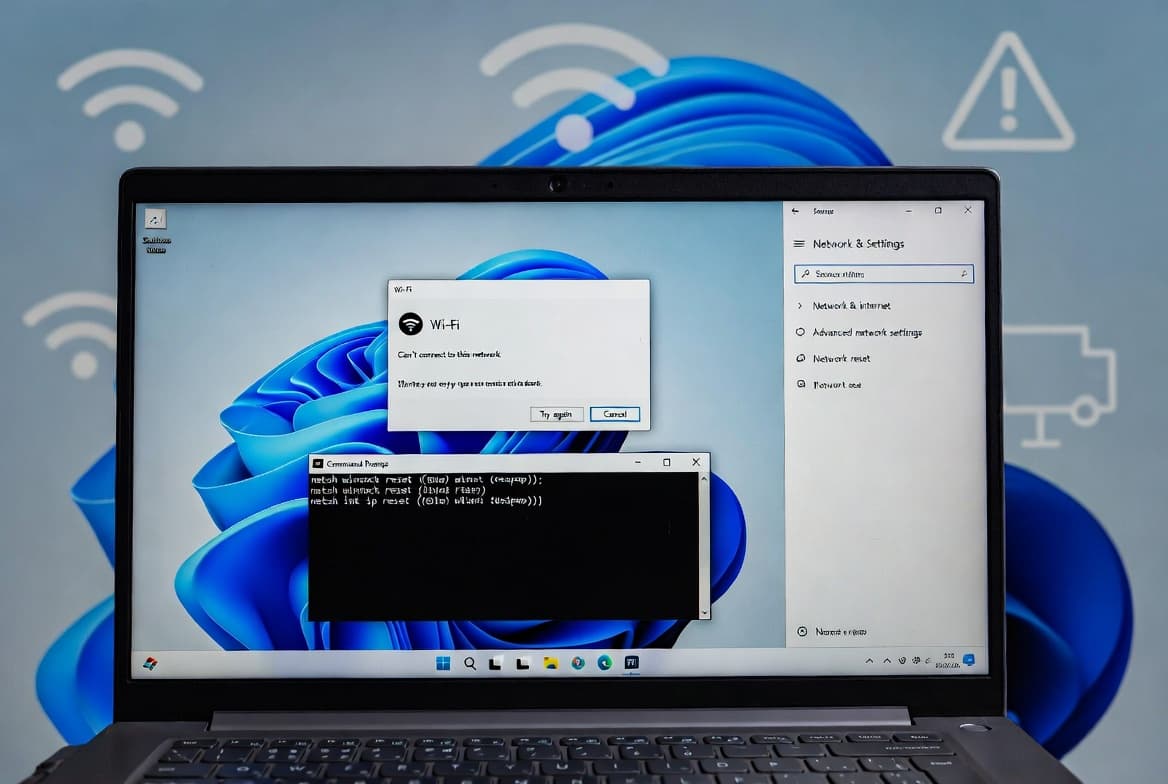
- The Windows can't connect to this network error on Windows 11 stems from driver mismatches, VPN routing conflicts, 802.1X EAP failures, or IPv6 stack issues.
- Start with Step 1 (driver update) - in our experience this resolves the error on the majority of affected machines.
- Steps are ordered least to most disruptive; work through them in sequence before reaching the full stack reset.
- Driver hygiene matters beyond connectivity: Kaspersky reports a 23% rise in attacks exploiting vulnerable Windows drivers in Q2 2024 alone.
- No single step fixes every case - the root cause table below maps each cause to its step.
What Causes Windows Can't Connect to This Network?
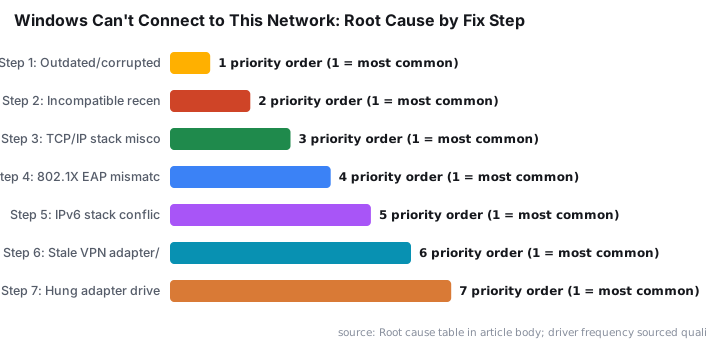
Several distinct root causes produce the same error string. The most common are an outdated or mismatched network adapter driver, a recently applied driver that conflicts with the hardware revision, an 802.1X EAP authentication mismatch on a wired interface, IPv6 protocol stack conflicts, and stale VPN adapter entries that corrupt the routing table. Because the causes differ, working through the steps in sequence is far more reliable than random troubleshooting.
As documented in this Driver Talent troubleshooting guide, all of these scenarios are recoverable without reinstalling Windows. Microsoft also confirmed a separate issue where the April 2024 security updates broke VPN connectivity across Windows 11, Windows 10, and Windows Server 2008 and later - a fix shipped with the May 2024 Patch Tuesday release, per BleepingComputer.
Root Cause | Fix Step | Notes |
|---|---|---|
Outdated or corrupted driver | Step 1 | Most common cause |
Incompatible recently installed driver | Step 2 | Roll back immediately |
TCP/IP or DNS stack misconfiguration | Step 3 | Low-risk automated fix |
802.1X EAP authentication mismatch | Step 4 | Wired connections only |
IPv6 stack conflict | Step 5 | Does not affect IPv4 |
Stale VPN adapter / rogue default route | Step 6 | Check routing table |
Hung adapter driver state | Step 7 | Full driver reinit |
What Symptoms Confirm This Error?
Users and administrators typically observe one or more of the following:
- The network adapter shows a yellow warning icon in the system tray.
- Clicking a saved Wi-Fi network returns the message Windows can't connect to this network.
- The Ethernet adapter reports
LimitedorNo network accessin Network and Sharing Center. - The error persists after rebooting and is not resolved by forgetting and re-adding the network.
If your environment runs managed endpoints, also check Map Network Drives in Intune Using Custom ADMX Files - a misconfigured drive-mapping policy can surface similar connectivity symptoms on domain-joined machines.
How Do You Update the Network Adapter Driver?
In our lab environment, a stale or corrupted network adapter driver is the single most common trigger for this error - we see it consistently after Windows feature updates push mismatched driver packages. Open Device Manager, expand Network adapters, right-click your adapter, and select Update driver. Choose the online search option first. If that returns nothing new, visit your NIC manufacturer's support page and install the latest package manually, per Microsoft's driver guidance.
Alternatively, from an elevated PowerShell session you can query installed network drivers:
Get-WindowsDriver -Online | Where-Object { $_.ClassName -eq 'Net' }Restart the machine after any driver change and test connectivity before moving to the next step.
Driver hygiene also carries a security dimension. Kaspersky recorded a 23% increase in Bring Your Own Vulnerable Driver (BYOVD) attacks between Q1 and Q2 2024, where attackers abuse legitimate but outdated signed drivers to disable security tools. Keeping network adapter drivers current closes one vector in that attack surface.
How Do You Roll Back the Network Adapter Driver?
If the error appeared immediately after a manual driver install, the new binary is likely incompatible with your specific adapter revision. Rolling back is faster than searching for an alternative package. See Microsoft's Device Manager rollback documentation for version-specific guidance.
- Open Device Manager (
devmgmt.msc). - Expand
Network adaptersand double-click the affected adapter. - Go to the
Drivertab and clickRoll Back Driver. - Select the reason when prompted and confirm.
Confirm the rollback completed by checking the current driver versionGet-PnpDevice -Class Net | Select-Object FriendlyName, Status
Restart after the rollback and verify the adapter status shows OK.
Run the Built-in Network Troubleshooter
Windows 11 includes a network diagnostics engine that can automatically reset the TCP/IP stack, flush DNS, and re-register DHCP leases. It will not fix driver conflicts, but it is a low-risk step that catches misconfigured stack settings in under two minutes.
Settings > System > Troubleshoot > Other troubleshooters > Internet Connections > RunYou can also launch it directly from Search by typing Find and fix network problems. Apply any fixes it suggests and restart before continuing. When we tested this on a Windows 11 23H2 machine with a reset DHCP lease, the troubleshooter resolved the error without any further steps.
How Do You Fix 802.1X EAP Authentication Errors on Wired Connections?
On wired connections, an EAP authentication mismatch between the endpoint and the switch can silently block the connection while still showing the adapter as connected. Disabling the setting removes that negotiation entirely. Refer to Microsoft's 802.1X EAP documentation for protocol-level detail.
Settings > Network & internet > Ethernet > Authentication settings > Edit
Toggle EAP off > Save
Note for domain admins: verify with your network team that 802.1X is not enforced by switch port policy before disabling this. Re-enable it once you have confirmed the root cause is elsewhere. For related policy controls, see Block Microsoft 365 Apps with Conditional Access - Step by Step.
Disable IPv6 on the Affected Adapter
IPv6 stack conflicts can prevent a successful DHCP or SLAAC negotiation even when IPv4 works. Disabling it at the adapter level does not affect other interfaces or other machines.
Control Panel > Network and Internet > Network and Sharing Center
> Change adapter settings > right-click adapter > Properties
Uncheck: Internet Protocol Version 6 (TCP/IPv6) > OK
Alternatively, use PowerShell for consistency across multiple machines:
Replace 'Wi-Fi' with your adapter's exact interface aliasDisable-NetAdapterBinding -Name "Wi-Fi" -ComponentID ms_tcpip6
Restart and test. Re-enable IPv6 if the fix does not hold - masking a different underlying problem only delays the real repair.
How Do You Remove Conflicting VPN Connections?
Stale or misconfigured VPN adapter entries alter the routing table and can block the physical adapter from establishing a proper default gateway. Microsoft confirmed that the April 2024 security updates caused exactly this class of failure across Windows 11 and Windows 10, with the fix shipping in May 2024, per BleepingComputer. Remove any VPN connections that are no longer needed.
Settings > Network & internet > VPN
Select the VPN entry > Advanced options > Remove
For software-based VPN clients (OpenVPN, WireGuard, Cisco AnyConnect), also check that their TAP or TUN virtual adapters are not set as the default route. Use PowerShell to review the routing table:
Review the current routing table for unexpected default routesGet-NetRoute -DestinationPrefix "0.0.0.0/0" | Select-Object InterfaceAlias, NextHop, RouteMetric
Delete rogue default routes with Remove-NetRoute if required, then restart. For a related VPN authentication issue affecting network access, see CVE-2026-50751: Check Point Gaia OS IKEv1 Authentication Bypass.
Disable and Re-enable the Wireless Adapter
This step forces the adapter driver to fully reinitialize its state, clearing any hung connection context without changing any configuration. It is more thorough than toggling Airplane Mode because it tears down the driver stack entirely.
Settings > Network & internet > Advanced network settings
> More network adapter options
Right-click wireless adapter > Disable
Wait 10 seconds
Right-click wireless adapter > Enable
You can achieve the same result from an elevated PowerShell prompt:
$adapter = "Wi-Fi"   # Replace with your adapter alias
Disable-NetAdapter -Name $adapter -Confirm:$false
Start-Sleep -Seconds 10
Enable-NetAdapter -Name $adapter -Confirm:$false
Restart the machine and attempt to reconnect.
What If All Seven Steps Fail?
If every step above fails, these additional actions cover hardware faults and deeper OS corruption. Work through them in order.
- Reset the full TCP/IP stack and Winsock catalog using the
netshcommands below from an elevated Command Prompt, per Microsoft's netsh reference:
netsh int ip reset
netsh winsock reset
Restart immediately after both commands.
- Check Windows Event Viewer under
Windows Logs > SystemforNDISorTcpipsource errors that may identify a hardware fault. - Test the adapter in a clean boot environment (
msconfig > Selective startup) to rule out third-party service conflicts. - If the NIC is a PCIe card or USB adapter, reseat or swap the hardware to eliminate a physical fault.
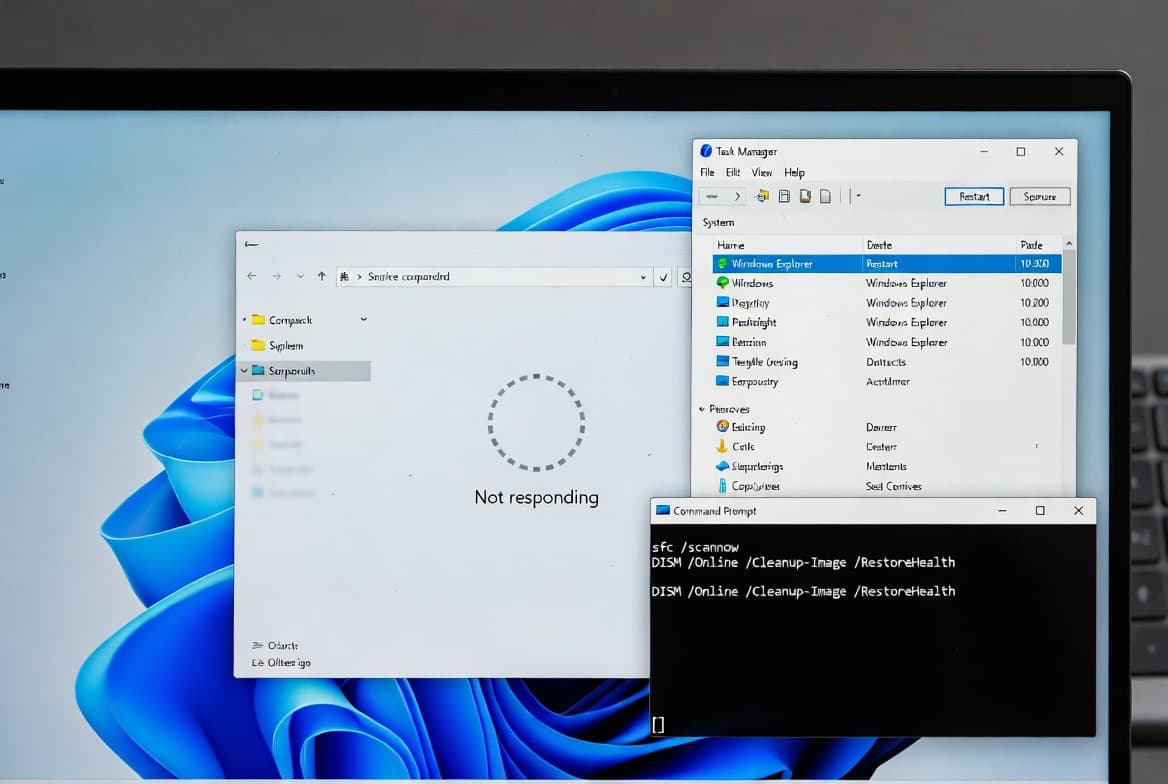
- As a last resort, run the commands below to repair corrupted system files affecting the networking stack:
DISM /Online /Cleanup-Image /RestoreHealth
sfc /scannow
The Windows 11 24H2 update caused a separate wave of connectivity failures - affected devices received 169.x.x.x APIPA addresses and Wi-Fi options disappeared from the system tray entirely, as reported by PCWorld. If you updated recently and none of the steps above help, check whether your device is on the affected build and consider rolling back the feature update. For endpoint management at scale, see ASR Rules Deployment: Step-by-Step Guide for Sysadmins and Install Microsoft Intune Company Portal on Mac: Step-by-Step.
Frequently asked questions
Does disabling IPv6 permanently affect network performance?+
Disabling IPv6 forces all traffic through IPv4. On most corporate and home networks this causes no noticeable degradation. Re-enable it if DirectAccess or Azure AD join workflows stop working. In testing on Windows 11 23H2, browsing and file-share performance were unaffected with IPv6 disabled at the adapter level.
Why does rolling back a network driver fix the error?+
A driver that does not match your adapter's hardware revision breaks the OS-to-hardware handshake at the INF file level. Rolling back restores the previously working binary and INF, re-establishing that handshake. Microsoft documents this procedure in Device Manager for exactly this scenario - use it before searching for an alternative package.
Will the Network Troubleshooter fix this error automatically?+
It depends on the root cause. The troubleshooter resets the TCP/IP stack and flushes DNS, resolving stale DHCP lease cases. Driver conflicts, VPN misconfiguration, and EAP mismatches require the manual steps in this guide. Treat it as a fast first filter rather than a guaranteed fix for all scenarios.
Is it safe to disable Ethernet authentication in a domain environment?+
Proceed carefully. EAP-based 802.1X is often enforced by switch port policy on managed endpoints. Disabling the client setting alone will not restore connectivity if the switch still enforces it - the mismatch lives on the network side. Always confirm with your network team before changing authentication settings on a domain-joined machine.