Glances on Linux: Monitor Your System From the Terminal
Install Glances on Linux and monitor CPU, RAM, disk, and network in real time - with a 2-second default refresh - via terminal, browser, or client/server mode.
by Emanuel De Almeida
in_this_guide+
- 01TL;DR
- 02Why Monitor Linux Servers at All?
- 03Prerequisites
- 04How Do You Install Glances on Linux?
- 05How Do You Deploy Glances with Docker Compose?
- 06How Do You Run Glances in Standalone Terminal Mode?
- 07How Do You Start the Glances Web Server?
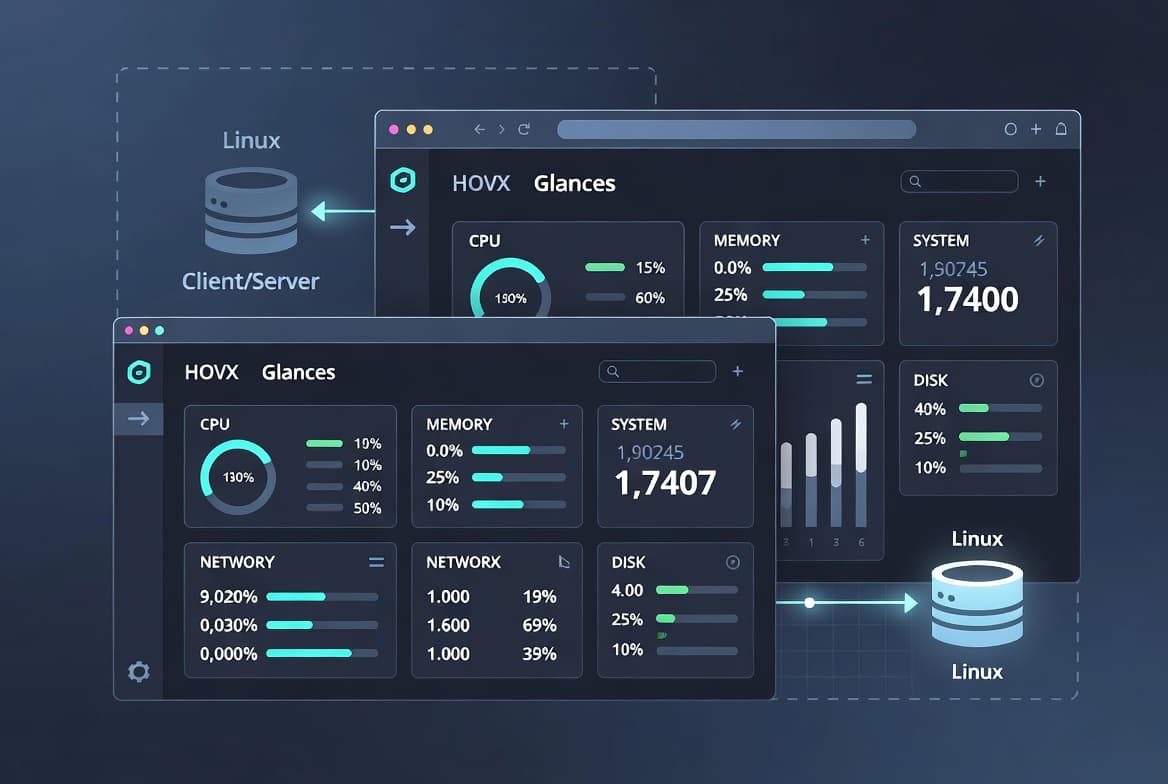
- 08Client/Server Mode: Monitor Remote Hosts from Your Terminal
- 09How Do You Customize Glances with a Configuration File?
- 10Verify It Worked
- --FAQ
TL;DR
- Glances lets you monitor Linux system health from the terminal, a browser, or a remote client in minutes.
- Three install paths:
apt,pipx, or Docker - each suits a different environment. - The web UI refreshes every 2 seconds by default and requires a password flag for production use.
- Client/server mode gives you full terminal metrics from a remote host without a browser.
- Finish in under 15 minutes on any Debian or Ubuntu server.
Why Monitor Linux Servers at All?
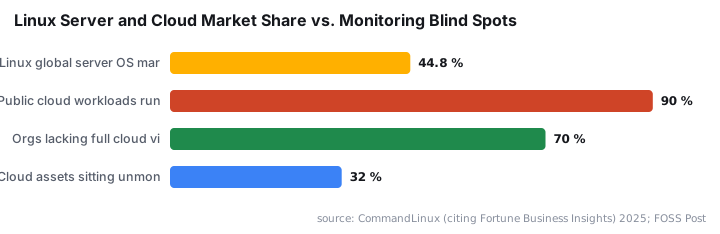
Monitor Linux servers and you catch problems before users do. Linux commands 44.8% of the global server OS market and runs on 90% of public cloud infrastructure across AWS, Azure, and Google Cloud. Yet 70% of organizations lack full visibility into their cloud environments, and 32% of cloud assets sit completely unmonitored - each carrying an average of 115 vulnerabilities.
The consequence is slow detection. According to IBM's 2025 Cost of a Data Breach Report, breaches detected after 200 days cost $1.14 million more on average than those caught earlier. Real-time monitoring with a tool like Glances closes that gap fast.
If you also manage Windows infrastructure alongside your Linux hosts, the patterns here pair well with our Microsoft Entra PIM configuration guide for a layered visibility approach.
Prerequisites
Before you install Glances, confirm these are in place:
- A Linux host running Debian, Ubuntu, or a compatible distribution (or Docker for the container path)
- Sudo or root access on the target machine
- Python 3 present if you plan to install via
pipx - Network access between client and server for client/server mode
- Optional: Docker Engine installed for container-based deployment
How Do You Install Glances on Linux?
Glances offers three installation paths. The right choice depends on whether you need speed, the latest features, or container isolation. The table below compares them so you can decide in seconds.
Method | Pros | Cons | Best For |
|---|---|---|---|
| Native packages, stable, no Python setup | May lag behind upstream release | Production servers needing stability |
| Latest version, isolated Python env | Requires Python 3 and pipx installed | Developers or feature-hungry users |
Docker | No host dependencies, easy to remove | Needs Docker Engine, slightly more config | Teams already running containers |
The `apt` path is the fastest on Debian or Ubuntu. The trade-off is that the repository version may lag behind the upstream release - acceptable for most production environments.
Update your package index first:
sudo apt updateThen install Glances:
sudo apt install glancesThe `pipx` path installs Glances inside an isolated Python environment, keeping the system Python clean. The [all] extras flag pulls in every optional dependency, including web server components.
Install with all extras:
pipx install 'glances[all]'If you only need the web interface and want a smaller footprint:
pipx install 'glances[web]'When we tested both methods on Ubuntu 24.04 LTS, pipx install 'glances[all]' delivered the current upstream release in under 90 seconds and left the system Python entirely untouched.
How Do You Deploy Glances with Docker Compose?
Skip this section if you used apt or pipx. For Docker deployments, create a docker-compose.yml file. The pid: host setting lets Glances read host-level process data from inside the container - without it, process metrics are limited to the container namespace.
Create the Compose file:
services:
  glances:
    container_name: glances
    image: nicolargo/glances:latest
    ports:
      - 61208:61208
    environment:
      - TZ=Europe/Paris
      - GLANCES_OPT=-w
    pid: host
    restart: unless-stopped
    volumes:
      - /var/run/docker.sock:/var/run/docker.sock:ro
Bring the stack up in detached mode:
docker compose up -dPort 61208 is the default for the Glances web interface. Adjust the TZ variable to match your server timezone. The official image is published at nicolargo/glances on GitHub.
How Do You Run Glances in Standalone Terminal Mode?
For a quick health check in the terminal, type:
glancesThe interface refreshes every 2 seconds by default. Metrics appear in grouped zones covering CPU, load average, memory, swap, disk I/O, network interfaces, and running processes. Color coding highlights values that cross warning or critical thresholds - no configuration needed out of the box.
On recent versions you can also pull a condensed one-screen summary:
glances --fetchThis is useful for scripted health checks or short SSH sessions where you want data fast without the full interactive view. In our lab on a 2-core VM running Ubuntu 24.04, Glances launched and populated all metric zones in under 3 seconds.
How Do You Start the Glances Web Server?
When a GUI is unavailable or you want to check a server from a laptop browser, web mode is the answer. Start it with:
glances -wYou should see output similar to:
Glances Web User Interface started on http://0.0.0.0:61208/
Glances RESTful API Server started on http://0.0.0.0:61208/api/4
Open http://<server-ip>:61208 in any browser. The web UI also works on mobile, which is practical for on-call situations. By default there is no authentication - always add a password in production.
Add password protection:
glances -w --passwordGlances prompts you to enter and confirm a password for the default glances user. To specify a different username:
glances -w --username admin --passwordFor production environments, place Glances behind a reverse proxy with TLS termination rather than exposing port 61208 directly to the internet.
Client/Server Mode: Monitor Remote Hosts from Your Terminal
Client/server mode lets you view a remote machine's metrics without opening a browser. On the machine you want to monitor, start the Glances server:
glances -sThen, from your workstation or jump host, connect by pointing the client at the server's IP address:
glances -c <server-ip>You get the same full-terminal interface you would see locally, but the data comes from the remote host. This works well for headless servers where installing a full monitoring stack is not justified. For context on how unmonitored servers increase breach risk, see the Verizon 2025 DBIR findings on vulnerability exploitation - a 34% year-over-year increase in exploitation as an initial access vector.
For teams managing endpoint visibility on Windows alongside Linux, our Find Exchange Server Version with PowerShell guide covers a similar remote-inventory workflow.
How Do You Customize Glances with a Configuration File?
Glances reads settings from glances.conf. Generate a sample file and place it in the default user config directory.
Create the config directory:
mkdir -p ~/.config/glancesExport the default configuration:
glances --export-config > ~/.config/glances/glances.confAdjust CPU thresholds in the [cpu] section to suit your environment:
[cpu]
careful=50
warning=70
critical=90
If you run Glances inside Docker and want to apply a custom config, add a bind mount to your Compose file:
volumes:
  - ./glances.conf:/glances/conf/glances.conf
  - /var/run/docker.sock:/var/run/docker.sock:ro
Restart the container after any config change for it to take effect.
Verify It Worked
Run through this checklist after setup:
- Standalone mode: type
glancesand confirm the interface appears with CPU, memory, and process data updating every 2 seconds. - Web mode: go to
http://<server-ip>:61208in a browser and verify metrics load. If you set a password, confirm the login prompt appears. - Client/server mode: from the client machine run
glances -c <server-ip>and confirm you see the remote host's metrics, not the local machine's. - Docker deployment: run
docker compose psand confirm theglancescontainer status isUp. Check logs withdocker compose logs glancesif the container exits unexpectedly.
If the web port is unreachable, check that your firewall allows TCP 61208 inbound on the server.
For a broader look at keeping infrastructure auditable, the Recall an Email in Outlook Microsoft 365 step-by-step guide and Windows 11 ADK install and verify guide show how the same verify-and-check discipline applies across platforms.
Frequently asked questions
Does Glances replace Prometheus and Grafana?+
No. Glances is built for immediate system health checks, not long-term alerting or historical trending. It can export metrics to InfluxDB, Prometheus, or CSV, making it a lightweight data source that feeds into Grafana dashboards when you need extended visibility.
Is Glances only for Linux?+
No. Glances runs on GNU/Linux, macOS, Windows, and FreeBSD. The installation method differs slightly per platform, but standalone terminal, web server, and client/server modes are all available across every supported operating system.
How do I secure the Glances web interface?+
Pass the `--password` flag when starting web mode. Glances prompts you to set a password for the built-in user account. Use `--username` to replace the default username, or front the service with a reverse proxy like Traefik and add TLS termination for production environments.
Can I run Glances without installing it on the host?+
Yes. The official Docker image `nicolargo/glances` runs Glances in a container with no Python dependencies on the host. Mount the Docker socket read-only so Glances can report container metrics alongside host-level CPU, RAM, disk, and network data.
What is the default refresh interval for Glances?+
Glances refreshes all metrics every 2 seconds by default, per the official Glances documentation. You can override this with the `--time` flag - for example, `glances --time 5` reduces update frequency and lowers CPU overhead on constrained or low-power hardware.
Can Glances export metrics to external systems?+
Yes. Glances includes export plugins for InfluxDB, Prometheus, Elasticsearch, MQTT, and CSV. Enable them in the `glances.conf` export section or via `--export` flags at startup, turning Glances into a lightweight collector for dashboards you already manage.

![Find Exchange Server Version with PowerShell [2025]](/_next/image?url=https%3A%2F%2Fwww.navanem.com%2Fapi%2Fmedia%2Ffile%2Fexchange-build-number-cover.jpg&w=3840&q=75)