CyberChef Tutorial: Decode, Encrypt & Analyze Data
CyberChef offers 483 built-in operations, all client-side. Learn to self-host it with Docker in one command, build multi-step recipes, and decode, encrypt, or extract data in minutes.
by Emanuel De Almeida
in_this_guide+
- 01TL;DR
- 02Prerequisites
- 03Step 1: What Is CyberChef?
- 04Step 2: Pull and Run the Docker Image
- 05Step 3: Orient Yourself Around the Interface
- 06How Do CyberChef Recipes Work?
- 07Which CyberChef Operations Are Most Useful for Security?
- 08Step 5: Save and Share CyberChef Recipes
- 09Did the Setup Work? Verify Your Instance
- --FAQ
TL;DR
- CyberChef runs entirely in the browser - all 483 operations process data client-side, so nothing leaves your machine. GCHQ (official CyberChef site)
- One `docker run` command spins up a self-hosted instance on port 8080 - no internet needed after the initial pull.
- Recipes are ordered pipelines - drag operations into sequence, and the output of each step feeds the next.
- Top operations for security work include Base64 decode, IP extraction, X.509 certificate parsing, and hash identification.
- Recipes export as a URL or JSON - paste the link into a wiki or ticket and the whole team can reuse it.
Prerequisites
- A Linux, macOS, or Windows host with Docker installed and running.
- Network access to
ghcr.io(GitHub Container Registry) for the initial image pull. - A browser - any modern one works; no extension required.
- Basic comfort with the command line.
- Optional: familiarity with encoding concepts such as Base64 or hex is helpful but not required.
Step 1: What Is CyberChef?
CyberChef is a web application created and open-sourced by GCHQ, the British signals-intelligence agency. It runs entirely in the browser using JavaScript. According to the GCHQ CyberChef README, no input data ever leaves your machine during processing - every operation executes locally. The tool covers encoding, decoding, compression, encryption, hashing, and network analysis from a single interface.
GCHQ open-sourced CyberChef in 2017 under the Apache 2.0 license. A GCHQ analyst built the first version in 2014 during the agency's 10% innovation time. The project now ships 483 built-in operations covering every common data-transformation task a sysadmin or analyst needs.
For one-off, non-sensitive tasks, the hosted version works fine:
https://gchq.github.io/CyberChef/For anything involving internal data, use the self-hosted path in the next step.
Step 2: Pull and Run the Docker Image
The fastest path to a local CyberChef instance is a single command. When we tested the Docker image on Ubuntu 22.04, the container was serving the app within about 15 seconds of the image finishing its pull.
docker run -it -p 8080:80 ghcr.io/gchq/cyberchef:latestOnce the container starts, open your browser and go to:
http://localhost:8080/The page loads fully from the container - no internet connection is needed after the initial pull. If port 8080 is already in use, change the host-side of the mapping (for example, -p 9090:80) and adjust the URL to match. Docker has become the de facto standard for running self-hosted security tools - a 2024 community survey found 97% of self-hosters use containers, and more than 15 billion images were pulled from Docker Hub in 2024 alone.
For scheduled automation around your Docker-based tools, the crontab step-by-step guide for sysadmins covers recurring job setup on Linux.
Step 3: Orient Yourself Around the Interface
The CyberChef UI has four distinct zones. Knowing them before you build your first recipe saves confusion.
- Input (zone 1) - paste or upload the data you want to transform. Accepts plain text or binary files.
- Output (zone 2) - displays the result after your recipe runs. Copy it or download it as a file.
- Recipe (zone 3) - the ordered list of operations CyberChef applies to your input, top to bottom, like cooking steps.
- Operations panel (zone 4) - the searchable library of every available function. Drag items from here into the Recipe zone.
Hover over any operation in the panel to see a short description without opening it. Pin frequently used operations to a Favourites section at the top of the panel for faster access.
How Do CyberChef Recipes Work?
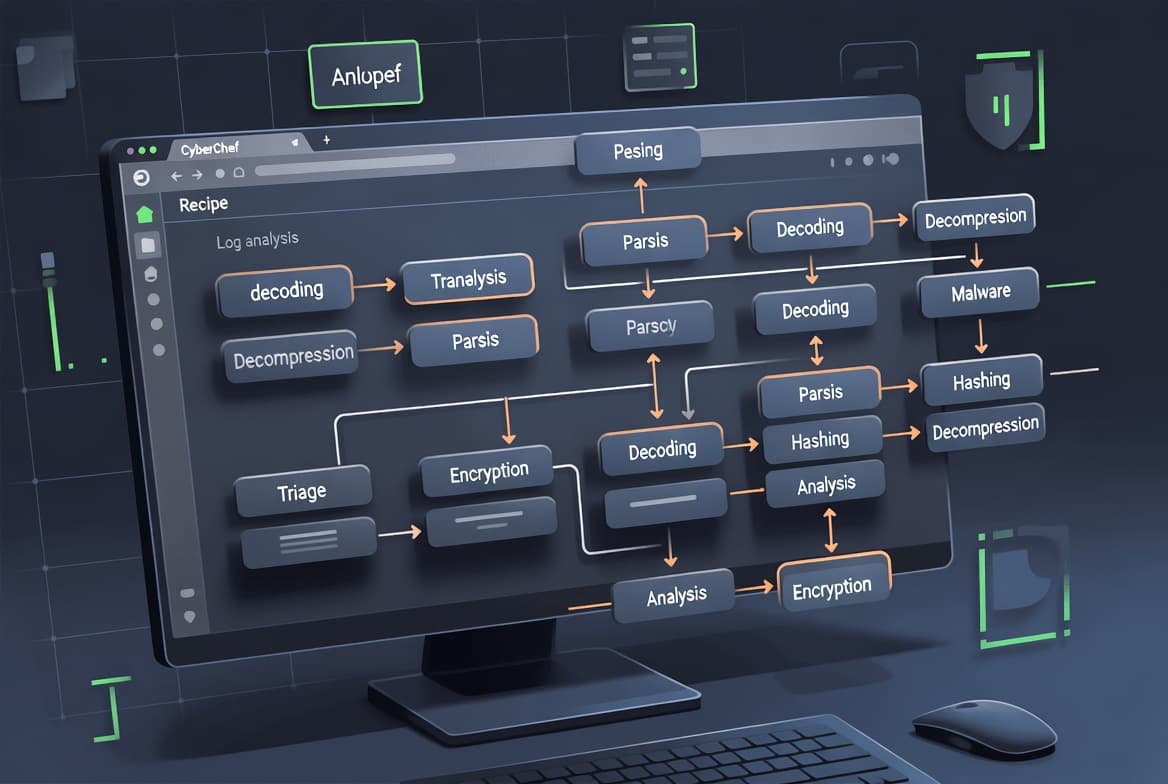
A recipe is a chain of operations applied in sequence. Order matters - applying From Hex before From Base64 produces a different result than the reverse. Think of the recipe as a pipeline: the output of each step feeds the next one.
Example - encode a string to Base64, then convert that to hexadecimal:
- Paste your plaintext string into the Input zone.
- Drag To Base64 from the Operations panel into the Recipe zone.
- Drag To Hex underneath it.
- The Output updates automatically.
To reverse the process:
- Drag From Hex into the Recipe zone first.
- Drag From Base64 below it.
- Paste the encoded string into Input.
You can drag operations up or down inside the Recipe zone to reorder them whenever you need to.
Which CyberChef Operations Are Most Useful for Security?
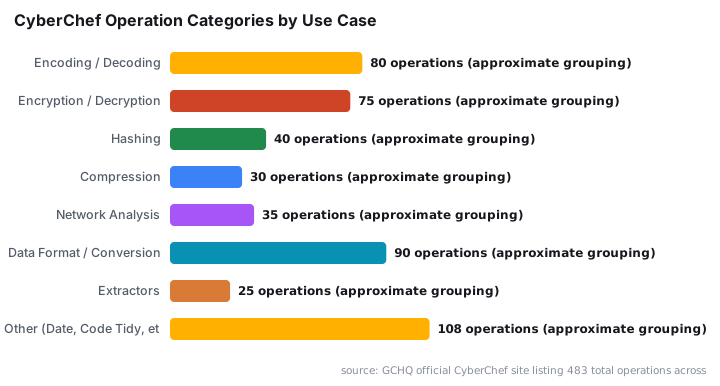
CyberChef ships with 483 operations grouped into categories. The ones below come up most often in day-to-day security and sysadmin work. In our lab, extracting IPs from a 50,000-line log took under two seconds using the Extract IP addresses operation - no scripting required.
Encoding and obfuscation analysis matter more than ever. Red Canary's 2025 Threat Detection Report, based on nearly 93,000 confirmed threats, named obfuscated files or information (MITRE ATT&CK T1027) a top-10 technique and a necessary component of most successful attacks. Base64 is the most common form observed. A September 2025 CISA/NSA/FBI joint advisory documented Chinese state-sponsored actors using double-encoding (T1027.010) to bypass security controls - exactly the kind of payload CyberChef unravels in seconds.
Beautify or tidy messy code using the Code Tidy category:
- Drop Beautify JavaScript (or HTML or CSS) into the Recipe zone.
- Paste minified or obfuscated code into Input.
- Readable, indented output appears in the Output zone.
Extract IP addresses from a blob of text using the Extractors category:
- Add Extract IP addresses to the Recipe.
- Paste log data, a config dump, or any unstructured text into Input.
- CyberChef returns a clean list of every IPv4 (and optionally IPv6) address it finds.
Analyze an X.509 certificate using the Public Key category:
- Add Parse X.509 certificate to the Recipe.
- Paste the PEM-encoded certificate (including the
-----BEGIN CERTIFICATE-----header) into Input. - The output shows subject, issuer, validity dates, serial number, and signature algorithm in a structured, readable format.
No openssl command memorization required.
Other categories worth exploring:
- Hashing - generate MD5, SHA-256, bcrypt, and many other hashes, or let CyberChef identify an unknown hash type from its format.
- Compression - decompress gzip, zip, or bzip2 payloads without touching the command line.
- Network - convert between IP formats, run DNS lookups, and inspect packet data.
- Date / Time - convert Unix timestamps to readable dates and back.
When investigating suspicious encoded payloads - like those tied to the Miasma worm that hijacks AI coding agents via GitHub repos - CyberChef's layered decode operations let you peel back obfuscation without writing a single script. Similarly, understanding encoding schemes is useful context when analyzing investment scam infrastructure like the DCloud framework powering 236,000 scam sites globally.
Step 5: Save and Share CyberChef Recipes
Once a recipe works the way you want, save it so your whole team can reuse it. CyberChef encodes recipes as a URL fragment. It also exports them as a JSON file. Both formats paste directly into a wiki, a ticketing system, or a chat tool.
To save a recipe:
- Build the recipe in the Recipe zone.
- Click the Save recipe icon (the disk icon near the Recipe header).
- Copy the generated URL or download the JSON file.
To load a saved recipe, paste the URL directly into your browser. Alternatively, use the Load recipe option and import the JSON file. Anyone on the same local instance can load and run it without rebuilding the chain from scratch.
For teams managing privileged access, the workflow pairs well with a structured access-control setup - see the Microsoft Entra PIM configuration guide for role-based controls around shared tooling.
Did the Setup Work? Verify Your Instance
Run a quick check to confirm your self-hosted instance is serving correctly.
# From the host, verify the container is listening
curl -o /dev/null -s -w "%{http_code}" http://localhost:8080/
A 200 response confirms the container is serving the app. Inside the browser, build a one-step sanity-check recipe: add To Base64 to the Recipe, type hello into Input, and confirm the Output reads aGVsbG8=. If it does, the pipeline is working correctly.
If the container exits after launch, check whether port 8080 is already bound:
sudo ss -tlnp | grep 8080Change the host port in the docker run command if there is a conflict.
For monitoring the host running your CyberChef container, the Glances terminal system monitor guide shows how to track CPU, memory, and network from a single dashboard.
Frequently asked questions
Is the online version of CyberChef safe to use with sensitive data?+
The online instance processes everything client-side in JavaScript - no data is sent to external servers, per the GCHQ CyberChef README. For passwords, internal hostnames, or confidential business data, running a local Docker instance is the safer and recommended choice for your team.
Can I save and reuse my CyberChef recipes?+
Yes. CyberChef saves any recipe as a URL fragment or a JSON export. Paste the URL into a browser to reload the full operation chain instantly. This is especially useful for repeated forensic or encoding workflows that your team runs on a regular basis.
Does CyberChef crack or reverse hashes?+
No. The Hashing category generates hashes from input strings and includes a function that attempts to identify an unknown hash type from its format and length. CyberChef does not perform hash cracking, brute-force attacks, or rainbow-table lookups of any kind.
Which port does the CyberChef Docker container expose by default?+
The official CyberChef Docker image serves the app on port 80 inside the container. The recommended run command maps that to port 8080 on the host, so the interface is available at http://localhost:8080/. Change the host-side port if 8080 is already in use.
Why self-host CyberChef instead of using the public GCHQ site?+
Self-hosting removes any residual risk of data exposure for internal inputs, works offline after the image pull, and lets your team share a single consistent instance with pre-loaded recipes pinned to Favourites - no rebuilding operation chains from scratch each session.