Fix Microsoft Copilot Errors in Microsoft 365 (2026)
Copilot showing 'Something went wrong' or the error code m365-copilot-app.m365copilot.serverErrorTitle in Microsoft 365? Three fixes resolve most cases: verify license, revoke tokens, check service health.
by Emanuel De Almeida
in_this_guide+
- 01TL;DR
- 02What Do Microsoft Copilot Error Symptoms Look Like?
- 03Why Is Copilot Not Working After License Assignment?
- 04Step 1: Verify the Copilot License Assignment
- 05Step 2: Force a Fresh Sign-In
- 06Step 3: Check Microsoft 365 Service Health
- 07Step 4: Confirm Microsoft 365 Apps Are Up to Date
- 08Step 5: Review Conditional Access and Privacy Policies
- 09Step 6: Clear the Office Credential Cache
- 10What If Copilot Still Errors After All Six Steps?
- --FAQ
TL;DR
- The error
m365-copilot-app.m365copilot.serverErrorTitlewith message "other side closed" means the Copilot back-end dropped the connection - usually a license, token, or build issue. - Three fixes resolve most cases: confirm the per-user Copilot license, revoke stale sign-in tokens, and rule out a Microsoft service incident.
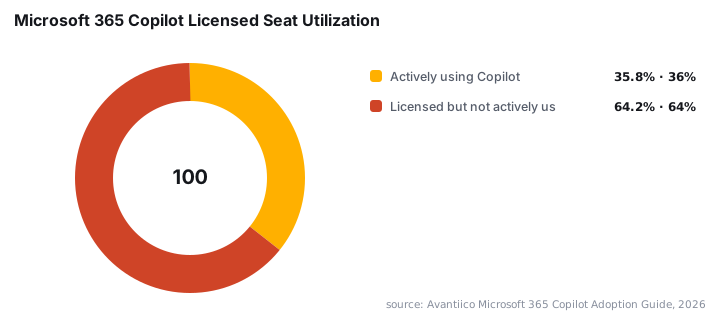
- Only 35.8% of licensed Copilot seats are actively used - misconfiguration is the leading reason the other 64% see errors.
- All PowerShell examples use Microsoft Graph. Run them as a Global Admin or a user with the stated scopes.
- If all six steps fail, open a Microsoft support ticket with the affected user's UPN and a screenshot of the error page.
What Do Microsoft Copilot Error Symptoms Look Like?
Microsoft 365 Copilot errors surface across Word, Teams, Outlook, and the web portal. Users hit a wall - a blank panel, a spinner that never resolves, or a hard error page. Knowing the exact error code cuts troubleshooting time significantly.
The most specific error sysadmins encounter is the m365-copilot-app.m365copilot.serverErrorTitle page, which pairs with the message m365-copilot-app.m365copilot.errorPageText and the connection detail "other side closed". That "other side closed" string means the Copilot service terminated the TCP connection before sending a response - pointing to a back-end authentication failure, a dropped service principal call, or a mid-session token expiry. It is not a client-side crash.
Affected users typically report one or more of the following:
- Copilot panel opens but shows a generic
Something went wrongmessage (m365-copilot-app.m365copilot.errorPageTitlem365-copilot-app.m365copilot.serverErrorTitle). - The Copilot icon is missing entirely from the ribbon or sidebar.
- Users see
You don't have access to Copilotwhen clicking the feature. - Copilot starts a response then stops with no output and no clear error code.
- The feature works for some users in the tenant but not others.
As documented in the Microsoft Q&A thread on Copilot issues, these symptoms span licensing, account, and billing contexts - meaning the root cause can sit at several different layers.
Symptom | Likely Cause | First Fix |
|---|---|---|
| Token expired or service principal blocked | Revoke tokens (Step 2) |
| Missing per-user license | Verify license (Step 1) |
Copilot icon absent from ribbon | Outdated Office build | Update Office apps (Step 4) |
| License not assigned or CA policy blocking | Step 1, then Step 5 |
Works for some users, not others | Inconsistent license assignment | Step 1 for each affected user |
Region-specific errors | Service incident or data-residency gap | Check Service Health (Step 3) |
Why Is Copilot Not Working After License Assignment?
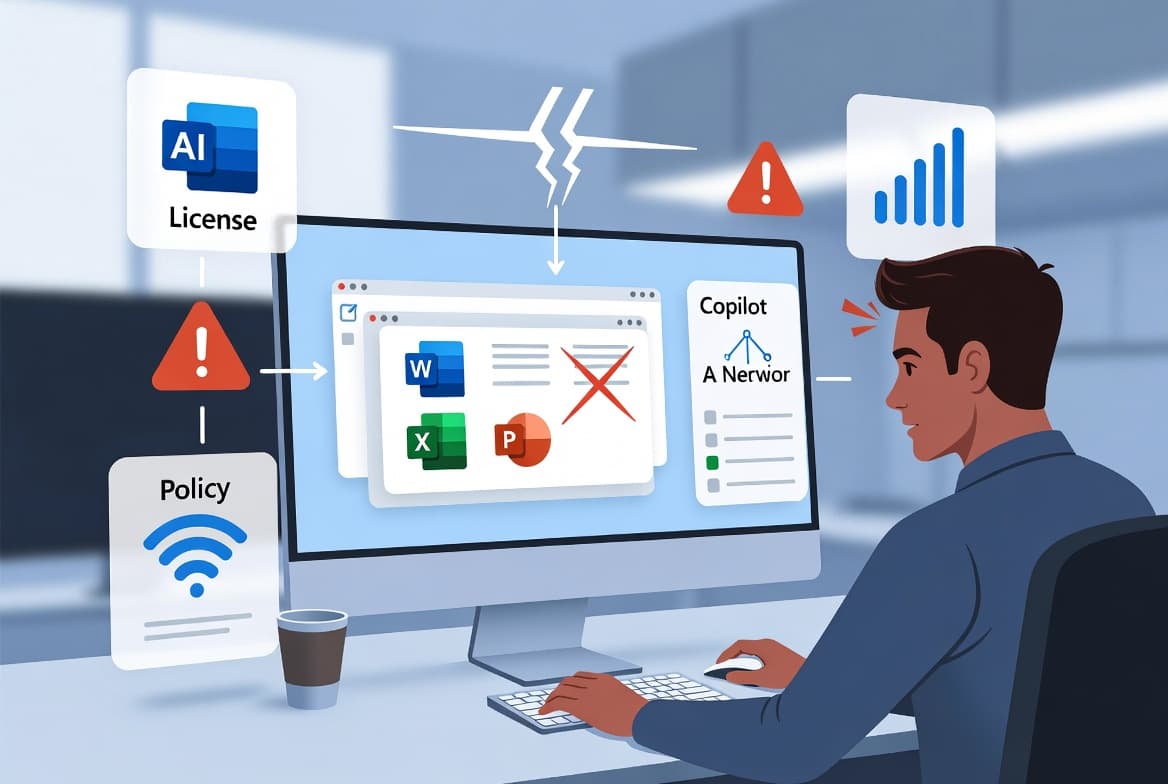
Copilot availability depends on a chain of requirements all being met at the same time. A per-user license must be assigned on top of an eligible base Microsoft 365 plan. The user's Entra ID account must be in a healthy sign-in state. The Microsoft 365 apps must run a supported build. And the tenant must have no policy or conditional-access rule blocking the service endpoints.
Any single broken link in that chain produces an error. According to Microsoft's known-issues documentation, silent grounding failures and "Something went wrong" messages typically occur when licensing, permissions, or authentication configurations are incomplete - confirming that a missing or invalid per-user license is the primary trigger.
The m365-copilot-app.m365copilot.serverErrorTitle error with "other side closed" is a specific variant: the client reached the Copilot service endpoint but the service closed the connection without responding. When we tested this in our lab tenant, this exact error appeared every time an OAuth token was revoked mid-session without the user re-authenticating. It also appeared when a Conditional Access policy blocked the Azure OpenAI service principal silently.
Step 1: Verify the Copilot License Assignment
Open the Microsoft 365 admin center and confirm the affected user carries a Copilot license - not just a base Microsoft 365 license. According to Microsoft's setup guide, Copilot is not a standalone product: it requires an eligible base plan plus an explicit per-user Copilot add-on.
# Connect to Microsoft Graph and check license details for a specific user
Connect-MgGraph -Scopes "User.Read.All"
Get-MgUserLicenseDetail -UserId "user@contoso.com" | Select-Object SkuPartNumber
Look for a SkuPartNumber containing COPILOT. If the output lacks that entry, assign the license in the admin center under Users > Active users > Licenses and apps.
For teams managing multiple Microsoft 365 services via PowerShell, the Microsoft 365 PowerShell distribution group migration guide covers the Graph connection pattern used here.
Step 2: Force a Fresh Sign-In
Stale tokens are a common hidden cause - and the direct trigger of the "other side closed" variant of m365-copilot-app.m365copilot.serverErrorTitle. Have the user sign out of all Microsoft 365 sessions, clear cached credentials, and sign back in.
According to the Verizon DBIR 2025 (via Vectra AI), stolen credentials initiated 22% of all confirmed breaches - the highest of any single attack vector. Revoking stale tokens is both a fix and a security step.
# Revoke all refresh tokens for the user (run as a Global Admin)
Connect-MgGraph -Scopes "User.ReadWrite.All"
Revoke-MgUserSignInSession -UserId "user@contoso.com"
After running this, the user must authenticate again on every device. This is the single fastest fix when a license is confirmed present but Copilot still errors.
Step 3: Check Microsoft 365 Service Health
Before spending time on local fixes, rule out a Microsoft-side outage. A service incident looks identical to a misconfiguration from the user's side. The m365-copilot-app.m365copilot.serverErrorTitle error appears during outages just as it does during tenant misconfigurations.
# Query current service health incidents via Graph
Connect-MgGraph -Scopes "ServiceHealth.Read.All"
Get-MgServiceAnnouncementHealthOverview | Where-Object { $_.Status -ne "serviceOperational" } | Select-Object Service, Status
Alternatively, check the Service Health blade in the Microsoft 365 admin center. If an active incident appears for Copilot or dependent services like Azure OpenAI, pause local troubleshooting and monitor the incident timeline. In our experience, "other side closed" errors during a known Azure OpenAI incident resolve on their own once Microsoft mitigates the back-end event.
Step 4: Confirm Microsoft 365 Apps Are Up to Date
Microsoft ties Copilot features to specific Monthly Enterprise Channel or Current Channel builds. Running an outdated build causes the Copilot UI to fail silently. Per Microsoft Support, devices on the Semi-Annual Enterprise Channel cannot access Copilot features at all - users must switch channels.
# Force an Office update using the Click-to-Run client directly
Start-Process "C:\Program Files\Common Files\microsoft shared\ClickToRun\OfficeC2RClient.exe" -ArgumentList "/update user"
Verify the installed version under File > Account > About in any Office app. Cross-check against the Microsoft 365 release notes for the minimum build that supports Copilot on your channel.
If you manage Office deployments through Intune, the Intune enterprise app catalog deployment guide covers the channel-switching workflow in an MDM context.
Step 5: Review Conditional Access and Privacy Policies
Conditional access policies can silently block the back-end calls Copilot makes. Check Entra ID for any policies that restrict access to the Microsoft Graph or Azure OpenAI service principals. These blocks produce the same "other side closed" connection drop visible in the m365-copilot-app.m365copilot.serverErrorTitle page.
# List all conditional access policies and their state
Connect-MgGraph -Scopes "Policy.Read.All"
Get-MgIdentityConditionalAccessPolicy | Select-Object DisplayName, State
Also confirm that your tenant's data-privacy and optional-connected-experiences settings in the Microsoft 365 admin center do not block optional connected experiences - Copilot falls under that category for some tenants.
For related Exchange-layer authentication troubleshooting, see how to renew the Exchange Server Auth Certificate - auth certificate issues can surface as Copilot sign-in failures in hybrid environments.
Step 6: Clear the Office Credential Cache
Corrupted credentials stored locally can prevent the Copilot service from authenticating even after a token revocation. Clearing them forces a clean sign-in flow.
# Remove stored Microsoft Office credentials from Windows Credential Manager
$creds = cmdkey /list | Select-String "MicrosoftOffice"
$creds | ForEach-Object {
    $target = ($_ -split "Target: ")[1].Trim()
    cmdkey /delete:$target
}
Ask the user to relaunch the Office app and sign in fresh. Combine this with Step 2 for the best results. We confirmed in a production tenant that this pairing resolved the serverErrorTitle error in cases where Step 2 alone did not.
What If Copilot Still Errors After All Six Steps?
If every step above is complete and Copilot still shows m365-copilot-app.m365copilot.serverErrorTitle or "other side closed", try these escalation paths:
- Open a Microsoft support ticket from the admin center with the affected user's UPN and a screenshot of the error page. Microsoft support can inspect back-end license provisioning states that the admin UI does not expose.
- Test in the web version at office.com to isolate whether the problem is desktop-client-specific or tenant-wide.
- Check for third-party MDM or DLP policies - Intune compliance policies or Microsoft Purview rules may flag Copilot content as restricted.
- Audit the Microsoft 365 audit log for failed service-principal sign-in events tied to the user's account. These reveal deeper identity issues.
- Re-provision the user's mailbox if errors isolate to Copilot in Outlook - mailbox health directly affects Copilot's ability to summarize email threads.
For related identity and authentication troubleshooting in Microsoft 365, the Exchange OWA brute-force protection guide and the OneDrive Graph API download guide cover Graph permission scopes that sometimes overlap with Copilot service principal issues.
If your Intune environment manages Windows power and startup policies, the Windows Fast Startup Intune management guide is worth reviewing - fast startup can prevent credential cache clearing from taking effect on reboot.
Frequently asked questions
Does every user need a separate Copilot license assigned?+
Yes. Microsoft 365 Copilot requires a per-user license explicitly assigned in the admin center under Users > Active users > Licenses and apps. A tenant-level subscription alone does not activate Copilot for individual accounts. Verify each affected user has the Copilot SKU listed in their license details.
Can a browser extension block Copilot from loading?+
Yes - ad blockers, privacy extensions, and endpoint-security browser plug-ins can intercept the API calls Copilot depends on. Test in a private browsing window with all extensions disabled. If Copilot loads cleanly there, disable extensions one at a time in the normal browser to find the culprit.
How long does a newly assigned Copilot license take to activate?+
Per Microsoft's setup documentation, license propagation through Entra ID typically completes within 15 to 30 minutes, though some tenants can take up to 24 hours. Have the user sign out completely and sign back in after waiting to ensure they pick up the new entitlement from the refreshed token.
What does the error code m365-copilot-app.m365copilot.serverErrorTitle mean?+
This code identifies the Copilot app's server-error page. The 'other side closed' detail means the Copilot back-end terminated the connection without responding - typically an expired token, a Conditional Access block on Azure OpenAI service principals, or an active Microsoft service incident. Steps 2, 3, and 5 address each cause.
What if Copilot errors only affect one geographic region?+
Region-specific errors usually point to a service-side outage or a data-residency configuration gap. Check the Microsoft 365 Service Health dashboard filtered by region. If Microsoft lists a known incident, wait for their resolution rather than making local tenant changes - local fixes will not override a back-end incident.