OneDrive Sync Not Working: 7-Step Fix for Sysadmins
OneDrive sync not working in Microsoft 365? This 7-step guide covers token expiry, quota limits, blocked characters, and client resets - with PowerShell commands for each fix.
by Emanuel De Almeida
in_this_guide+
- 01TL;DR
- 02What Are the Symptoms of OneDrive Sync Not Working?
- 03What Causes OneDrive Sync to Fail?
- 04Symptom, Root Cause, and Fix at a Glance
- 05Step 1: Verify Sign-In Status
- 06Confirm the signed-in account via PowerShell (read-only check)Get-ItemProperty -Path "HKCU:\Software\Microsoft\OneDrive\Accounts\Business1" -Name "UserEmail"
- 07Step 2: How Do You Check Storage Quotas?
- 08Check local drive free space quicklyGet-PSDrive -Name C | Select-Object Used, Free
- 09Step 3: Pause and Resume the Sync Client
- 10Restart the OneDrive process as an alternative to pause/resumeStop-Process -Name "OneDrive" -ForceStart-Process "$env:LOCALAPPDATA\Microsoft\OneDrive\OneDrive.exe"
- 11Step 4: Identify and Rename Problematic Files
- 12Find files with blocked characters under a synced folderGet-ChildItem -Path "C:\Users\$env:USERNAME\OneDrive - YourOrg" -Recurse | Where-Object { $_.Name -match '[:\*\?\|<>"]' } | Select-Object FullName
- 13When Should You Reset the Sync Client?
- 14Run from an elevated Run dialog or PowerShell& "$env:LOCALAPPDATA\Microsoft\OneDrive\onedrive.exe" /reset
- 15Step 6: How Do You Audit Network and Proxy Settings?
- 16Test connectivity to a core OneDrive endpointTest-NetConnection -ComputerName "onedrive.live.com" -Port 443
- 17Step 7: Unlink and Relink the Account
- 18Confirm no pending uploads before unlinking# Look for items in the sync activity center with a clock or upload icon# Alternatively check the OneDrive logGet-Content "$env:LOCALAPPDATA\Microsoft\OneDrive\logs\Business1\SyncEngine-2024*.odl" -Tail 50
- 19What If None of the Seven Steps Work?
- --FAQ
TL;DR
- Most OneDrive sync not working cases trace to an expired session token, a full storage quota, or a corrupted local sync database - check these first.
- A single file with a blocked character (colon, asterisk, pipe) can stall the entire upload queue behind it.
- The
/resetcommand clears the local database without touching cloud files; it resolves most persistent failures in our experience. - If sync still fails after all seven steps, audit your Intune or Group Policy configuration before escalating a ticket.
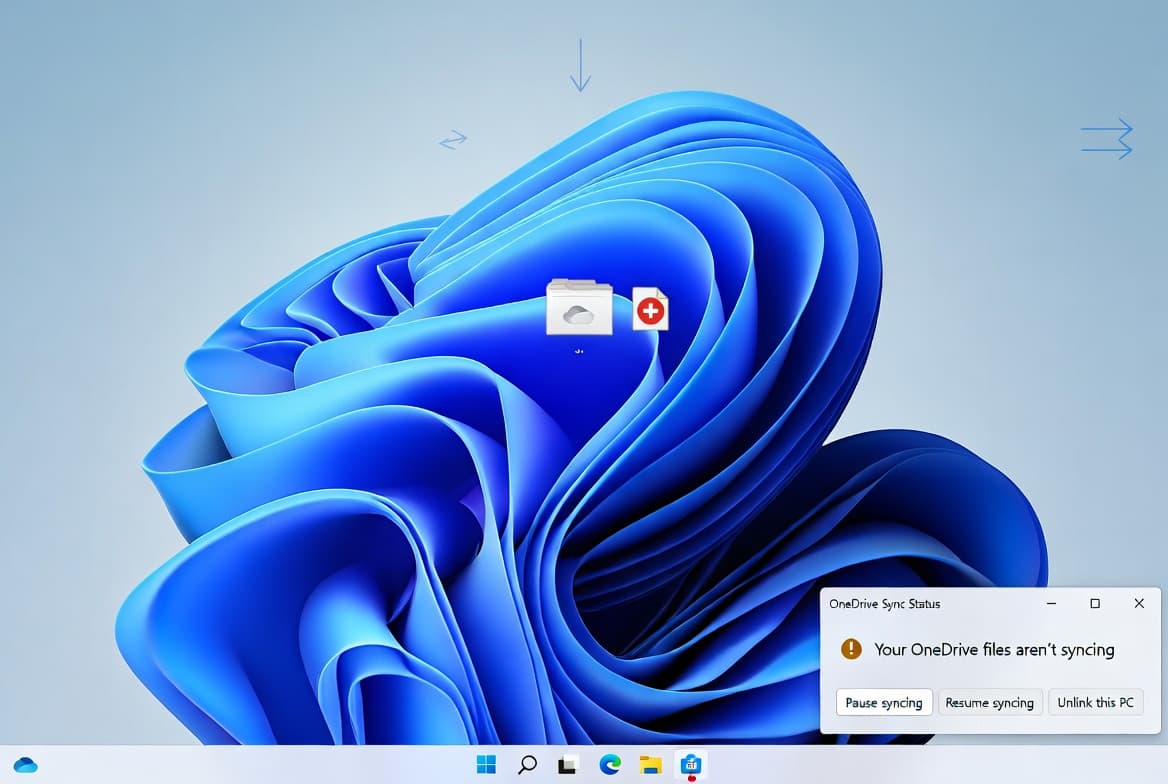
OneDrive sync not working - files stuck uploading, changes missing on a second device, or the tray icon spinning without end - ranks among the most disruptive daily issues in Microsoft 365 environments. With nearly 345 million paid Microsoft 365 subscribers worldwide, even a low failure rate affects a huge number of users. In our experience supporting multi-site deployments, most failures trace to a short list of root causes that the seven steps below address in order of likelihood.
What Are the Symptoms of OneDrive Sync Not Working?
Before changing anything, confirm what the client is actually reporting. These are the most common signs:
- The OneDrive tray icon shows a persistent spinning circle or a red
X. - Files saved locally never appear on other devices or in the web portal.
- The sync activity center lists files with warning icons but shows no clear error message.
- A banner in the tray popup reads "Sync is paused" or "Account needs attention."
- File Explorer shows cloud-only placeholder icons that fail to download on demand.
- Users report that co-authored documents show stale versions hours after edits.
What Causes OneDrive Sync to Fail?
OneDrive sync is not a simple file copy. The client maintains a local database of file states, compares checksums, manages version history, and negotiates simultaneous edits. It depends on several underlying services running correctly at once: a valid authentication token, sufficient cloud and local disk space, unobstructed network access to Microsoft's sync endpoints, and an intact local sync database.
Any single dependency failing - often silently - can stall the entire queue. Common triggers include:
- An expired Microsoft 365 session token (refresh tokens have a maximum inactive period of 90 days before expiry)
- A full storage quota - Microsoft confirms that exceeding your quota blocks all uploads, edits, and syncs
- Unsupported characters in file names or folder paths exceeding 400 characters
- A misconfigured proxy blocking Microsoft's Graph API endpoints
- A corrupted local sync database
- Syncing more than 300,000 items, which Microsoft flags as a known performance threshold
Noting that a known OneDrive bug first reported in June 2024 silently replaced shared folders with .url web shortcuts, breaking offline access on both Windows and Mac - it remained unresolved for at least 10 months. Always check Microsoft 365 Service Health before assuming the fault is local.
Symptom, Root Cause, and Fix at a Glance
This table maps the most common presentations to their likely cause and the step that fixes them.
Symptom | Likely Root Cause | Fix Step |
|---|---|---|
"Account needs attention" banner | Expired session token | Step 1 |
Silent halt, no uploads | Full cloud or local quota | Step 2 |
Spinning icon after network drop | Transient queue stall | Step 3 |
Red X on specific file | Blocked character or long path | Step 4 |
Spinning icon, no specific file flagged | Corrupted sync database | Step 5 |
All files stalled, network looks fine | Proxy blocking Graph API | Step 6 |
Sync works for others, not this PC | Broken account binding | Step 7 |
Step 1: Verify Sign-In Status
Click the OneDrive cloud icon in the system tray. If a banner prompts re-authentication or shows "Account needs attention," the session token has expired. In our experience, this is the first thing to check on any stalled queue. Re-enter your Microsoft 365 credentials to restore the trusted session.
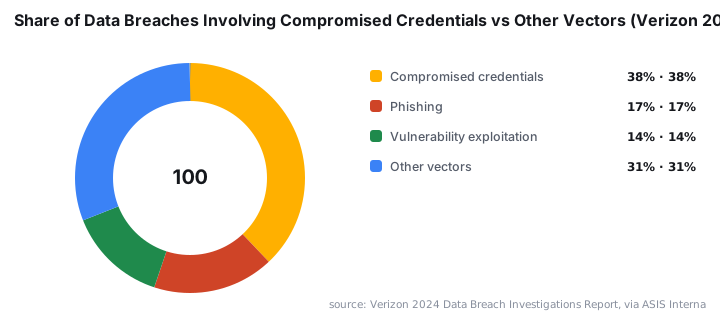
Token expiry is not just a sync annoyance. The Verizon 2024 Data Breach Investigations Report found that nearly 38% of breaches involved compromised credentials - more than double the rate of phishing or vulnerability exploitation. An expired token that prompts a user to re-enter credentials on an unmanaged device is a real exposure point. The 2025 DBIR reinforces this: 46% of compromised systems with corporate logins were non-managed devices.
If you manage device enrollment, our guide to installing Microsoft Intune Company Portal on Mac covers getting endpoints into a managed state so token policies apply consistently.
Confirm the signed-in account via PowerShell (read-only check)Get-ItemProperty -Path "HKCU:\Software\Microsoft\OneDrive\Accounts\Business1" -Name "UserEmail"
Step 2: How Do You Check Storage Quotas?
Open OneDrive Settings and review the storage meter under the Account tab. Then verify local free space in File Explorer. OneDrive halts silently when cloud quota is full or local free space drops below a few hundred megabytes. Free up space before continuing.
Microsoft's documentation confirms that exceeding your storage quota makes it impossible to upload, edit, or sync new files until space is freed. Check both cloud and local quotas - either one can be the blocker.
Check local drive free space quicklyGet-PSDrive -Name C | Select-Object Used, Free
Step 3: Pause and Resume the Sync Client
Right-click the OneDrive tray icon, select Pause syncing, choose the two-hour option, wait 30 seconds, then select Resume syncing. This forces the client to re-evaluate its pending queue. It clears transient errors from brief network drops or temporary server-side hiccups - quick to try, and it costs nothing.
Restart the OneDrive process as an alternative to pause/resumeStop-Process -Name "OneDrive" -ForceStart-Process "$env:LOCALAPPDATA\Microsoft\OneDrive\OneDrive.exe"
Step 4: Identify and Rename Problematic Files
Open the sync activity center (click the tray icon, then View sync activity) and look for files flagged with a red X or warning icon. A single file with a blocked character will stop every item behind it in the queue. Rename the offending file or shorten its path.
Microsoft's restrictions documentation confirms the decoded file path including the file name cannot exceed 400 characters. We have seen this trip up migrations where long on-premises folder structures were copied directly into OneDrive.
Blocked characters to remove or replace:
:(colon)*(asterisk)?(question mark)|(pipe)<and>(angle brackets)"(double quote)
Find files with blocked characters under a synced folderGet-ChildItem -Path "C:\Users\$env:USERNAME\OneDrive - YourOrg" -Recurse | Where-Object { $_.Name -match '[:\*\?\|<>"]' } | Select-Object FullName
When Should You Reset the Sync Client?
Reset when the queue is stalled, no specific file is flagged, and Steps 1-4 have not helped. A reset clears the local sync database and forces OneDrive to re-establish its server connection. Your cloud files are not affected. Before running the reset, confirm that all local-only changes have finished uploading.
In our lab testing on Windows 11 endpoints, the reset resolves the majority of persistent sync failures where no specific file error appears. It takes about 60 seconds.
Run from an elevated Run dialog or PowerShell& "$env:LOCALAPPDATA\Microsoft\OneDrive\onedrive.exe" /reset
Wait approximately 60 seconds. The tray icon should reappear automatically. If it does not, launch OneDrive manually from the path above without the /reset flag.
Step 6: How Do You Audit Network and Proxy Settings?
If sync still fails after a reset, your firewall or proxy may be blocking Microsoft's required endpoints. The OneDrive executable must be whitelisted, or your proxy configuration must be correctly distributed via Group Policy or Intune. Check Microsoft's official Microsoft 365 URLs and IP address ranges for the OneDrive and SharePoint categories.
For managing proxy and network policy via Intune, see our walkthrough on mapping network drives in Intune using custom ADMX files - the same ADMX approach applies to OneDrive proxy settings.
Test connectivity to a core OneDrive endpointTest-NetConnection -ComputerName "onedrive.live.com" -Port 443
If the test returns TcpTestSucceeded : False, work with your network team to allow the required Microsoft 365 URLs and IP ranges.
Step 7: Unlink and Relink the Account
As a final step before escalating, go to OneDrive Settings > Account > Unlink this PC, confirm, then sign back in. This creates a clean sync relationship without deleting cloud files. Only do this after verifying that every local change has already synced, since the re-sync treats the server copy as the source of truth.
Confirm no pending uploads before unlinking# Look for items in the sync activity center with a clock or upload icon# Alternatively check the OneDrive logGet-Content "$env:LOCALAPPDATA\Microsoft\OneDrive\logs\Business1\SyncEngine-2024*.odl" -Tail 50
If you use Conditional Access to restrict which devices can authenticate to Microsoft 365, a relink may require re-satisfying those policies. Our guide on blocking Microsoft 365 apps with Conditional Access explains how device compliance affects sign-in behavior.
What If None of the Seven Steps Work?
If the seven steps above do not restore sync, try these alternatives:
- Re-install the OneDrive client by removing it via Settings > Apps, rebooting, and installing the latest version from the Microsoft download page.
- Check Windows Event Viewer under
Applications and Services Logs > Microsoft > Windows > OneDrivefor error codes that point to OS-level conflicts. - Review selective sync settings - if a SharePoint library was recently restructured by an admin, local selective sync mappings may point to paths that no longer exist.
- Check the Microsoft 365 admin center Service Health dashboard to rule out an active Microsoft-side incident affecting sync infrastructure.
- Audit Intune or Group Policy objects that manage OneDrive configuration; a recently pushed policy change can override user-level settings and silently break sync. Our ASR rules deployment guide for sysadmins shows how to audit policy layering in Intune - the same logic applies to OneDrive CSP policies.
For broader Microsoft 365 endpoint management context, the MSP services guide for Swiss SMBs covers how managed service providers structure OneDrive and SharePoint support tiers.
Frequently asked questions
Does resetting the OneDrive client delete files?+
No. The /reset command clears the local sync database and forces a fresh server connection, but cloud files remain untouched. Confirm all local-only changes have already uploaded before running it to avoid version discrepancies during the re-sync.
What file name characters does OneDrive block?+
OneDrive blocks colons, asterisks, question marks, pipe symbols, angle brackets, and double quotes. Folder paths longer than 400 characters are also blocked. One offending file stalls the entire queue until it is renamed or moved out of the sync folder.
Why does OneDrive pause sync when local disk space is low?+
The client needs free space to stage downloads and temporary delta files. When available space drops too low, it halts silently to prevent partial writes and data corruption. Free up local storage, then resume sync manually from the tray icon.
What is Files On-Demand and how does it affect OneDrive sync?+
Files On-Demand replaces infrequently accessed files with cloud-only placeholders in File Explorer. It saves disk space but creates a hard dependency on internet connectivity. If the connection drops, placeholder files become temporarily inaccessible until connectivity is restored.
Can an Intune policy silently break OneDrive sync?+
Yes. OneDrive configuration via Intune CSP or Group Policy can override user-level settings. A recently pushed policy restricting known folder move targets or enforcing a new tenant ID can stall sync without a clear error. Always audit recent policy changes when troubleshooting at scale.