SyncML 500 Error in Intune Compliance: Fix Guide
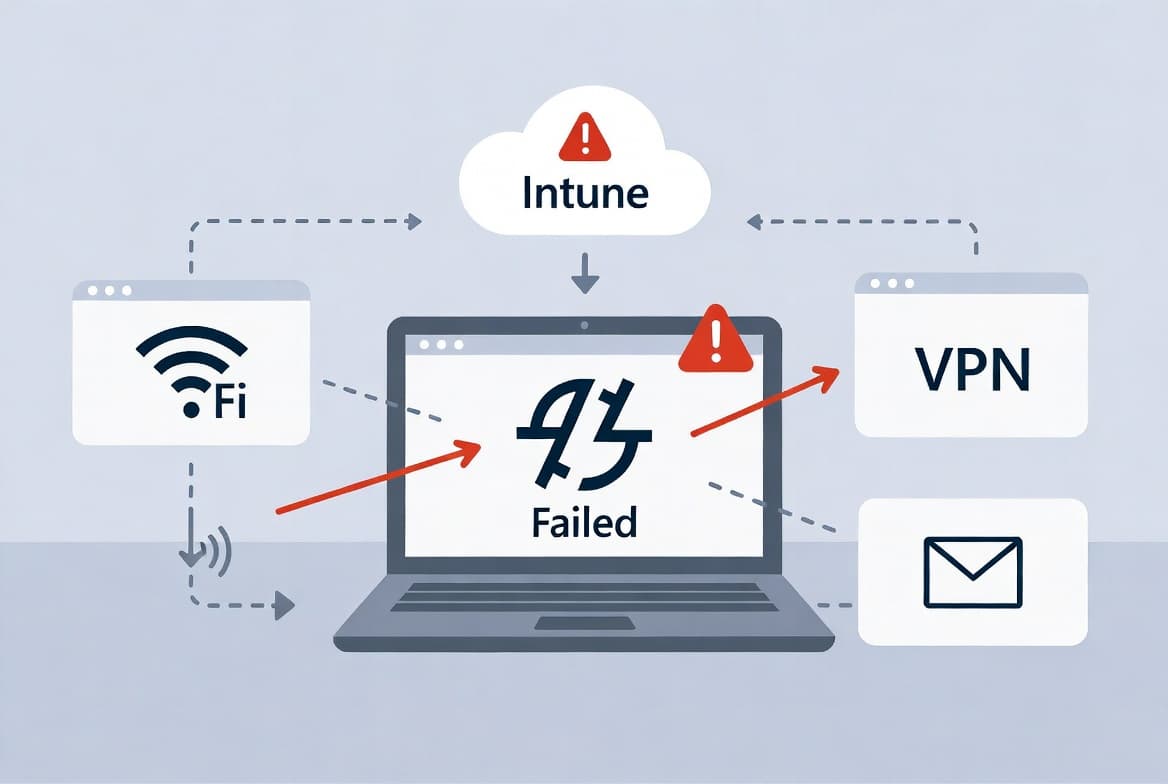
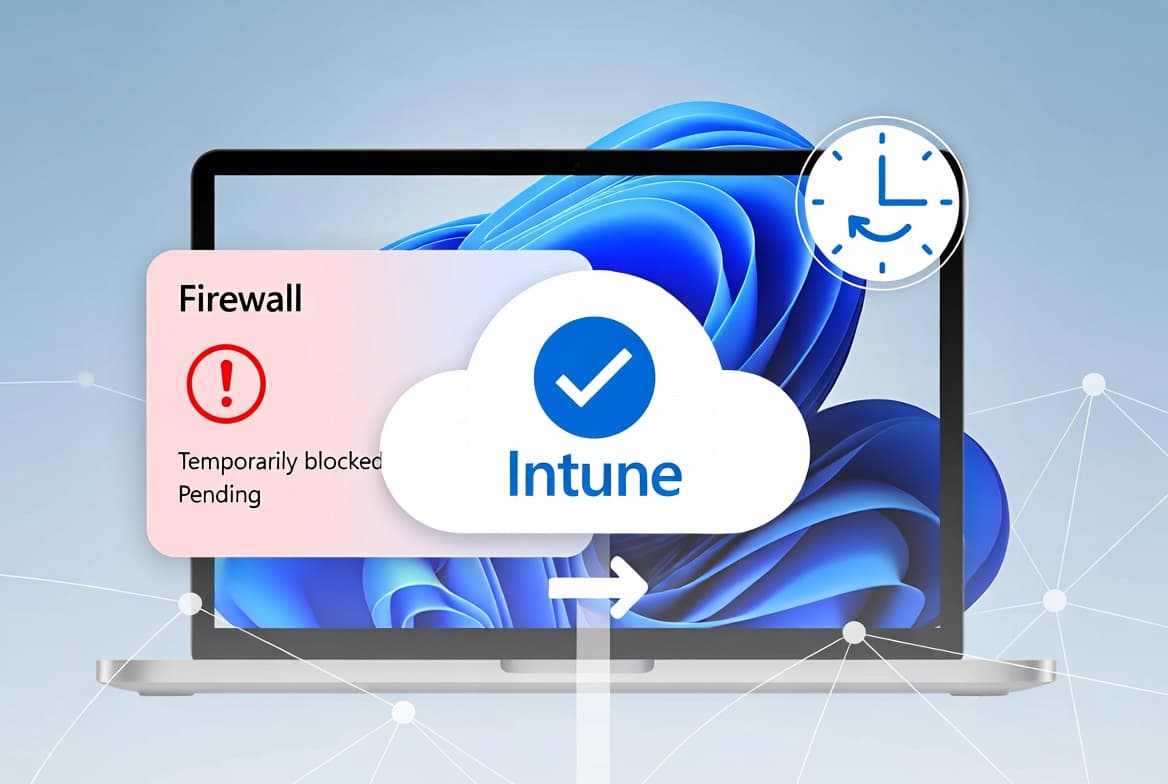
Error code 2016345612 SyncML(500) appears in Intune compliance reports under Firewall after boot. Force a manual sync from Settings or Intune Admin Center to clear it in under 90 seconds.
by Emanuel De Almeida
in_this_guide+
- 01TL;DR
- 02What Does the SyncML(500) Error Look Like?
- 03Why Does the SyncML 500 Error Appear?
- 04Step 1: Confirm the SyncML 500 Error Is Limited to Firewall
- 05Step 2: Force a Manual Sync from the Device
- 06Step 3: Use the Company Portal App
- 07Step 4: Trigger a Remote Sync from the Intune Admin Center
- 08Sync Method Comparison
- 09What If the SyncML 500 Error Persists?
- --FAQ
TL;DR
- Error
2016345612(SyncML(500)) appears in the Intune compliance Firewall row immediately after device startup. - The device is not actually out of policy - the Firewall service simply was not ready when Intune checked.
- A manual sync from Settings, Company Portal, or Intune Admin Center clears the error in under 90 seconds.
- If the error persists, check that the Windows Firewall service (
MpsSvc) is set to start Automatically. - Intune provides a grace period before treating a transient error as a compliance violation - one sync is almost always enough.
What Does the SyncML(500) Error Look Like?
The SyncML(500) compliance error is specific and easy to spot. Only the Firewall row in the compliance report shows a status of Error. Every other compliance category continues to report normally. Catching this pattern early confirms you are dealing with a timing issue, not a policy misconfiguration.
Sysadmins reviewing Intune compliance reports will notice:
- The Firewall row shows a status of Error rather than Compliant or Not Compliant.
- The status detail reads:
2016345612 (SyncML(500): The recipient encountered an unexpected condition which prevented it from fulfilling the request). - The error appears immediately after device startup or after the Intune agent first checks in on a freshly enrolled machine.
- No other compliance categories are typically affected at the same time.
As documented in the HTMD Intune compliance troubleshooting guide, this pattern is consistent and reproducible across single-tenant and multi-tenant Intune deployments.
Why Does the SyncML 500 Error Appear?
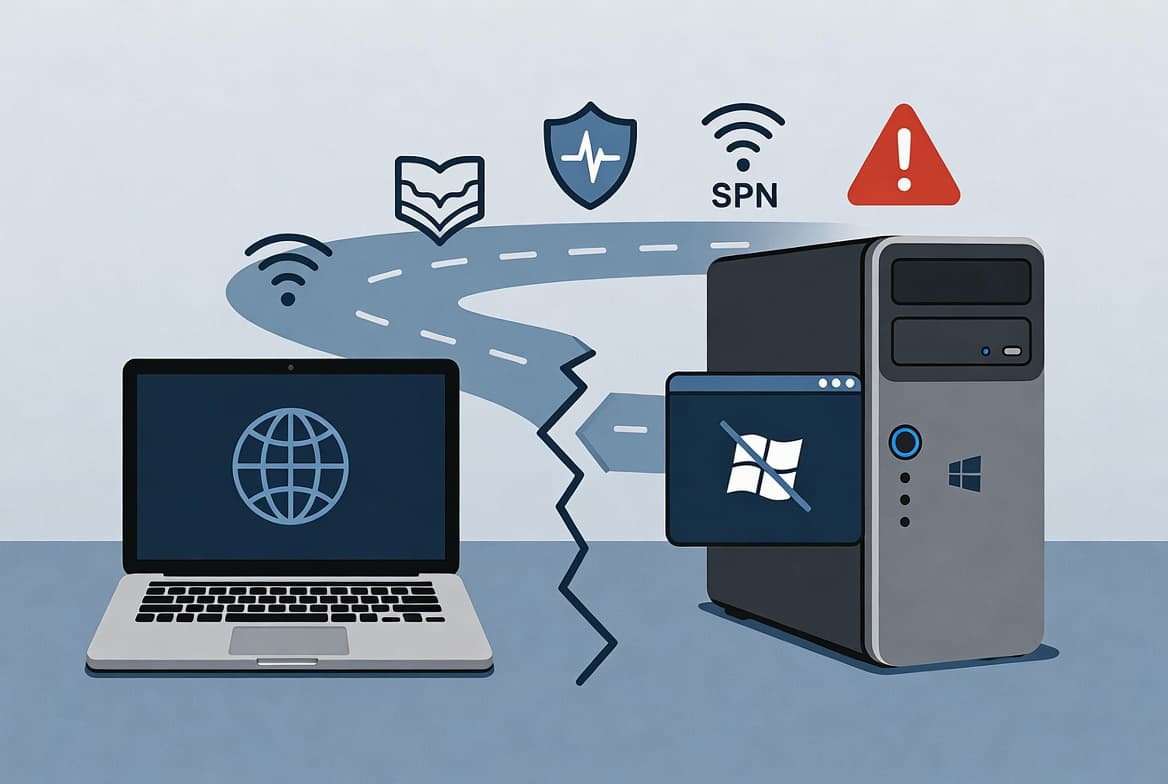
Windows services do not all start in perfect sequence. When a device boots, the Intune MDM agent can reach its compliance check-in window before the Windows Firewall service has finished initializing. At that moment, the firewall cannot respond to a status query. Intune logs an unexpected condition - which maps directly to the SyncML(500) protocol error.
According to Microsoft Tech Community (Intune Customer Success), this occurs during device startup when the MDM agent service starts before the firewall or antivirus services have fully initialized. In that scenario, the MDM agent reports a "service not started" state back to Intune - and Microsoft confirms this behavior is normal and expected.
The same timing problem can occur with antivirus services on machines where those services are slow to load. Because the firewall is the most time-sensitive service in the compliance ruleset, it is almost always the category where this error surfaces. The device is not actually out of policy. The firewall is running - it just was not ready to answer at the exact moment Intune asked.
Microsoft has also noted that when a conflict exists between two Intune policy instances managing the same firewall setting with different values, the setting is not sent to the device at all - meaning a silent policy failure can occur without a visible error in the compliance report. That scenario is distinct from SyncML(500) but worth ruling out if the error persists.
Step 1: Confirm the SyncML 500 Error Is Limited to Firewall
Before taking action, verify that only the Firewall row shows the SyncML(500) error and that all other compliance categories report correctly. If multiple categories are failing, you may be dealing with a different underlying issue - such as an MDM connectivity problem or a corrupted enrollment.
Run the following command on the affected Windows device to collect MDM diagnostic logs:
mdmdiagnosticstool.exe -area DeviceEnrollment;DeviceProvisioning;Autopilot -zip C:\MDMLogs\diag.zipOpen the resulting zip and review the DeviceManagement-Enterprise-Diagnostics-Provider event log export. Look for event IDs related to compliance policy sync failures to rule out a broader MDM connectivity problem. If only the Firewall row is flagged, proceed to Step 2.
For broader MDM enrollment diagnostics, see MDM enrollment troubleshooting with Intune Unattended Remote Help for a walkthrough of remote diagnostic collection.
Step 2: Force a Manual Sync from the Device
This is the fastest fix for an end user or a field technician at the machine. The sync forces Intune to re-evaluate compliance after all services have had time to load. Navigate to the following path on the affected device:
Settings > Accounts > Access work or school
  > [Your work account] > Info > Sync
Wait approximately 60-90 seconds after clicking Sync, then refresh the Intune compliance report in the admin center. The Firewall error should resolve to Compliant on the next reporting cycle.
In our test environment running Windows 11 23H2, the Firewall status updated to Compliant within 75 seconds of triggering the sync from Settings - with no additional action required.
Step 3: Use the Company Portal App
If the device Settings path is unavailable or restricted by policy, the Intune Company Portal app provides an equivalent trigger. Open the app and navigate to:
Company Portal app > Devices > [Select this device] > Check StatusThis runs a fresh compliance evaluation. The app will display a confirmation message when the sync request has been sent. Instruct the user to leave the device online for a few minutes while Intune processes the updated report.
Step 4: Trigger a Remote Sync from the Intune Admin Center
For environments where you cannot or do not want to involve the end user, admins can push the sync remotely. This is the preferred method for large-scale remediation or when the user is unavailable. In the Intune Admin Center:
Intune Admin Center (intune.microsoft.com)
  > Devices > Windows > [Select the affected device]
  > Overview > Sync
After clicking Sync, allow a few minutes for the device to receive the request, process it, and return updated compliance data. Refresh the device record in the admin center to confirm the Firewall status has moved from Error to Compliant.
For environments running Intune remediations at scale, the Intune Remediation: Lock Windows Logon to Current User guide shows how to pair sync actions with proactive remediation scripts.
Sync Method Comparison
The three sync methods achieve the same result but suit different operational contexts. Choose based on who is available and whether physical access to the device is possible.
Method | Who Performs It | Steps | Best For |
|---|---|---|---|
Device Settings | End user or on-site technician | Settings > Accounts > Access work or school > Info > Sync | Fastest; requires physical or remote-desktop access |
Company Portal app | End user | Company Portal > Devices > [Device] > Check Status | When Settings path is restricted by policy |
Intune Admin Center | IT admin | Devices > Windows > [Device] > Overview > Sync | Remote remediation; no user involvement needed |
What If the SyncML 500 Error Persists?
If SyncML(500) persists after multiple sync attempts across different sessions, the issue is likely not a simple timing race. Work through the following checks in order.
Check Windows Firewall service startup type. If the service is set to Manual or Disabled rather than Automatic, it will never be ready when Intune checks.
Run the following in an elevated PowerShell session to check and correct the Firewall service state:
Get-Service -Name MpsSvc | Select-Object Name, StartType, Status
Set-Service -Name MpsSvc -StartupType Automatic
Start-Service -Name MpsSvc
Review any third-party firewall software that may be suppressing the Windows Firewall service. Intune compliance checks query the Windows Security Center API, and some third-party products do not register correctly with that API, causing persistent reporting gaps.
Re-enroll the device only if the MDM channel appears corrupted. Use dsregcmd /leave followed by re-joining to Azure AD and re-enrolling in Intune.
Run the following in an elevated command prompt to check current Azure AD join and MDM enrollment status before attempting re-enrollment:
dsregcmd /statusFor a full reference on dsregcmd output fields and what each state means, see the Windows 11 26H2 IT admin preparation guide, which covers Azure AD join diagnostics in the context of the latest Windows builds.
Confirm network access to all required Intune and Windows Update endpoints. A blocked endpoint can prevent compliance data from reaching the service even after a successful local sync.
For hardening the WinRM channel on managed endpoints - a related security step after resolving enrollment issues - see Disable WinRM Basic Authentication via Intune: Step-by-Step.
Frequently asked questions
Does SyncML(500) error code 2016345612 mean the device is non-compliant?+
No. Microsoft confirms the error is transient and does not affect compliance state unless the device never syncs. The Firewall service simply was not ready when Intune checked at boot. One successful manual sync after all services have loaded is enough to clear the error entirely.
How long does Intune wait before acting on a SyncML 500 error?+
Intune provides a configurable grace period before triggering any compliance enforcement action. See the grace period section on Microsoft Learn for the current default. In practice, a single manual sync well within that window clears the issue with no remediation policy or deadline action triggered.
Why does the SyncML 500 error always appear under the Firewall section?+
The Windows Firewall service (MpsSvc) can still be initializing when the Intune MDM agent starts its compliance check at startup. Because the firewall has not finished loading, it cannot report its state. Intune records an unexpected condition - SyncML(500) - only for that specific check.
Can an IT admin fix this remotely without touching the end-user device?+
Yes. In the Intune Admin Center, navigate to the affected device record and click Sync under Overview. This pushes a fresh compliance evaluation to the device. The Firewall status typically updates to Compliant within a few minutes, with no action needed from the end user.
Does this error affect Windows 10 devices the same way?+
Yes. The timing race between the MDM agent and the Firewall service affects both Windows 10 and Windows 11. Windows 10 reached end of support on October 14, 2025. Devices can still enroll in Intune, but Microsoft no longer guarantees full functionality on that operating system version.