Windows 11 Build Numbers: Versions, Updates & Lifecycle
Windows 11 build numbers identify the exact OS version and patch level installed, helping sysadmins verify compliance, track updates, and plan servicing across 24H2, 23H2, and older branches still in production.
by Emanuel De Almeida
in_this_guide+
- 01TL;DR
- 02What Is a Windows 11 Build Number?
- 03How Does the Windows 11 Update Cadence Work?
- 04What Are the Current Windows 11 Versions and Build Branches?
- 05How Do Servicing Timelines Affect Patch Strategy?
- 06How Do You Check Windows 11 Build Numbers at Scale?
- 07Common Misconceptions About Windows 11 Build Numbers
- --FAQ
TL;DR
- A Windows 11 build number in the format
10.0.Build.Revisionencodes both the feature release branch and the cumulative patch level in one string. - Patch Tuesday lands on the second Tuesday of each month and delivers cumulative updates - each one replaces all previous updates for that branch.
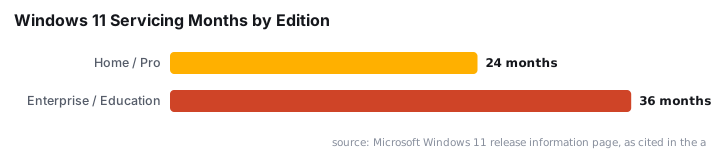
- Home and Pro editions get 24 months of servicing per version; Enterprise and Education editions get 36 months, per the Microsoft Windows 11 release information page.
- Windows 11 26H1 (build branch 28000.x) is not distributed via Windows Update to existing devices.
- PowerShell and registry queries are the most scalable ways to audit Windows 11 build numbers across a managed fleet.
What Is a Windows 11 Build Number?
A Windows 11 build number is a four-part version string in the format Major.Minor.Build.Revision - for example, 10.0.26100.7840. The first two segments (10.0) stay constant across all Windows 11 releases. The build segment identifies the feature release branch (26100 for 24H2, or 26200 for 25H2). The revision segment increments with every cumulative update, forming a precise fingerprint for a specific OS state.
Tracking build numbers is a core skill for patch management. A device reporting 26100.6584 is on the 24H2 branch but has received no post-launch patches. The same device at 26100.8655 has received every fix through June 2026. That gap matters a great deal for vulnerability management - unpatched revisions map directly to known CVEs.
How Does the Windows 11 Update Cadence Work?
Microsoft ships security updates on the second Tuesday of each month - widely called Patch Tuesday. These releases are cumulative: each one bundles every previous fix for that version. Administrators do not need to apply patches sequentially. Installing the latest update brings a device fully current.
Optional preview updates sometimes arrive in the third or fourth week of the month. They give early adopters a chance to validate fixes before the next Patch Tuesday. For a real example of what a monthly update delivers, see the breakdown of KB5095093 and its Point-in-Time Restore changes.
Updates reach devices through several channels:
- Windows Update (consumer and small business)
- Microsoft Intune (cloud-managed enterprise)
- Microsoft Configuration Manager / SCCM (on-premises enterprise)
- Windows Server Update Services (WSUS)
Missing a month does not force sequential patching. But it does leave devices exposed to every vulnerability fixed in the skipped updates. Those exposures compound fast.
What Are the Current Windows 11 Versions and Build Branches?
Microsoft follows an annual feature update model, releasing each new version in the second half of the calendar year. The table below summarises the active and recent branches:
Version | Branch Build | Initial Release | Status |
|---|---|---|---|
21H2 | 22000.x | October 2021 | End of servicing |
22H2 | 22621.x | September 2022 | End of servicing |
23H2 | 22631.x | October 2023 | Supported |
24H2 | 26100.x | October 2024 | Supported |
25H2 | 26200.x | September 2025 | Supported |
26H1 | 28000.x | Early 2026 | Limited deployment |
26H1 is not a general-availability feature update. It will not be pushed to existing devices through Windows Update. It targets specific new-hardware scenarios only. IT admins planning for the next broad rollout should track Windows 11 26H2 instead.
How Do Servicing Timelines Affect Patch Strategy?
Each Windows 11 version has a fixed support window that varies by edition. According to the Microsoft Windows 11 release information page, Home and Pro editions receive 24 months of security updates per feature release, while Enterprise and Education editions receive 36 months - giving IT departments 12 extra months before a forced upgrade cycle.
When a version reaches end of servicing, Microsoft stops issuing security patches for it. Devices left on an unsupported branch accumulate unpatched vulnerabilities with no fix except upgrading. For organizations running mixed fleets, the end-of-servicing date for each branch is a hard compliance requirement.
The scale of that risk is real. Tenable's 2025 year-in-review found that Microsoft patched 1,130 CVEs across 2025 - a 12% rise over the 1,009 patched in 2024, and the second consecutive year above the 1,000-CVE threshold. Forty-one of those were zero-days, with 24 exploited in the wild.
How Do You Check Windows 11 Build Numbers at Scale?
For a single machine, winver or Settings > System > About is sufficient. For fleet management, PowerShell is the practical tool. The query below returns the OS caption and build number for the local device:
# Returns OS caption and build number for the local machine
Get-WmiObject -Class Win32_OperatingSystem |
    Select-Object Caption, Version, BuildNumber
For remote machines, run the same query via Invoke-Command, or surface build numbers through Intune's device inventory, SCCM hardware inventory, or a third-party endpoint platform. Build numbers also live in the registry:
# Read the full build and UBR directly from the registry
$path = 'HKLM:\SOFTWARE\Microsoft\Windows NT\CurrentVersion'
$build = (Get-ItemProperty $path).CurrentBuild
$ubr   = (Get-ItemProperty $path).UBR
Write-Output "Full build: $build.$ubr"
The registry keys CurrentBuild and UBR (Update Build Revision) under HKLM\SOFTWARE\Microsoft\Windows NT\CurrentVersion give you the full string without parsing. When we tested this across a mixed 24H2 and 23H2 fleet, the registry method returned consistent results faster than WMI on low-spec endpoints.
Why Does Patch Compliance Matter More Now?
The Verizon 2026 Data Breach Investigations Report found that vulnerability exploitation has surpassed stolen credentials as the leading cause of data breaches for the first time in the report's 19-year history. 31% of breaches now begin with attackers exploiting unpatched software. Organizations patched only 26% of critical vulnerabilities in CISA's Known Exploited Vulnerabilities catalogue in 2025 - down from 38% the year before.
That context makes accurate build-number tracking more than a hygiene task. It is a direct control against the most common breach vector active today.
Common Misconceptions About Windows 11 Build Numbers
Several misunderstandings trip up even experienced administrators. The list below covers the ones that cause the most compliance drift.
"A Higher Build Number Always Means a Newer Version"
This is only true within the same branch. Build 22631.x (23H2) is a lower integer than 26100.x (24H2), but both are current supported branches. Cross-branch comparisons require checking the version label, not just the build integer. Sorting a device inventory by build number alone will produce a misleading compliance picture.
"Preview Updates Are Optional Extras"
They are optional in terms of deployment timing. But they carry real fixes that become mandatory on the next Patch Tuesday. Testing them early reduces surprise breakage in production - especially for organizations using Intune remediations to enforce configuration baselines.
"End of Servicing Means the OS Stops Working"
The operating system keeps running. But it stops receiving security patches. The risk accumulates quietly, which makes it more dangerous in practice than an outright failure - there is no error message warning users that CVEs are piling up.
"All Editions Share the Same End-of-Servicing Date"
They do not. Enterprise and Education editions consistently receive 12 extra months compared to consumer editions on the same feature release. A Home device on 23H2 and an Enterprise device on 23H2 have different expiry dates. Fleet audits must account for edition mix, not just version.
Frequently asked questions
How do I find my Windows 11 build number quickly?+
Open Run (Win+R), type winver, and press Enter. The dialog shows your edition, version (such as 24H2), and the full build number including revision. You can also run ver in a command prompt or use (Get-WmiObject Win32_OperatingSystem).BuildNumber in PowerShell.
What is the difference between a version and a build number in Windows 11?+
The version (for example, 24H2) is the annual feature-release label. The build number (for example, 26100.7840) is more granular - it pinpoints exactly which cumulative update is installed. The revision number after the dot increments with every monthly or out-of-band patch.
How long does Microsoft support each Windows 11 version?+
Home, Pro, Pro for Workstations, and Pro Education editions receive 24 months of support per feature release. Enterprise and Education editions receive 36 months. Once a version reaches end of servicing it stops receiving security patches, so staying current is essential for compliance.
Is Windows 11 26H1 delivered through Windows Update?+
No. According to Microsoft, Windows 11 version 26H1 is not intended as a general feature update for existing devices and will not be offered through the standard Windows Update channel. It targets new hardware and specific deployment scenarios rather than broad in-place upgrades.