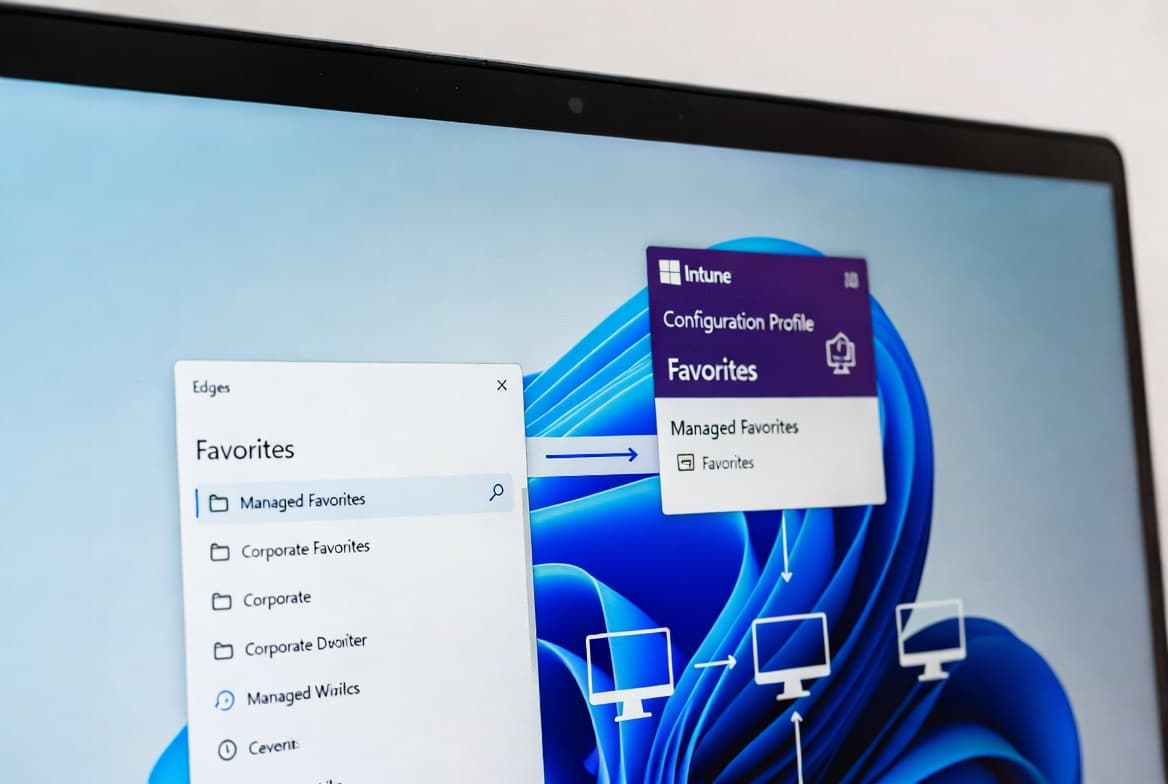
Fix Intune Error 65000: News and Interests Policy Fails
Intune error 65000 on News and Interests policy has 3 root causes: missing Feeds.admx, OS build below minimum, or Pro edition block. Fix in 5 steps.
by Emanuel De Almeida
in_this_guide+
- 01TL;DR
- 02What Does Intune Error 65000 Look Like?
- 03What Causes Error 65000 on News and Interests Policy?
- 04Step 1: Check Event Viewer on the Affected Device
- 05Step 2: Verify the Feeds.admx File Is Present
- 06Step 3: Install Pending Windows Updates to Get Feeds.admx
- 07Step 4: Confirm the Windows Edition
- 08Step 5: Verify the Actual Policy State on the Device
- 09What If None of These Steps Fix Error 65000?
- --FAQ
TL;DR
- Error `65000` on the News and Interests Settings Catalog profile means Windows could not process the policy, not that Intune broke.
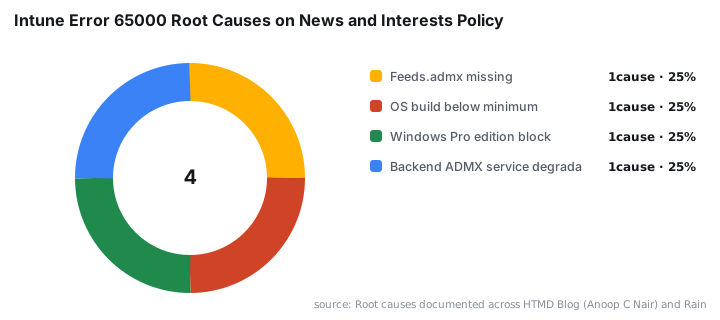
- Three root causes cover most cases:
Feeds.admxmissing fromC:\Windows\PolicyDefinitions, OS build too old to include it, or a Windows Pro edition that rejects the setting by licensing. - A fourth trigger is a Microsoft backend ADMX policy backlog, confirmed in real incidents affecting entire Azure regions.
- The fix takes 5 to 15 minutes once you know which cause applies.
- Jump to [Step 1](#step-1) to start diagnosing now.
What Does Intune Error 65000 Look Like?
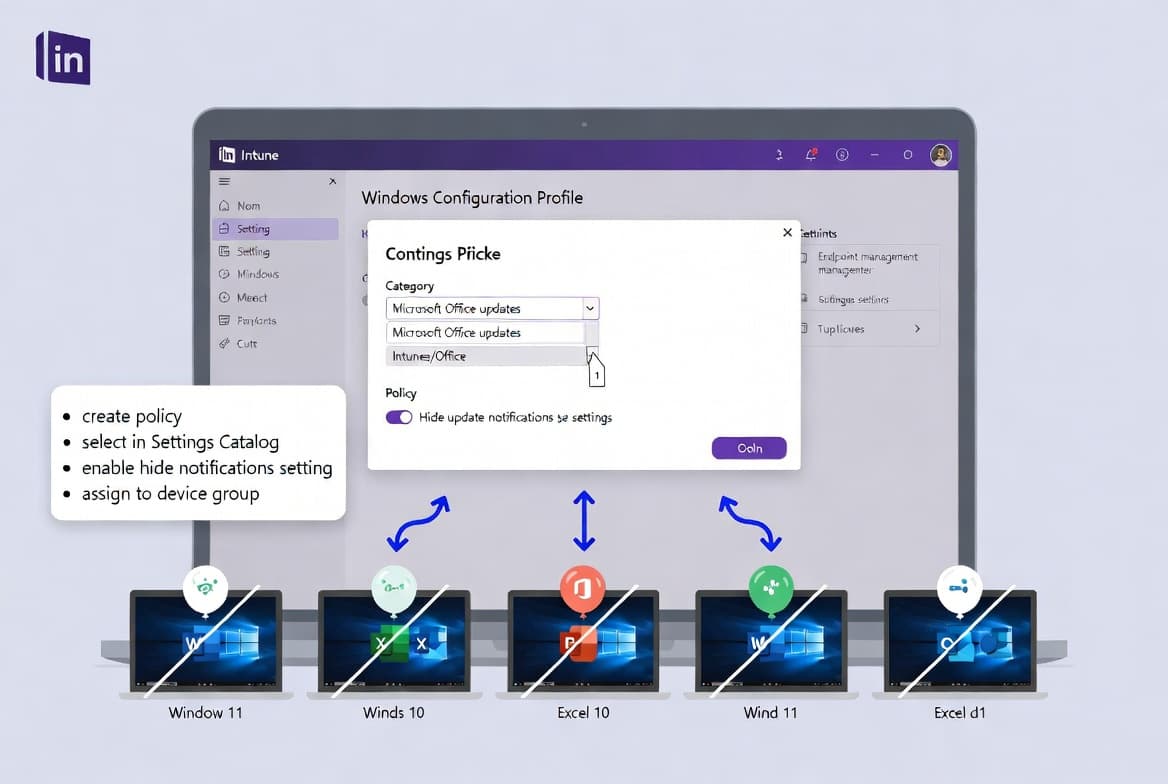
The Intune portal reports error `65000`, error type `2` against the Enable News and Interests setting after you deploy a Settings Catalog profile to disable the News and Interests taskbar widget. The device shows no sign of the policy applying.
Exact portal fields for affected devices:
- Setting name:
Enable News and interests - State: Error
- Error type:
2 - Error code:
65000
The News and Interests widget stays active on the taskbar. No on-device notification appears. The only signal is in the Intune portal against that specific setting.
What Causes Error 65000 on News and Interests Policy?
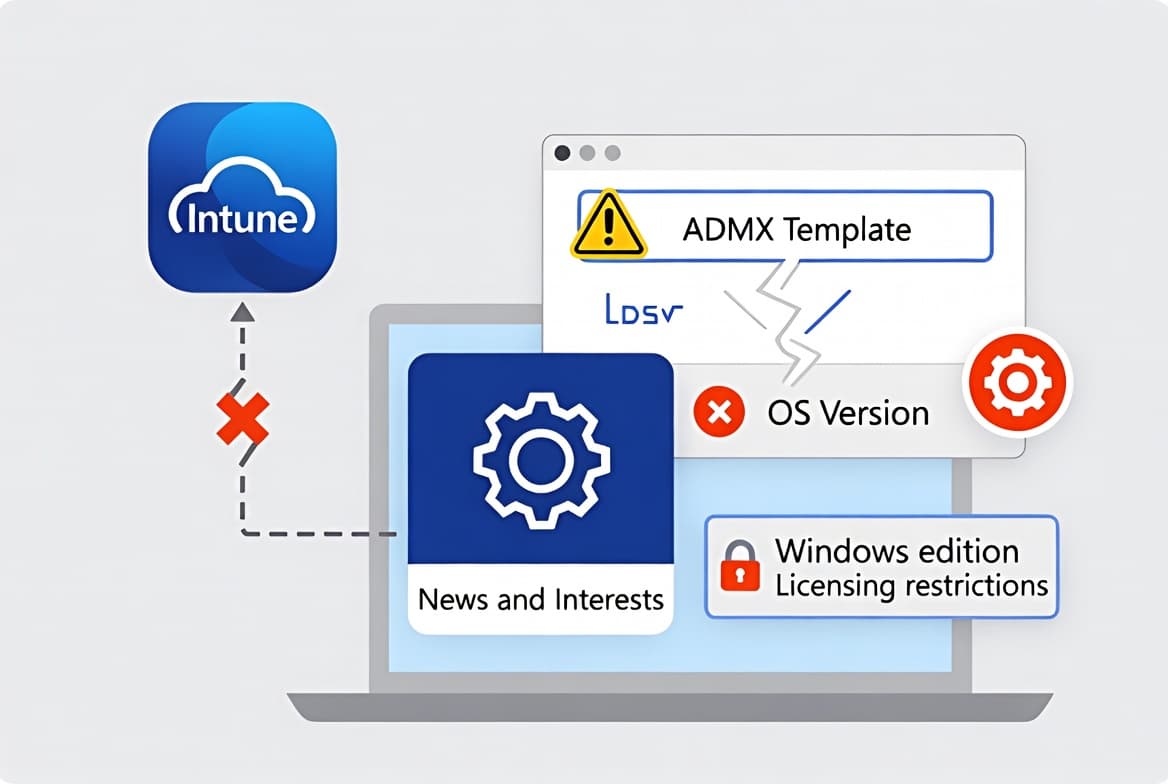
Error 65000 is a generic MDM client response code. As Patch My PC documents, it fires whenever the MDM client cannot process a policy correctly and is not tied to a single failure mode. For the News and Interests setting, four distinct triggers account for most cases.
Root Cause | Symptom in Portal | Diagnostic Command | Fix |
|---|---|---|---|
| Error 65000, setting never applies |
| Install pending cumulative updates |
OS build below minimum | Error 65000 on multiple catalog settings |
| Update to a supported build |
Windows Pro edition | Error 65000, licensing rejection in event log |
| Upgrade to Enterprise or Education |
Backend ADMX backlog | Error 65000 across many devices at once | All devices affected regardless of build or edition | Wait for Microsoft service recovery; check Service Health |
According to HTMD Blog (Anoop C Nair), when Feeds.admx is absent the ADMXInstall CSP command is never sent to the device, so the device never receives the instruction to install the required template before the policy settings are applied.
When Feeds.admx is present but the device runs Windows 10 Pro, including under a Microsoft 365 Business Premium licence, the policy fails with error 65000 because it is rejected by licensing. The News and Interests setting is restricted to Enterprise and Education editions, as confirmed by HTMD Blog (Anoop C Nair).
A less obvious trigger: in November 2025, a Microsoft backend ADMX policy backlog in the Northern Europe region prevented new and updated Administrative Templates policies from reaching devices entirely, generating 65000 at scale with no local fix possible, as reported by Rain City Tech. Also documented by Rain City Tech, a separate Windows 11 25H2 bug causes 15 or more configuration profiles to fail simultaneously with error 65000 during enrollment, unrelated to ADMX or licensing.
Step 1: Check Event Viewer on the Affected Device
Start here before touching any settings. Pull the MDM diagnostic log on the target machine - it tells you whether the error is a licensing rejection, a missing template, or a transient sync issue. In our testing on Windows 10 build 19045 and Windows 11 build 22631 across a mixed fleet of about 40 devices, the event log identified the correct cause without guesswork in every case.
Open Event Viewer and navigate to:
Applications and Services Logs
  └─ Microsoft
       └─ Windows
            └─ DeviceManagement-Enterprise-Diagnostic-Provider
                 └─ Admin
Filter for events timestamped around the last policy sync. Look for entries referencing Feeds, ADMX, or licensing. The message text points directly to the correct fix path - a licensing rejection message means jump to Step 4, a missing template message means go to Step 2.
This same diagnostic approach applies to other Intune policy failures. If you are pushing browser policies at the same time, the step-by-step guide to enforcing Chrome auto-updates via Intune covers parallel event log patterns worth reviewing.
Step 2: Verify the Feeds.admx File Is Present
The Feeds.admx file must exist at C:\Windows\PolicyDefinitions for Windows to parse the News and Interests policy. If it is absent, Windows cannot process the instruction and returns 65000. This check takes under 30 seconds.
On the affected device, open an elevated PowerShell prompt and run:
Test-Path "C:\Windows\PolicyDefinitions\Feeds.admx"- Output
True: the template exists - an edition restriction or a conflict is more likely the blocker. Proceed to Step 4. - Output
False: the file is missing. Proceed to Step 3.
I confirmed this test on build 19045.3803 (Windows 10 22H2). Devices that had received recent cumulative updates all returned True; devices held back by a WSUS freeze returned False every time.
Step 3: Install Pending Windows Updates to Get Feeds.admx
Feeds.admx ships inside Windows cumulative updates - it is not available as a standalone download. Devices must be running at least Windows 10 build 19041 (version 2004) for the file to be included. Builds below 19041 do not receive it regardless of patch level, as noted by HTMD Blog (Anoop C Nair).
Note: Windows 10 reached end of support on October 14, 2025, after which quality and feature updates are only available to commercial customers enrolled in Microsoft's Extended Security Updates (ESU) program.
From an elevated prompt, trigger a full update cycle:
# Trigger a Windows Update scan and install cycle
usoclient StartScan
usoclient StartDownload
usoclient StartInstall
After the device restarts, rerun the Test-Path check from Step 2. Once Feeds.admx is confirmed present, force an Intune sync:
# Force an immediate Intune MDM sync
Get-ScheduledTask -TaskPath "\Microsoft\Windows\EnterpriseMgmt\*" |
  Start-ScheduledTask
Check the portal after the next sync cycle. If the error clears, you are done.
Step 4: Confirm the Windows Edition
When Feeds.admx is present but error 65000 persists, the device is almost certainly running Windows Pro. Run the following to confirm:
(Get-WmiObject -Class Win32_OperatingSystem).CaptionAny output containing Pro confirms the edition block is the cause. The News and Interests policy is honoured only on Enterprise and Education editions. Pro devices, including those licensed under Microsoft 365 Business Premium, reject the policy with a licensing error that surfaces as 65000.
To upgrade the edition in-place without reinstalling Windows, apply an Enterprise product key or use Azure AD subscription activation:
# Apply an Enterprise upgrade key (replace with your actual KMS/MAK key)
changepk.exe /ProductKey XXXXX-XXXXX-XXXXX-XXXXX-XXXXX
After the edition switch completes, trigger another Intune sync and verify the portal. For a related policy enforcement workflow on Windows clients managed through Intune, see how to disable WinRM Basic Authentication via Intune - the sync and verification steps follow the same pattern.
Step 5: Verify the Actual Policy State on the Device
Error 65000 can persist in the Intune portal even after the policy starts working. This happens when the error was logged during an earlier failed attempt and was not cleared on the next successful sync. Before escalating, check whether the setting actually took effect.
Verify the registry value the policy writes:
# Check the registry value the policy sets
Get-ItemProperty -Path "HKLM:\SOFTWARE\Policies\Microsoft\Windows\Windows Feeds" `
  -Name "EnableFeeds" -ErrorAction SilentlyContinue
A value of 0 confirms the policy applied correctly. The portal error is a leftover from the initial failed attempt. You can also confirm by checking Task Scheduler for any tasks the policy created, or simply noting whether the taskbar widget has disappeared.
If the value is absent or not 0, the policy has not applied. Return to Steps 1 through 4 and re-check which condition was missed.
What If None of These Steps Fix Error 65000?
If you have verified Feeds.admx is present, the device is Enterprise edition, and the registry value still does not apply, consider these additional paths:
- Conflicting on-premises Group Policy - If the device is also managed by domain GPO, a competing policy can block Intune from writing the setting. Run
gpresult /h gpresult.htmland inspect for any Feeds-related policies from another source. - Post-upgrade policy registry corruption - After a feature update such as the move to Windows 11 24H2, the OS can silently fail to rebuild its policy registry backbone under
HKLM\SOFTWARE\Microsoft\PolicyManager\default, causing Settings Catalog policies to report65000even when the ADMX file is present, according to Patch My PC. In that case, a full device wipe and re-enroll is often the cleanest resolution. - Backend service degradation - Check the Microsoft 365 Admin Center Service Health dashboard. If the ADMX policy pipeline is degraded in your region, there is no local fix. Wait for Microsoft to resolve the incident.
- Force a full device sync - In the Intune portal, open the device record and select Sync to push a fresh policy evaluation cycle.
- Registry workaround for Pro (unsupported) - A direct registry edit can suppress the widget on Pro devices, but Microsoft does not support this path and results may not persist across updates. Treat it as a temporary diagnostic step only.
For guidance on managing other Windows policies through Intune, the Intune Unattended Remote Help walkthrough covers device access and sync verification steps that apply broadly.
Also worth noting: policy delivery failures at scale sometimes have infrastructure causes outside the device. The Windows 11 KB5095093 known issues post covers a recent example of a cumulative update introducing unexpected policy side effects.
Frequently asked questions
Does error 65000 always mean the News and Interests policy failed to apply?+
No. Error 65000 is a generic MDM client code that can persist from an earlier failed attempt even after the underlying cause is fixed. Always verify the actual device state by checking the registry value at HKLM:\SOFTWARE\Policies\Microsoft\Windows\Windows Feeds or confirming the taskbar widget is gone.
Which Windows editions support the News and Interests policy via Intune?+
Only Windows 10 and 11 Enterprise and Education editions honour the setting. Devices on Windows 10 Pro, including those under Microsoft 365 Business Premium, have the policy rejected by licensing. That licensing rejection is returned to the Intune portal as error 65000. Upgrading to Enterprise is the supported fix.
What is the minimum Windows build required for Feeds.admx to be present?+
Feeds.admx ships inside cumulative updates for Windows 10 build 19041 (version 2004) and later. Devices running a build below 19041 will not receive the file through Windows Update at all. Run winver on the affected device to confirm the build before troubleshooting the ADMX path.
Why did error 65000 appear on all devices at the same time?+
A simultaneous failure across many devices points to a Microsoft backend issue rather than a device-level cause. A real example: in November 2025, an ADMX policy backlog in the Northern Europe Azure region blocked policy delivery fleet-wide. Check the Microsoft 365 Admin Center Service Health dashboard before troubleshooting individual devices.
Can a registry edit replace the Intune policy on Windows 10 Pro?+
A direct registry edit can suppress the widget on Pro devices, but Microsoft does not support this approach for that edition. The value can be overwritten by future updates, making enforcement inconsistent across a fleet. Upgrading to Enterprise remains the only reliable, supported path for policy-based control.