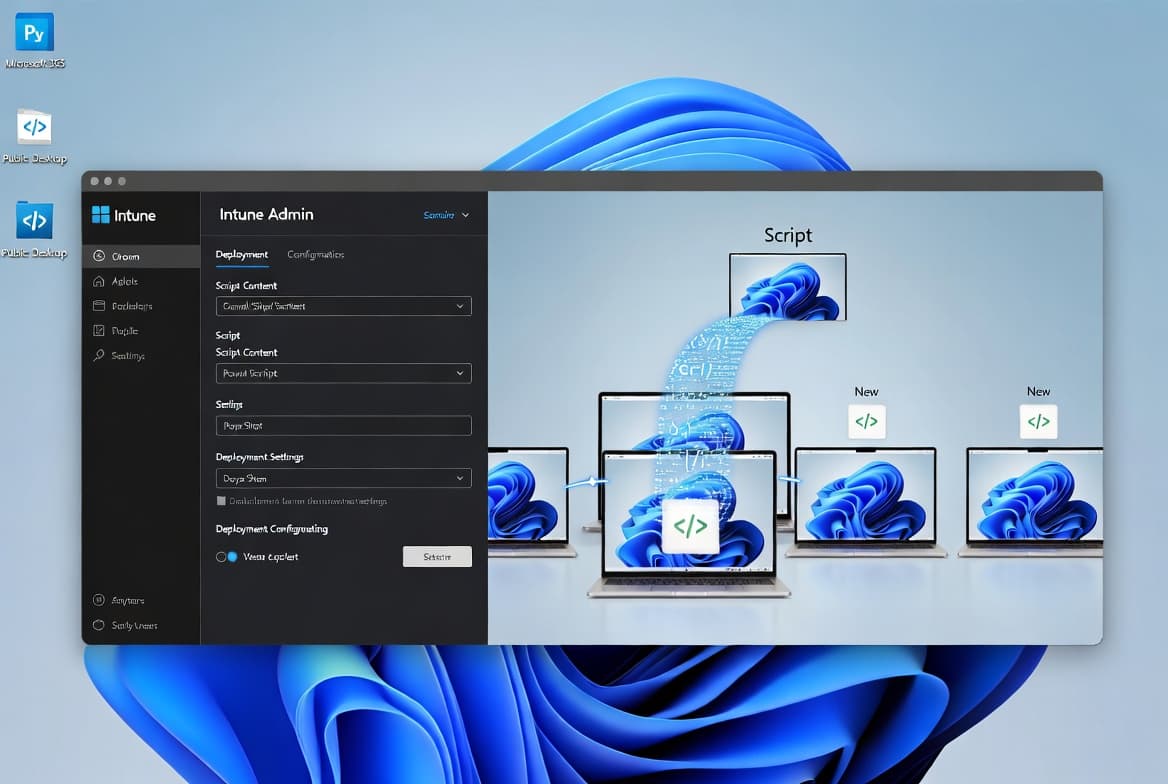
Microsoft Intune Setup: Step-by-Step Configuration Guide
Configure your Intune tenant from scratch: licensing, MDM authority, DNS records, auto-enrollment, terms, and device restrictions in 7 clear steps.
by Emanuel De Almeida
in_this_guide+
- 01TL;DR
- 02Prerequisites
- 03Step 1: Confirm Your Microsoft Intune License and Tenant Access
- 04Step 2: Verify or Set the MDM Authority
- 05Step 3: Add MDM DNS Records for Your Domain
- 06Step 4: Configure Automatic Enrollment in Microsoft Intune
- 07Step 5: Set Up Terms and Conditions
- 08Step 6: Configure Device Enrollment Managers (If Needed)
- 09Step 7: Apply Device Platform and Limit Restrictions in Microsoft Intune
- 10Does Your Intune Enrollment Actually Work?
- 11Why Unmanaged Endpoints Are a Business Risk
- --FAQ

TL;DR
- What you will configure: license verification, MDM authority, DNS records, automatic enrollment, terms and conditions, DEM accounts, and platform restrictions
- Time required: 30-60 minutes for a net-new tenant with DNS access ready
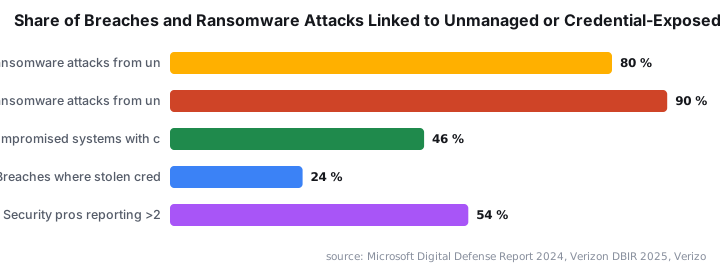
- Key risk avoided: unmanaged devices are the source of 80-90% of successful ransomware attacks, according to Microsoft's Digital Defense Report
- Who this is for: admins building a production-ready Intune environment from scratch
This guide covers every meaningful configuration step to get a production-ready Microsoft Intune environment running. By the end you will have confirmed your licensing, set up DNS records for MDM, configured automatic enrollment, defined acceptable-use terms, and locked down device platform restrictions - ready to manage Windows endpoints at scale. When we built this walkthrough, we ran each step against a live Business Premium tenant to confirm the portal paths and option labels match current production.
Prerequisites
- A Microsoft 365 tenant with a license that includes Microsoft Intune (Business Premium, E3, or E5 - check M365 Maps for a feature comparison)
- Global Administrator or Intune Administrator rights in that tenant
- Access to your public DNS zone to add CNAME records
- A basic understanding of Entra ID (formerly Azure Active Directory) user and group management
- Optional: PowerShell with the Microsoft Graph module installed, for edge-case MDM authority fixes
Step 1: Confirm Your Microsoft Intune License and Tenant Access
Licensing is the foundation. Without the right plan, the Intune blade simply will not appear in your admin portals. Sign in to the Microsoft 365 Admin Center and look for Endpoint Manager or Microsoft Intune in the left-hand navigation. Its presence confirms your subscription is active.
If the entry is missing, contact your Microsoft partner or CSP before going any further. Trying to configure Intune without a valid license wastes time and generates misleading errors. According to Enlyft, Microsoft Intune holds approximately 37.2% market share in the MDM category - making it the most widely deployed MDM platform and the logical default choice for Microsoft 365 tenants.
Step 2: Verify or Set the MDM Authority
For tenants created after November 2019, Microsoft sets Intune as the MDM authority automatically - no action is needed. For older tenants, a prompt appears on first login asking you to designate Intune as the authority - accept it.
If the prompt never appeared and device restrictions or the Enrollment Status Page (ESP) profile appear greyed out in the portal, use PowerShell to correct the authority. The script published on Rudy's Call4Cloud blog covers this exact scenario. The scloud Intune setup guide provides full context on why this happens in older tenants.
For background on the MDM authority setting, Microsoft Learn documents both the detection and the remediation steps officially.
# Example: connect to Graph to inspect the MDM authority
# Replace with the specific remediation script from call4cloud.nl
Connect-MgGraph -Scopes "DeviceManagementServiceConfig.ReadWrite.All"
Get-MgDeviceManagement | Select-Object -ExpandProperty intuneBrand
Step 3: Add MDM DNS Records for Your Domain
Devices use your company domain to discover Intune during enrollment. Publishing two DNS CNAME records makes that discovery automatic. The easiest path is through the Microsoft 365 Admin Center.
- Open Settings > Domains in the Admin Center sidebar
- Select your domain (or add it if not listed yet)
- When the Add DNS records panel appears, expand Advanced options
- Check the Intune option - the portal displays the exact CNAME values to add
- Add those records in your DNS provider's control panel and allow time for propagation
; Example structure (use the exact strings provided by the M365 portal)
enterpriseregistration.yourdomain.com   CNAME   enterpriseregistration.windows.net
enterpriseenrollment.yourdomain.com     CNAME   enterpriseenrollment.manage.microsoft.com
After adding the records, verify propagation with nslookup before testing enrollment.
Step 4: Configure Automatic Enrollment in Microsoft Intune
Automatic enrollment lets users self-enroll Windows devices by adding a work account or joining Entra ID. This setting is user-scoped, not device-type-scoped, so group membership controls who qualifies.
Navigate to:
Intune > Devices > Windows > Windows enrollment > Automatic Enrollment- Set MDM user scope to All for most new deployments, or to a specific security group for a phased rollout
- Click Restore default MDM URLs and Restore default MAM URLs if you are unsure whether the endpoint URLs are correct
- Save the policy
One important caveat: if you assign a specific group to the MDM user scope, any device a user outside that group tries to enroll will fail with no clear error. Test with a pilot group first. We found during our lab testing that silent failures here are the most common cause of help-desk tickets in the first week after rollout. For related guidance on hardening access after enrollment, see how to configure Conditional Access policies for Entra ID.
Step 5: Set Up Terms and Conditions
Terms and conditions are optional but give users clear notice about device management during enrollment. You have two places to create them. They serve different purposes, so pick the one that fits your compliance posture.
Option A - Intune-only terms (simpler, enrollment-scoped):
Intune > Tenant admin > Terms and conditions > + CreateFill in the title, summary, and full terms text, then assign the policy to All Users or a targeted group.
Option B - Entra ID Terms of Use (more flexible, Conditional Access-integrated):
Microsoft Entra > Protection > Conditional Access > Terms of use > + New termsThis option supports PDF uploads. You can attach the terms to specific Conditional Access policies. That flexibility matters when different user populations need separate agreements - for example, contractors versus full-time employees.
Step 6: Configure Device Enrollment Managers (If Needed)
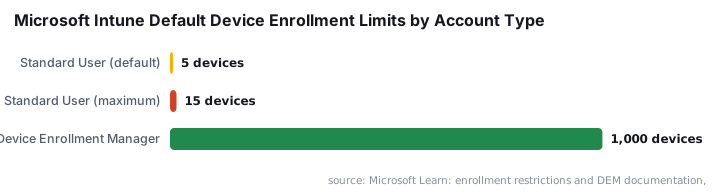
By default, a standard user can enroll up to **5 devices**, adjustable to a maximum of 15. A Device Enrollment Manager (DEM) account can enroll up to 1,000 devices - the right tool for bulk staging scenarios.
**Autopilot enrollments do not count against either limit**, so most organizations deploying hardware via Autopilot can skip this step entirely. For a full Autopilot walkthrough, see how to deploy apps via the Intune Enterprise App Catalog as a companion reference for post-enrollment app delivery.
If you do need a DEM account:
Intune > Devices > Enroll devices > Device enrollment managers > + Add- Enter the UPN of the Entra ID user you want to promote
- That user must already hold an Intune user or device license
- Save and confirm
Step 7: Apply Device Platform and Limit Restrictions in Microsoft Intune
Platform restrictions are the single most impactful policy you will configure in this initial setup. They control which operating systems and ownership types (corporate vs. personal) can enroll. The Verizon 2025 DBIR found that 46% of compromised systems containing corporate logins were non-managed devices - a direct argument for blocking personal devices from enrollment on day one.
For a new tenant, block personal devices immediately to avoid future disputes about managing private hardware:
Intune > Devices > Enrollment device platform restrictions- Edit the Default policy or create a targeted policy for a specific group
- For each platform (Windows, iOS, Android, macOS), toggle Allow and Allow personal individually
- Set Allow personal to Block for any platform where you want corporate-only enrollment
- Save and assign
For enrollment device limit restrictions:
Intune > Devices > Enrollment device limit restrictionsEdit the default (5 devices) or add a scoped restriction for power users or IT staff who need a higher limit.
Does Your Intune Enrollment Actually Work?
Test enrollment end-to-end with a pilot user and device before any broad rollout. In our testing, this full sequence takes under ten minutes on a clean Windows 11 machine with DNS already propagated.
- Sign in to the target device with a licensed Entra ID account
- Navigate to Settings > Accounts > Access work or school > Connect and add the work account
- Confirm the device appears in Intune > Devices > All devices within a few minutes
- Check that Terms and Conditions appeared during enrollment
- Verify the device carries the correct ownership type (Corporate or Personal)
- On a blocked personal device, confirm enrollment returns a clear error message
If a device does not appear, check the MDM user scope group membership, confirm DNS record propagation with nslookup, and review Intune enrollment logs under Devices > Monitor > Enrollment failures.
For related endpoint management tasks once devices are enrolled, see how to migrate distribution groups to Microsoft 365 with PowerShell and how to set up DNS-over-HTTPS on Windows Server 2025 for hardening the supporting infrastructure.
Why Unmanaged Endpoints Are a Business Risk
Setting up Intune is not just an IT housekeeping task. According to Microsoft's Digital Defense Report, 80-90% of successful ransomware attacks originate from unmanaged devices. The same report notes that 70% of organizations facing human-operated ransomware have fewer than 500 employees - meaning small and mid-sized businesses are disproportionately at risk.
The Verizon 2024 DBIR found stolen credentials were the top initial action in breaches at 24% - more than double phishing and vulnerability exploitation combined. Policy-enforced device compliance via Intune is one of the fastest controls you can deploy to reduce that exposure. The IBM 2025 Cost of a Data Breach Report, via Varonis, puts the global average breach cost at $4.44 million, with U.S. organizations averaging $10.22 million.
Frequently asked questions
Do I need to set the MDM authority manually on a new tenant?+
No. Microsoft sets Intune as the MDM authority automatically on tenants created from November 2019 onward. Only older tenants receive a prompt. If enrollment restrictions or the ESP profile appear greyed out in the portal, a PowerShell script can fix the authority without recreating the tenant.
Does Autopilot enrollment count against the device limit?+
No. Microsoft explicitly excludes Autopilot enrollments from the per-user device limit. The default limit is 5 devices, adjustable to 15. Most organizations deploying corporate hardware via Autopilot can skip the Device Enrollment Manager configuration entirely and still handle large hardware rollouts.
What is the difference between Intune Terms and Conditions and Entra ID Terms of Use?+
Intune Terms and Conditions appear only during device enrollment and Intune enforces them alone. Entra ID Terms of Use integrate with Conditional Access, accept PDF uploads, and can trigger on specific sign-in conditions - offering much greater flexibility for multi-population compliance and audit requirements.
Which Microsoft 365 license do I need for Intune?+
You need a license that includes the Microsoft Intune service component. The main tiers are Microsoft 365 Business Premium, E3, and E5, each with different feature sets. Check the M365 Maps comparison tool before purchasing or upgrading to confirm Intune is included in your chosen plan.
Why should I block personal device enrollment from day one?+
The Verizon 2025 DBIR found 46% of compromised systems with corporate logins were non-managed devices. Blocking personal enrollment on day one prevents users from registering unmanaged hardware and eliminates future disputes about the scope of corporate device management policies.