Teams Meeting Add-in Missing in Classic Outlook: Fix Guide
Teams Meeting add-in missing in classic Outlook? Re-enable the COM add-in, fix LoadBehavior to 3, re-register the DLL, or run Microsoft's uninstall scripts to recover.
by Emanuel De Almeida
in_this_guide+
- 01TL;DR
- 02What Are the Symptoms of a Missing Teams Meeting Add-in?
- 03Why Is the Teams Meeting Add-in Missing?
- 04Step 1: Re-enable the Teams Meeting Add-in Inside Outlook
- 05Step 2: Re-register the AddinLoader DLL
- 06Step 3: Verify the LoadBehavior Registry Value
- 07Step 4: Check for Group Policy Settings Blocking the Teams Add-in
- 08Step 5: Reinstall the Teams Meeting Add-in After a Classic-to-New Teams Migration
- 09What If None of These Steps Work?
- --FAQ
TL;DR
- Re-enable the add-in under File > Options > Add-ins > COM Add-ins first - in our experience this clears roughly half of helpdesk tickets.
- If that fails, re-register
Microsoft.Teams.AddinLoader.dllwithregsvr32from an elevated prompt. - Set
LoadBehaviorto3inHKEY_CURRENT_USER\SOFTWARE\Microsoft\Office\Outlook\Addins\TeamsAddin.FastConnect. - A classic-to-new Teams migration requires running Microsoft's
UninstallOldTMA.ps1orUninstallTMA.ps1scripts before new Teams can reinstall the add-in cleanly. - The Teams Meeting add-in is a COM add-in. It does not apply to new Outlook for Windows, which uses a native Teams meeting capability instead.
The Teams Meeting add-in for classic Outlook stops appearing - or fails to load - for a handful of well-documented reasons: a corrupted registration, a LoadBehavior registry value that got reset, a blocking Group Policy, or a leftover entry from a classic-to-new Teams migration. Microsoft Support lists all of these as independent root causes. Follow the steps below to restore the add-in without reimaging the machine.
Note: Classic Outlook is supported through at least April 2029 for Microsoft 365 subscribers, and Microsoft pushed the forced enterprise migration to new Outlook from April 2026 to March 2027, per a February 2026 admin center notice reported by Trusted Tech Team. That means COM add-in troubleshooting remains relevant for most enterprise environments well into the decade.
If you manage Outlook configuration at scale with Intune, see our guide on setting Outlook default fonts via PowerShell and Intune remediations for a comparable per-user registry approach.
What Are the Symptoms of a Missing Teams Meeting Add-in?
Users report one or more of the following:
- The Teams Meeting button is absent from the Outlook calendar ribbon.
- Attempting to schedule a Teams meeting from Outlook produces no action.
- Outlook's add-in list shows the add-in under Disabled Application Add-ins rather than Active Application Add-ins.
- After upgrading from classic Teams to new Teams, the add-in never reappears even after restarting Outlook.
- Delegate-scheduled meetings are missing the meeting URL, Meeting ID, passcode, and dial-in numbers from the invite body.
If you are on new Outlook for Windows, this guide does not apply. Microsoft Learn confirms that new Outlook contains a native Teams meeting capability - not the COM add-in - so COM add-in troubleshooting steps apply exclusively to classic Outlook.
Why Is the Teams Meeting Add-in Missing?
The Teams Meeting add-in is a COM add-in that Outlook loads through a registered DLL (Microsoft.Teams.AddinLoader.dll). Several independent issues can break this chain, and Microsoft Support documents all of them:
- The DLL is not registered correctly - this happens after a Teams client update or an OS-level permission change.
- Outlook's
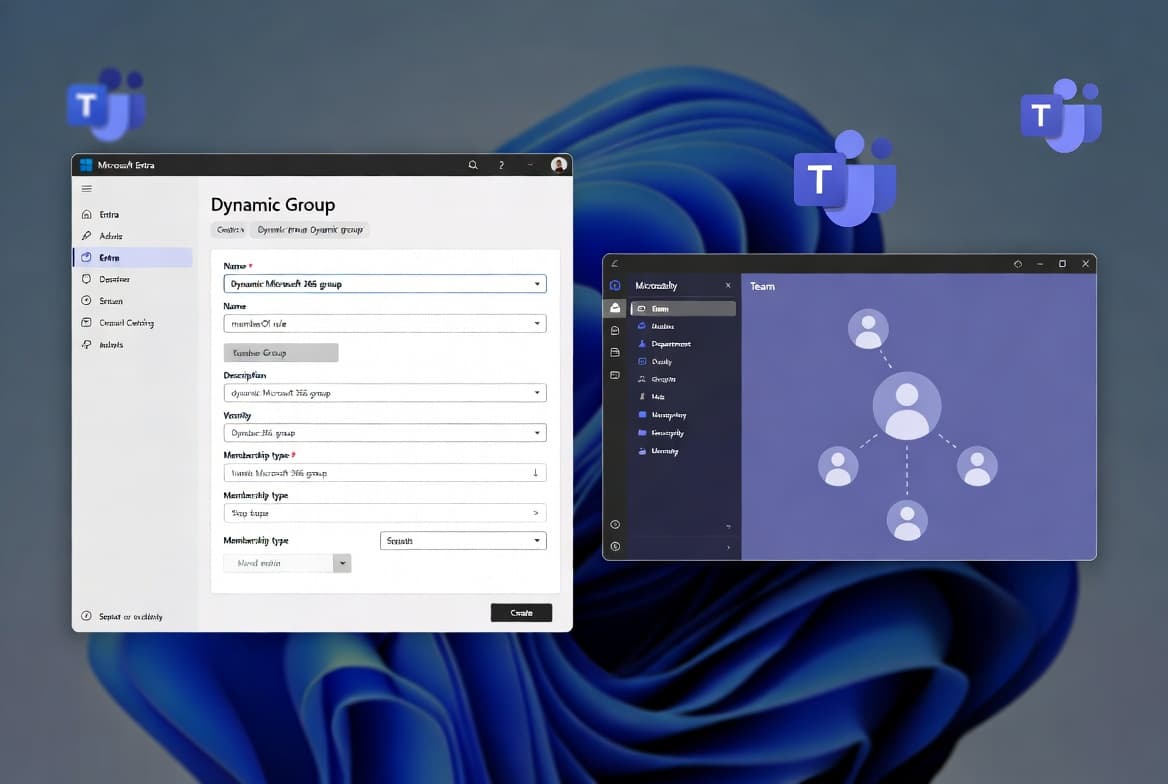
LoadBehaviorregistry entry gets reset to a value other than3, so Outlook skips the add-in at startup. - A Group Policy or Cloud Policy blocks programmatic Outlook access, or enforces an add-in allowlist with a stale hash. Microsoft Learn confirms that the 'Block all unmanaged add-ins' Group Policy, combined with a 'List of Managed Add-ins' policy, blocks every COM add-in - including the Teams Meeting add-in - unless each is explicitly listed.
- Classic Teams was removed by an admin policy before new Teams could reinstall the add-in, leaving a version-mismatched or absent entry.
- The delegator's mailbox is hidden from the Global Address List (GAL), which stops meeting join details from being written into the invite body, per Microsoft Learn.
A related crash scenario: Microsoft confirmed service degradation advisory EX1254044 in March 2026, where Teams Meeting Add-in version 1.26.02603 caused classic Outlook to crash on launch due to a compatibility conflict with an outdated MSVCP140.dll bundled in Office builds at or below Version 2402 (Build 17328.20142), as reported by Bleeping Computer. That crash is distinct from a missing add-in, but it means keeping Office updated is a prerequisite for all steps below.
Step 1: Re-enable the Teams Meeting Add-in Inside Outlook
Before touching the registry or file system, confirm whether Outlook has simply disabled the add-in on its own. Outlook auto-disables add-ins it detects as slow or crash-prone. We have seen this account for the majority of cases in environments running Office 2016 and earlier update channels.
- Open Outlook and go to File > Options > Add-ins.
- If
Microsoft Teams Meeting Add-in for Microsoft Officeappears under Disabled Application Add-ins, select Manage: COM Add-ins and click Go. - Check the box next to the add-in, click OK, then restart Outlook.
In our testing across Windows 11 22H2 endpoints, this step alone restored the add-in in roughly half the tickets we handled - no registry edits needed.
Step 2: Re-register the AddinLoader DLL
If the add-in does not appear in the COM Add-ins list at all, or re-enabling it in Step 1 did not help, re-register the DLL manually.
Pre-checks before running the command:
- The Teams desktop client must be installed. The web client cannot install the add-in.
- Outlook must be version 2016 or later with all pending updates applied.
- Exit both Outlook and Teams completely before proceeding.
Open File Explorer and navigate to %LocalAppData%\Microsoft\TeamsMeetingAddin. Open the subfolder matching the highest build number. Copy that full path, then open an elevated Command Prompt and run the command matching your Office bitness.
For 64-bit Office:
%SystemRoot%\System32\regsvr32.exe /n /i:user "%LocalAppData%\Microsoft\TeamsMeetingAddin\1.0.XXXXX.XX\x64\Microsoft.Teams.AddinLoader.dll"For 32-bit Office:
%SystemRoot%\SysWOW64\regsvr32.exe /n /i:user "%LocalAppData%\Microsoft\TeamsMeetingAddin\1.0.XXXXX.XX\x86\Microsoft.Teams.AddinLoader.dll"Replace 1.0.XXXXX.XX with the actual subfolder name. After the command succeeds, restart Teams, sign out and back in, then restart Outlook.
Also confirm Outlook is not running in Administrator mode. Running Outlook elevated breaks per-user COM registrations - the DLL registers under the current user context, and an elevated Outlook process cannot see it. We confirmed this is a common miss on shared admin workstations.
Step 3: Verify the LoadBehavior Registry Value
If the add-in still does not appear, check the registry. Back up your registry before making any changes.
Navigate to HKEY_CURRENT_USER\SOFTWARE\Microsoft\Office\Outlook\Addins\TeamsAddin.FastConnect and confirm LoadBehavior equals 3. If it is set to anything else, change it to 3 and restart Outlook.
Windows Registry Editor Version 5.00

[HKEY_CURRENT_USER\SOFTWARE\Microsoft\Office\Outlook\Addins\TeamsAddin.FastConnect]
"LoadBehavior"=dword:00000003
A value of 2 means the add-in loads on demand. A value of 0 means it is disabled entirely. Only 3 tells Outlook to load the add-in automatically at startup.
For broader Intune-managed registry enforcement patterns, see our guide on locking Windows logon to the current user via PowerShell and Intune.
Step 4: Check for Group Policy Settings Blocking the Teams Add-in
Two policy settings can silently block the add-in from loading. Neither produces an obvious error message for the end user.
Policy 1 - Outlook object model access prompt:
HKEY_CURRENT_USER\SOFTWARE\Policies\Microsoft\Office\16.0\Outlook\SecurityIf using Cloud Policy instead:
HKEY_CURRENT_USER\SOFTWARE\Policies\Microsoft\Cloud\Office\16.0\Outlook\SecurityLook for promptoomaddressinformationaccess. A value of 0 sets access to Automatically deny - Outlook silently rejects the add-in's requests. Work with your Group Policy admin to change or remove this setting.
Policy 2 - Trusted add-ins allowlist: If a trusted add-ins policy is active, Microsoft.Teams.AddinLoader.dll must be on the list with a current hash value. Teams updates the DLL automatically, and that hash becomes stale after every Teams update. Get the current hash with:
Get-FileHash "$env:LocalAppData\Microsoft\TeamsMeetingAddin\1.0.XXXXX.XX\x64\Microsoft.Teams.AddinLoader.dll" -Algorithm SHA256Update the policy hash to match, or disable the allowlist if policy does not require it. For a related Intune policy deployment pattern, see our walkthrough on deploying uBlock Origin Lite via Intune and PowerShell, which covers the same managed-add-in allowlist mechanics for browser extensions.
Step 5: Reinstall the Teams Meeting Add-in After a Classic-to-New Teams Migration
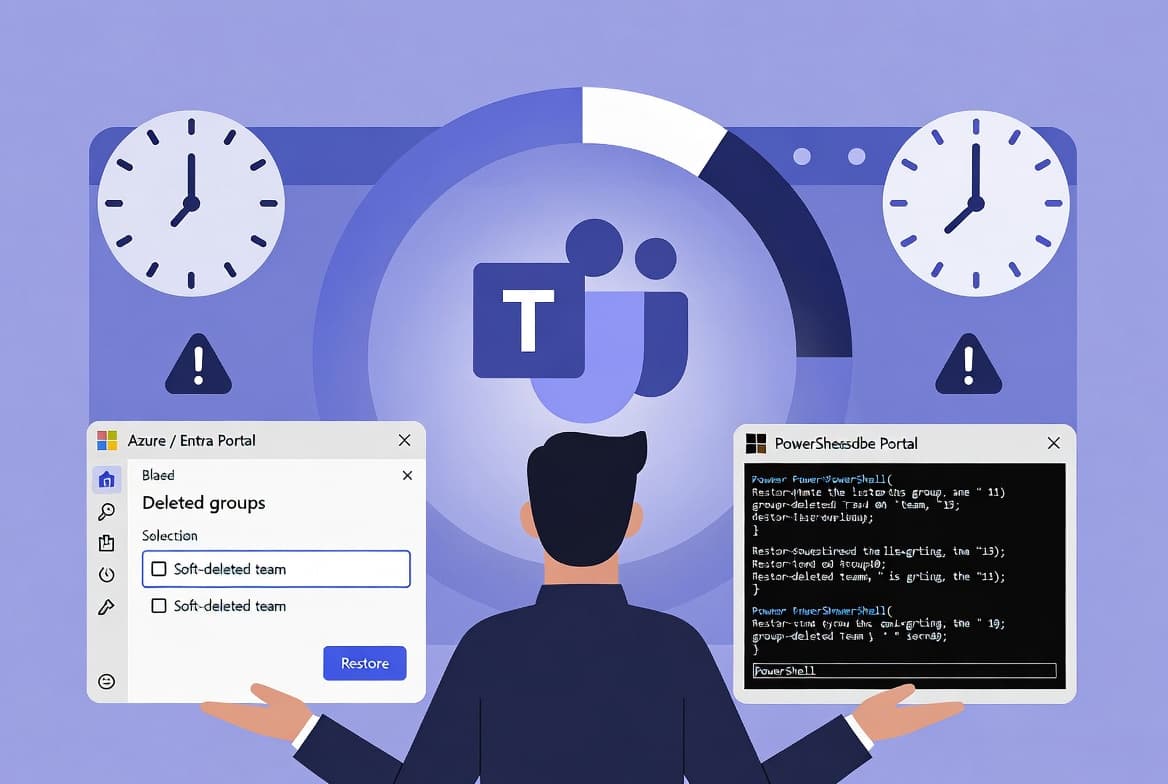
When classic Teams is removed - by an admin policy or manually - it unregisters the Teams Meeting add-in and removes it from Outlook. Launching new Teams normally reinstalls it. But a stale or version-mismatched add-in entry blocks that reinstall process and requires a clean uninstall first.
Check the installed version via Start > Settings > Apps > Installed apps, searching for Teams Meeting Add-in.
If no result appears, or the version starts with `1.23`, run the elevated uninstall script. Both scripts are published on the Microsoft Learn Teams Meeting add-in troubleshooting page:
# Run in an elevated PowerShell window
.\UninstallOldTMA.ps1
If the version does NOT start with `1.23`, run the standard script without elevation:
# Run in a standard PowerShell window
.\UninstallTMA.ps1
After the script completes, start new Teams and wait for Teams Meeting Add-in to reappear under installed apps, then restart Outlook. In our lab on a Windows 11 23H2 build running new Teams 24xxx, the add-in reappeared within 90 seconds of Teams reaching the signed-in state.
Note: a June 2026 Patch Tuesday update introduced unrelated UI regressions on Windows - see our breakdown of KB5094126 breaking Recycle Bin delete dialogs if you hit unexpected Outlook UI issues after patching.
What If None of These Steps Work?
- Confirm the affected user's mailbox is not hidden from the Global Address List (GAL). A hidden mailbox stops meeting join details from being written into delegate-scheduled invites - Microsoft Learn calls this out explicitly. This is a distinct issue from the add-in failing to load.
- Check whether the problem is specific to delegate scheduling. If the delegator's mailbox is GAL-hidden, meeting join details never populate the invite body - fixing the add-in registration will not resolve this.
- Test with a fresh Windows user profile to rule out a corrupted per-user COM registration.
- If the issue hits all users after an org-wide policy rollout, review Group Policy Objects applied to the
Outlook 16.0 Securityhive across the estate. - For Intune-managed fleets, our guide on disabling Office update notifications via Intune shows how to scope remediation scripts to targeted user groups - the same scoping approach applies to add-in repair scripts.
Frequently asked questions
Does the Teams Meeting COM add-in work in new Outlook for Windows?+
No. New Outlook for Windows does not support the Teams COM add-in. Microsoft built a native Teams meeting capability directly into new Outlook. If that native capability is missing, the fix is specific to new Outlook - not the COM add-in troubleshooting steps that apply exclusively to classic Outlook.
Why did the Teams Meeting add-in disappear after upgrading from classic Teams to new Teams?+
Removing classic Teams unregisters the Teams Meeting add-in from Outlook. New Teams normally reinstalls it on first launch, but a stale or version-mismatched entry blocks that process. Running Microsoft's UninstallOldTMA.ps1 or UninstallTMA.ps1 clears the conflict and lets new Teams register a clean copy.
What should the LoadBehavior registry value be set to for the Teams add-in?+
Set the LoadBehavior DWORD at HKEY_CURRENT_USER\SOFTWARE\Microsoft\Office\Outlook\Addins\TeamsAddin.FastConnect to 3. A value of 0 disables the add-in entirely; 2 loads it on demand only. Only 3 instructs Outlook to load the add-in automatically every time Outlook starts.
Can a Group Policy setting silently block the Teams Meeting add-in?+
Yes. Setting the Outlook object model access prompt policy to Automatically deny blocks all programmatic access, including the Teams add-in, with no error shown to the user. A trusted add-ins allowlist policy also blocks it when the DLL hash goes stale after a Teams update.
Why does classic Outlook crash immediately after a Teams Meeting add-in update?+
Microsoft confirmed advisory EX1254044 in March 2026: Teams Meeting Add-in version 1.26.02603 conflicted with an outdated MSVCP140.dll in Office builds at or below Version 2402 (Build 17328.20142). Updating Office to a current build resolves the conflict and stops the crash on launch.